
How to Install Stats on Mac: A Clear Step-by-Step Guide for 2026
Get clear, step-by-step instructions to install Stats on Mac including Statsmodels, SPSS, MATLAB toolbox, and simple apps for 2026.
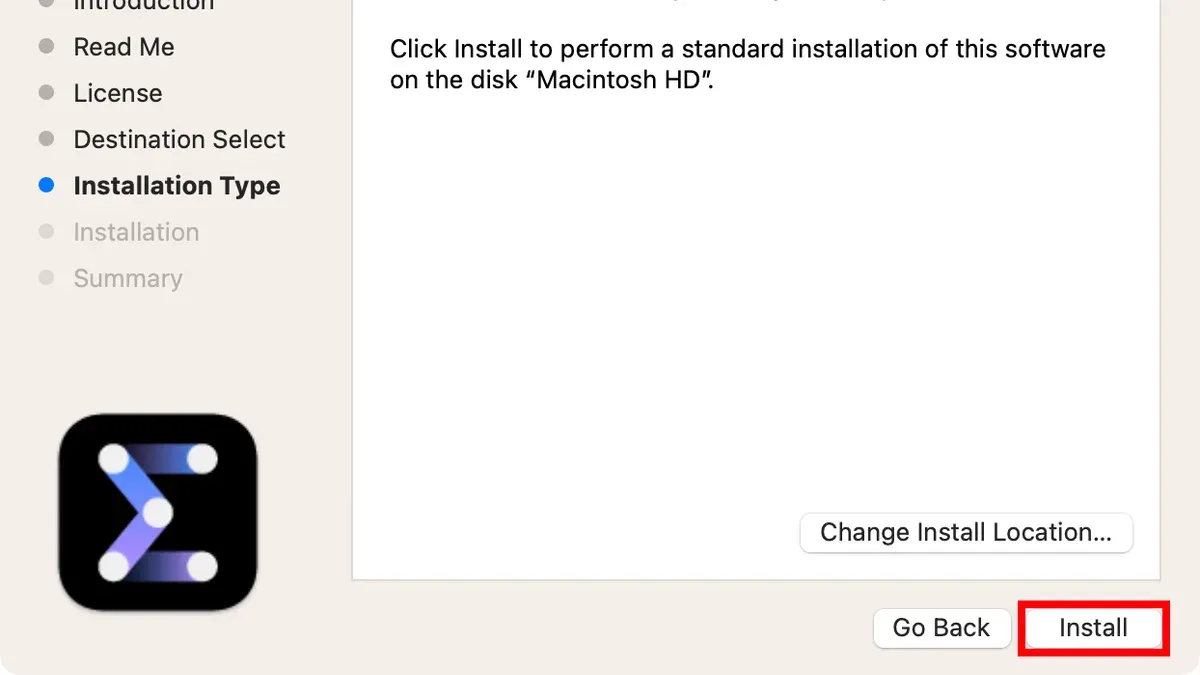
If you want to install Stats on Mac in 2026, the process depends on which Stats tool you need. For Python users, Statsmodels installs easily with pip or conda but requires Xcode Command Line Tools. Professional software like IBM SPSS Statistics demands a license and macOS Ventura or later. MATLAB’s Statistics and Machine Learning Toolbox installs via MATLAB’s Add-On Explorer. This guide walks you through each installation method, including lightweight stats apps and network stats commands.
Every limit and setting name below comes from statsmodels.org, as of November 2026.
Checklist for installing Stats on Mac
- Confirm macOS Ventura (13) or later is installed
- Verify administrator privileges on your Mac
- Identify which Stats software you want (Statsmodels, SPSS, MATLAB toolbox, or a stats app)
- If using Statsmodels, ensure Python 3.10 to 3.15 is installed
- Install Xcode Command Line Tools for compiling Statsmodels
- Download or access licenses for commercial software like SPSS or MATLAB
- Use Terminal or respective app stores for installation
Preparing your Mac for Stats software
Most Stats tools require macOS Ventura (version 13) or newer. To check, select About This Mac from the Apple menu. Administrator access is essential to install software and approve permissions.
For Statsmodels, Python 3.10 through 3.15 (including free-threaded builds 3.14t and 3.15t) is compatible. macOS Ventura includes Python 3, but updating to the latest supported version via Homebrew or python.org is recommended. Installing Xcode Command Line Tools by running xcode-select --install in Terminal is mandatory to provide the C compiler needed for building Statsmodels.
Installing Statsmodels with pip or Anaconda
Statsmodels is a Python package for statistical modeling. You can install it in two main ways:
| If you prefer | Then use | Installation command |
|---|---|---|
| a full data science environment | Anaconda distribution | conda install -c conda-forge statsmodels |
| a minimal Python setup | pip package installer | python -m pip install statsmodels |
Before installing, confirm Python and pip versions by running python3 --version and pip3 --version in Terminal. Create a virtual environment for project isolation if desired:
python3 -m venv stats-envsource stats-env/bin/activate
Then install Statsmodels using the chosen method. After installation, verify by running Python and executing a simple regression test:
- import statsmodels.api as sm
- import numpy as np
- x = np.arange(10)
- y = 2 * x + 1 + np.random.normal(size=10)
- x = sm.add_constant(x)
- model = sm.OLS(y, x).fit()
- print(model.summary())
If the summary displays without errors, the installation succeeded. Exit Python with exit() and deactivate the virtual environment with deactivate if used.
Note: Skipping installation of Xcode Command Line Tools on macOS causes Statsmodels installation to fail because the required C compiler is missing.
Installing IBM SPSS Statistics 2026 on Mac
SPSS Statistics is commercial software requiring a purchased license and macOS Ventura or later. The system should have at least 8 GB RAM and a 2.0 GHz or better processor.
- Buy or download SPSS Statistics 2026 from IBM’s official site or authorized resellers.
- Download the Mac .dmg installer from your IBM account.
- Open the .dmg file and launch the SPSS Statistics Installer.
- Follow prompts to select language and accept license terms.
- Enter your IBM license key when requested to activate the software.
- Complete installation and verify by launching SPSS from Applications. The splash screen should show version 2026.
License activation issues often stem from incorrect license files or date/time mismatches on your Mac. Use IBM’s License Authorization Wizard to resolve these.
Adding Statistics and Machine Learning Toolbox in MATLAB on Mac
Ensure MATLAB is installed and licensed before adding this toolbox. It extends MATLAB with statistical and machine learning functions.
- Open MATLAB and go to the Home tab.
- Click Add-Ons > Get Add-Ons to open the Add-On Explorer.
- Search for “Statistics and Machine Learning Toolbox” and select it.
- Click Install and follow prompts to complete the download and setup.
- Verify installation by typing
verin the Command Window; the toolbox should appear. - Test with commands like
fitlm([1 2 3 4]', [2 3 5 7]')to confirm functionality.
If the toolbox does not appear, restart MATLAB. Confirm your license covers this toolbox via Help > Licensing > Manage Licenses.
Installing lightweight stats apps from the Mac App Store
Several simple stats apps are available for quick analysis and visualization. Popular choices include:
| App | Features | Cost | Mac App Store Rating |
|---|---|---|---|
| StatMaster | Descriptive stats, regression, CSV export | Free with in-app purchases | 4.5/5 |
| QuickStats | Real-time analysis, graphs, cloud sync | $9.99 one-time | 4.2/5 |
| DataViz Lite | Basic stats, interactive charts, CSV import | Free | 4.0/5 |
- Open the Mac App Store and search for your chosen stats app.
- Review app details and confirm it fits your needs.
- Click Get or the price button and authorize installation with your Apple ID or Touch ID.
- Launch the app from Applications or Launchpad.
- Complete any initial setup or permissions requested by the app.
- Import data and run analyses using app-specific tools and menus.
Only install from trusted sources to avoid security risks. Ensure apps are notarized by Apple.
Using netstat on Mac for network statistics
The built-in netstat command provides network interface and connection information. Access it via Terminal:
- Open Terminal from Applications > Utilities.
- Run
netstat -ito list network interfaces with packet statistics. - Use
netstat -anto view all active connections and listening ports. - Run
netstat -sfor detailed protocol statistics (TCP, UDP, IP). - Check output for errors or abnormal connection states that might indicate network issues.
netstat does not provide real-time updates or advanced filtering. For more detailed monitoring, consider tools like lsof, tcpdump, or graphical network utilities.
Common installation problems and how to fix them
Permission errors: Occur if you lack administrator rights or macOS blocks the installer. Run installers with admin privileges and allow blocked apps in System Settings > Privacy & Security.
Missing C compiler for Statsmodels: Installing without Xcode Command Line Tools causes failure. Install them via xcode-select --install before proceeding.
Python environment conflicts: Use virtual environments to avoid clashes. Check your PATH and Python version if modules fail to import.
License activation failures: For SPSS or MATLAB, verify license files and system date/time. Use official license managers to reactivate.
Download interruptions: Check your internet connection and firewall settings. Try wired connections or different networks if downloads stall.
Checking system statistics on Mac and PC
To monitor hardware usage distinct from statistical software data:
On Mac:
- Open Activity Monitor (Applications > Utilities).
- View CPU, Memory, and Network tabs for real-time resource usage.
On Windows PC:
- Press Ctrl + Shift + Esc to open Task Manager.
- Use the Performance tab to check CPU, memory, disk, and network stats.
- For detailed system info, run
msinfo32from the Run dialog (Win + R).
Game stats in Minecraft can be accessed via the in-game Statistics screen using the Esc key on Mac.
- How to Install Fortnite via GeForce Now on Mac: A Clear Step-by-Step Guide
- How to Install Ice Menu Bar on Mac: A Clear Step-by-Step Guide
- How to Change the Default Folder View in Finder on macOS
Frequently asked questions
Why does my Mac have statsng_statskitcore?
This process or folder is part of system or app analytics frameworks that collect performance data. It is generally safe, but if it causes high resource use, scan for malware.
How to open PC stats?
Use Task Manager (Ctrl + Shift + Esc) on Windows to see system performance. Third-party tools like HWMonitor provide more detailed hardware stats.
How to install stats model?
On Mac, install the Python package statsmodels by opening Terminal and running python -m pip install statsmodels. Ensure Python 3.10 to 3.15 and Xcode Command Line Tools are installed first.
Documentation used
- Installing — statsmodels 0.15.1 (+1227) — statsmodels.org



