
How to Install Transmission on Mac: A Clear Step-by-Step Guide
This guide shows you how to install Transmission on Mac safely and step-by-step to manage torrent downloads and avoid common pitfalls.
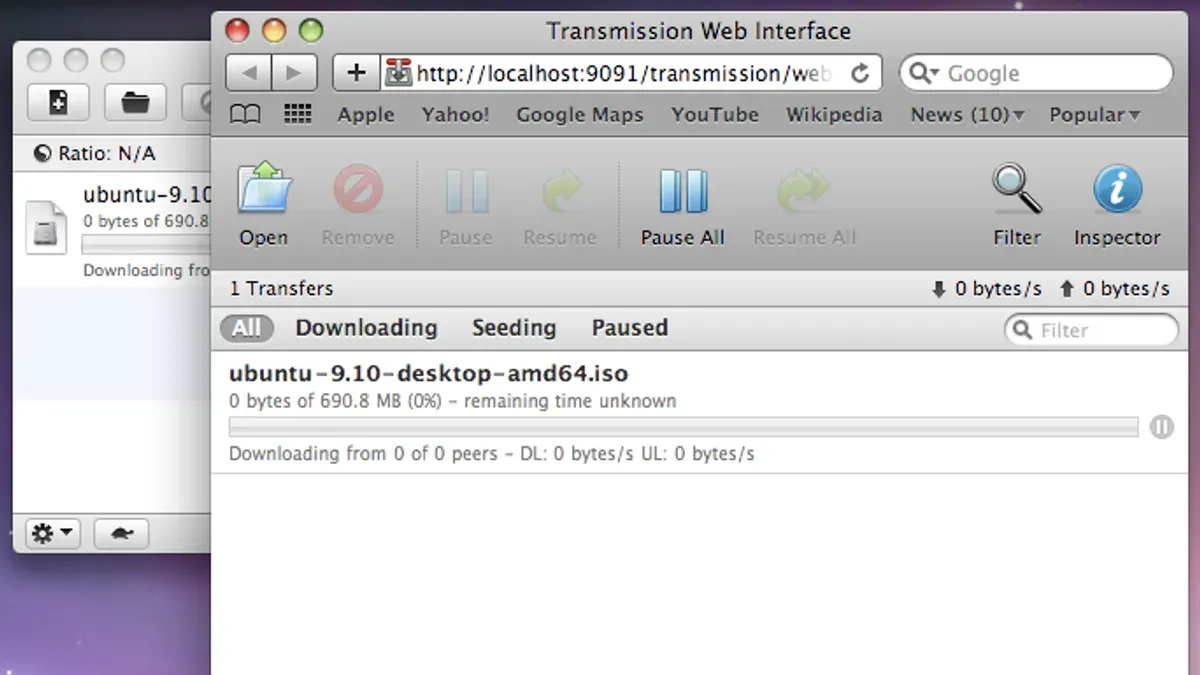
If you are trying to learn how to install Transmission on Mac, the right method depends on your Mac version and whether you prefer a direct download or a package manager. If your Mac runs macOS 12 or later, you can install it three ways: a direct download, Homebrew, or MacPorts.
Transmission is a free, open-source BitTorrent client for macOS 12 or later, and its Mac app is small enough to download quickly at 11.5 MB. The latest macOS release listed for it is version 4.1.4, and older macOS versions are not supported.
Checked in November 2026 against MacUpdate, pkg.so, MacPorts; limits like these change, so the date matters.
Which installation method fits your Mac
| Method | Best for | What you do |
|---|---|---|
| Direct download | You want the simplest setup and do not use package managers | Download Transmission and drag the app into Applications |
| Homebrew | You already use Homebrew or want a command-line install | Run brew install --cask transmission in Terminal |
| MacPorts | You already use MacPorts and manage software there | Install MacPorts, then run sudo port install transmission |
If your Mac is running earlier than macOS 12, stop here and upgrade first. Transmission does not support earlier versions, and forcing the install can lead to compatibility problems.
Direct download and app install
This is the right path if you want a straightforward install without extra tools. It keeps the process close to the app itself, with no package manager to set up first.
- Open your browser and download Transmission from the app’s site.
- Wait for the disk image file to finish downloading.
- Open the downloaded.dmg file.
- In the window that appears, drag the Transmission app into the Applications folder.
- Close the disk image window and eject the mounted image.
- Open Transmission from Applications.
That drag-and-drop step is the standard macOS app install pattern, and it is the cleanest option when you just want the app installed. The app file is 11.5 MB, so the download itself is quick, but the real requirement is that your Mac must already be on macOS 12 or later.
If macOS blocks the app on first launch, trust the app only if you downloaded it yourself and expected the prompt. Transmission is signed as a legitimate app, but your Mac can still ask for confirmation before opening software you have just added.
Install with Homebrew
Use this method if you already manage software with Homebrew. It is the best fit when you prefer Terminal and want to keep your apps under package-manager control.
- Open Terminal.
- Run
brew install --cask transmission. - Wait for Homebrew to fetch and install the app.
- Open Transmission from Applications or Spotlight.
Homebrew is a package manager for macOS that simplifies software installation, so this method is usually faster than a manual download if you already have it set up. It is also a good choice if you like repeating the same install pattern across multiple Macs.
If Homebrew is not installed already, this method is no longer the shortest path. In that case, use the direct download method instead unless you specifically want to add Homebrew first for other software too.
Install with MacPorts
Use MacPorts if that is your package management system of choice. This is a better fit for users who already rely on MacPorts for command-line software maintenance.
- Install MacPorts if it is not already on your Mac.
- Open Terminal.
- Run
sudo port install transmission. - Enter your administrator password when prompted.
- Open Transmission after the installation completes.
MacPorts is another package management system for macOS, and it works well if your software setup already lives there. Like the Homebrew method, it is only practical if you already use that tool or want to adopt it for more than one package.
What can block the install
Three limits matter most here. First, Transmission does not run on macOS versions earlier than 12. Second, the app must be installed on a Mac, not a Windows machine or an older unsupported system. Third, if you install from a package manager, you must already have that package manager ready to use.
Compatibility is the main failure point. If your Mac is too old, the app may not launch at all, and even if you manage to copy it over, the client is not built to run properly on that system.
Another common snag is choosing the wrong method for your setup. If you do not use Homebrew or MacPorts, the command-line paths add extra work without giving you a better result. A direct download is simpler in that case.
How to check the install worked
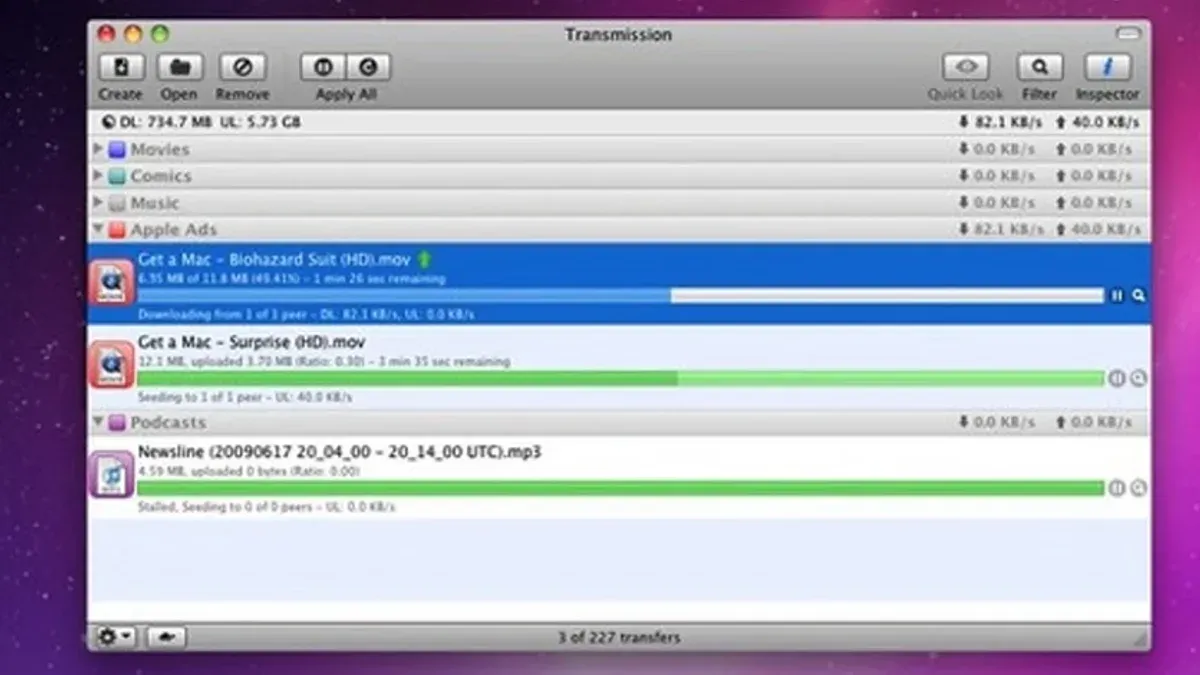
Once Transmission opens, you should see its main window rather than a blocked-app warning or a crash. That is the first sign that the install succeeded.
- Open Transmission from Applications.
- Check that the main window appears.
- Open the app menu and choose About Transmission.
- Confirm that the app reports its version and opens normally.
If the app launches, you are done. If it does not, the problem is usually one of three things: the Mac version is too old, the install was incomplete, or the app was blocked when you first tried to open it.
What to do next inside Transmission
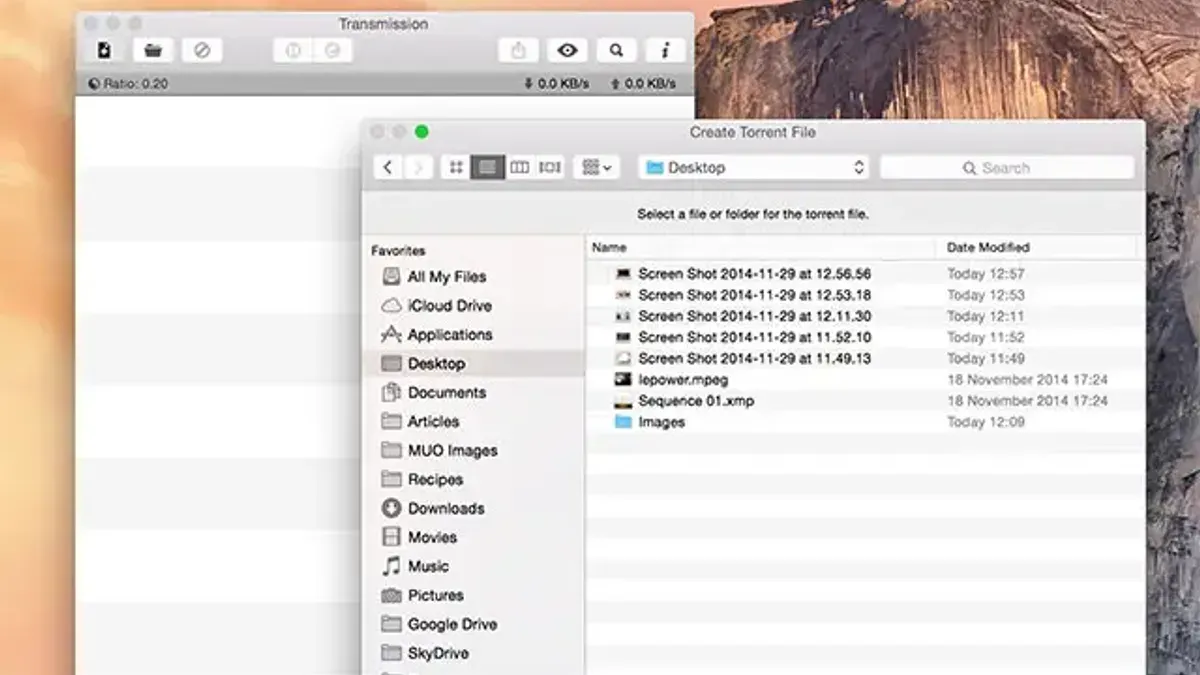
After the install is confirmed, Transmission is ready for torrent files and magnet links. You can open a.torrent file through the File menu or add a magnet link from the same general area of the app.
From there, set your download location in Preferences so files land where you expect them. If you want to manage traffic better, adjust the peer and network settings in Preferences rather than leaving everything at default.
Those settings matter because Transmission is designed for downloading through BitTorrent swarms, not for generic file transfer between Macs. If your goal is moving files from one Mac to another, a different tool is the better match.
Common pitfalls to avoid
- Trying to use Transmission on macOS earlier than 12.
- Choosing the package-manager route without having Homebrew or MacPorts set up first.
- Confusing Transmission with a Mac-to-Mac file transfer tool.
- Expecting it to handle car transmission repairs or other mechanical work.
- Skipping the app launch check after installation and assuming the install succeeded.
These mistakes cause avoidable confusion. The app is straightforward once you match the installation method to your Mac and keep the use case focused on BitTorrent downloads.
- How to Install Google Drive for Desktop on Mac: A Step-by-Step Guide
- How to Install and Use Mendeley on Mac: A Step-by-Step Guide
- How to Open and Install.pkg Files on Mac: A Clear Step-by-Step Guide
- How to Install Ice Menu Bar on Mac: A Clear Step-by-Step Guide
Frequently asked questions
How to install transmission on macos?
If your Mac runs macOS 12 or later, install Transmission either by downloading the app and dragging it into Applications, or by using a package manager. The direct download is the simplest route if you do not already use Homebrew or MacPorts.
How to download transmission for mac?
Download the macOS app package, then open the disk image and move Transmission into Applications. The app is small, but the key requirement is that your Mac must be on a supported system.
How to install transmission?
On a supported Mac, you can install Transmission by direct download, Homebrew, or MacPorts. Choose the method that matches how you already manage software on your Mac.
How to use transmission mac?
Open the app, add a torrent file or magnet link, choose a download location in Preferences, and monitor the transfer in the main window. Transmission is built for BitTorrent downloads, not for moving files directly between Macs.
How to transfer from mac to mac?
Use Migration Assistant for full system moves or AirDrop for small, quick file transfers. Transmission is not the right tool for direct Mac-to-Mac transfer.
How to transfer to new mac?
Use Migration Assistant when you want to move accounts, apps, and files to a new Mac. If you only need a few files, AirDrop is usually faster and simpler.
How to install Transmission on Mac
Documentation consulted for this Mac installation
- Transmission for Mac — MacUpdate
- Install transmission with Homebrew Cask — pkg.so
- transmission — MacPorts



