
How to Open.chm Files on Mac: Clear Step-by-Step Guide
Discover simple methods to open.chm files on Mac using apps, conversion tools, and tips for smooth viewing and editing.
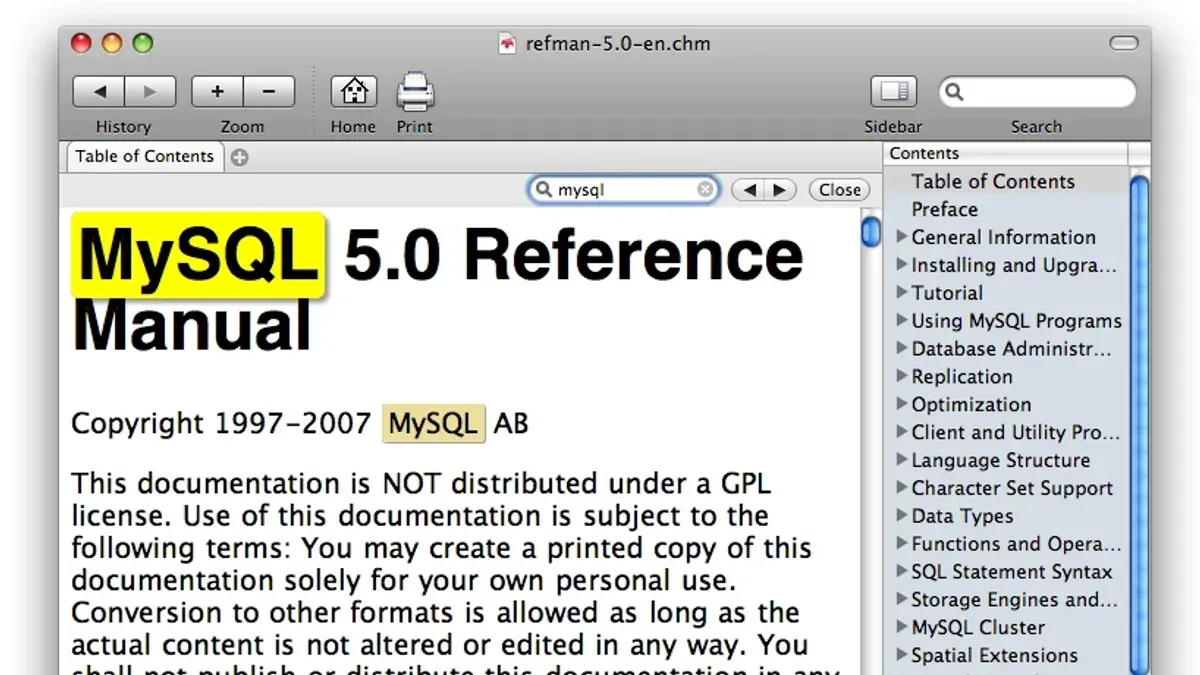
You’ve received a.chm file on your Mac but can’t open it directly, or you need to access its contents quickly without the usual Windows tools. The Microsoft Compiled HTML Help (.chm) format isn’t natively supported by macOS, which leads many Mac users to search for reliable ways to open these files.
This article explains how to open.chm file on Mac with practical, step-by-step instructions. You’ll learn about dedicated CHM reader apps tailored for macOS, effective conversion methods to more accessible formats like PDF or HTML, and how to edit or create.chm files using compatible tools. Additionally, we cover viewing options without installing software and common troubleshooting tips for compatibility issues.
Key takeaways
- Use dedicated Mac CHM readers such as iChm or CHM Reader for straightforward viewing.
- Convert.chm files to PDF or HTML using tools like Calibre or command-line utilities for easier access.
- Editing.chm files on Mac requires third-party software or converting to editable formats first.
- Viewing.chm files in a browser is possible after conversion but not directly on macOS.
- Understanding Windows CHM compatibility helps troubleshoot cross-platform access problems.
Before you start: What you need to open.chm files on Mac
.chm files, short for Microsoft Compiled HTML Help files, are a proprietary format originally designed for Windows systems. They bundle HTML content, images, and an index into a single file, mainly used for software documentation. Because macOS lacks native support for.chm files, you will need third-party software to open and view them on your Mac.
To ensure smooth handling of.chm files, your Mac should be running at least macOS 10.13 or later, with a minimum of 4GB RAM recommended, though more memory can improve performance when dealing with large files.
You have several options for software to open.chm files on Mac, including free, open source, and commercial applications. Some are simple viewers, while others offer enhanced features like search, annotations, or conversion capabilities.
Before opening any.chm file, verify its source and integrity to avoid security risks, as.chm files can contain embedded scripts or links.
| Application | Price | Key Features | macOS Compatibility |
|---|---|---|---|
| CHM Reader Free | Free | Basic viewing, search | 10.13 and up |
| iChm | Free/Open source | Tabbed interface, bookmarks, search | 10.14 and up |
| CHM Viewer Pro | Commercial (around $10) | Annotations, conversion to PDF, enhanced navigation | 10.13 and up |
How to open a.chm file on Mac using dedicated CHM reader apps
Dedicated CHM reader apps offer a straightforward way to access.chm files on your Mac. Popular free options include iChm and CHM Reader, which support recent macOS versions and provide features tailored for.chm navigation.
- Download iChm from the Mac App Store or CHM Reader from a trusted source. Once installed, launch the app to see its main interface.
- Use the File > Open menu or drag and drop your.chm file into the app window. The file should load quickly, displaying the table of contents and the first page.
- Navigate the document using the sidebar, which lists chapters and sections. Click any entry to jump directly to that content.
- Adjust reading settings such as font size or theme through the app’s preferences or toolbar to improve readability.
- Use the built-in search function to find keywords or phrases within the.chm file. Search results typically show context snippets for easy reference.
- Create bookmarks on frequently accessed pages by clicking the bookmark icon, allowing quick return during later sessions.
Pros of dedicated CHM readers include native support for the format, fast access, and features like search and bookmarks. However, some apps may have limited editing or conversion capabilities, so they serve best for viewing rather than modifying.chm files.
For optimal experience, ensure your macOS permissions allow the app to access files and adjust viewing preferences to reduce eye strain during extended reading.
How to convert.chm files to other readable formats on Mac
Converting.chm files to formats like PDF or TXT can simplify reading, editing, or sharing on your Mac. Popular tools for this task include chm2pdf, Calibre, and CHM Decoder. These options range from command line utilities to user-friendly graphical apps.
One free and accessible method uses the command line tool chm2pdf. This tool converts.chm files directly into PDF format, preserving most of the layout and images. Alternatively, Calibre supports importing.chm files and exporting them as TXT or PDF, offering a graphical interface with conversion customization.
- Download and install Calibre from its official website, then launch it.
- Click the Add books button and select your.chm file; it will appear in the library.
- Select the imported file, then click Convert books in the toolbar.
- In the conversion window, choose PDF or TXT as the output format from the top-right dropdown menu.
- Adjust conversion settings if needed, such as font size or page margins, then click OK.
- After conversion completes, right-click the book in the library and choose Save to disk to export the file.
Converted PDFs generally retain the original.chm formatting, including clickable links and images, making them suitable for printing or offline reading. TXT outputs offer easy editing but lose layout and images, which may affect readability for complex documents.
Before-and-after comparisons often show that while PDFs closely mirror the.chm source, some advanced formatting or interactive elements may be simplified. TXT files provide plain text but exclude graphics and styling, which can be a trade-off for users needing editable content.
How to create a.chm file and what tools you can use on Mac
Creating.chm files is primarily a Windows-based process because most authoring tools are designed for that platform. On Mac, direct.chm creation tools are scarce, so you often rely on workarounds such as cross-platform software or virtual machines running Windows.
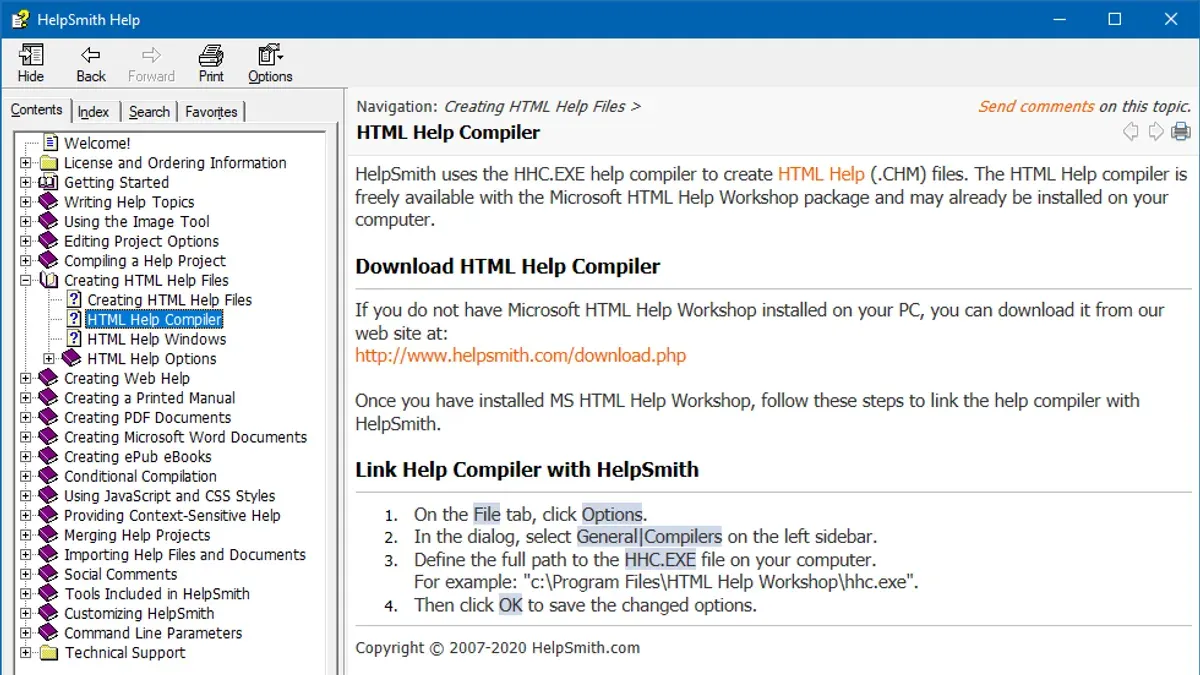
One common approach is to prepare your content in HTML and then compile it into a.chm file using a Windows tool like Microsoft's HTML Help Workshop inside a virtual machine (VM) such as Parallels Desktop or VirtualBox. Alternatively, you can use cross-platform tools like HelpNDoc or DocFX, which support generating.chm files but require Windows environments as well.
Here is an example workflow for creating a.chm file on Mac using a VM:
- Prepare your help content as a collection of HTML files and supporting resources (images, CSS). You should see a complete folder structure with an index.html as the entry point.
- Start your Windows virtual machine on your Mac and launch a CHM compiler like HTML Help Workshop.
- Create a new project inside the compiler, adding your HTML files and defining the table of contents and index.
- Compile the project to generate the.chm file. The output appears in your chosen directory.
- Transfer the.chm file back to macOS for distribution or use.
Because.chm creation on Mac is indirect and requires extra steps, many users opt for alternatives such as HTML help systems or PDFs, which are easier to produce and universally accessible on Mac.
How to edit a.chm file on Mac
Editing a.chm file directly on a Mac involves extracting its contents, modifying the files, and then recompiling the archive. Since.chm files are compiled HTML Help files, you start by unpacking them to access the HTML, CSS, and image files inside.
- Download and install an open source extraction tool like chmox or use command-line utilities such as chmlib. These allow you to extract the.chm contents into a folder on your Mac.
- Open the extracted folder and locate the HTML files you want to modify. Use any text or HTML editor like Visual Studio Code or BBEdit to make your changes. Save your edits when done.
- To recompile the edited files back into a.chm format, you typically need Windows-only tools such as Microsoft HTML Help Workshop. Run this in a Windows virtual machine or emulator on your Mac to package the files again.
- If setting up a Windows environment is not feasible, consider converting the.chm to PDF or TXT, editing those formats, and distributing them as alternatives to the original.chm.
- Once recompiled or converted, open the updated.chm or alternative file to verify that your changes appear correctly in the viewer.
This workflow allows you to modify.chm content on a Mac with some reliance on Windows tools for final compilation, or to opt for other editable formats if recompiling is impractical.
How to view.chm files on Mac without installing software
If you need to quickly access a.chm file on your Mac without installing any software, online CHM viewers and converters are convenient options. These web-based tools let you upload your file and view its contents directly in your browser.
To use an online CHM viewer safely, choose services with clear privacy policies that ensure your files are deleted after processing. Popular options include GroupDocs Viewer and Convertio, which support direct viewing or temporary conversion to PDF or HTML formats.
Here’s a typical process to view a.chm file online:
- Go to a reputable online CHM viewer website such as GroupDocs Viewer (https://products.groupdocs.app/viewer/chm).
- Upload your.chm file by clicking the upload button and selecting the file from your Mac.
- Wait for the file to process; the viewer will display the table of contents and pages within your browser.
- Navigate through the content using the on-screen controls to read the documentation.
Note that online tools often have file size limits, typically a few hundred megabytes, and may not perfectly preserve complex formatting or interactive elements. Privacy is another consideration—avoid uploading sensitive or confidential files to online services.
For large, private, or frequently accessed.chm files, offline tools remain preferable due to better performance, security, and formatting fidelity.
Addressing common issues opening.chm files on Mac
When opening.chm files on Mac, you may encounter error messages or functionality problems that hinder your experience. Understanding these issues helps you apply the right fixes efficiently.
Common error messages and their meanings
| Error Message | Explanation | Solution |
|---|---|---|
| "File is corrupted or unreadable" | The.chm file may be damaged or incomplete. | Verify the file source and re-download if possible. Use a repair tool or convert the file to a different format. |
| "Unsupported format" | The.chm file uses features not supported by your reader app. | Try updating or switching to another CHM reader that supports the latest CHM specifications. |
| "Access denied or file is password-protected" | The file is encrypted or locked. | Obtain the password or use Windows tools that support encrypted CHM files to decrypt before transferring. |
Fixing navigation and rendering issues
If table of contents or hyperlinks don’t work, or if text and images fail to display properly, try these steps:
- Close and reopen the CHM reader app to refresh the file rendering.
- Clear the app’s cache or reset preferences to fix corrupted internal data.
- Open the file in an alternative reader to check if the issue is app-specific.
- Convert the.chm to PDF or HTML using dedicated software to bypass rendering errors.
Handling password-protected or encrypted.chm files
Mac CHM readers usually do not support encrypted.chm files directly. Use Windows-based tools such as 7-Zip or CHM Decoder on a Windows system or virtual machine to extract contents after entering the password.
Issues opening.chm files on Windows before transferring to Mac
If a.chm file won’t open on Windows 11 or 10, it often indicates corruption or missing dependencies required for CHM. Try these steps:
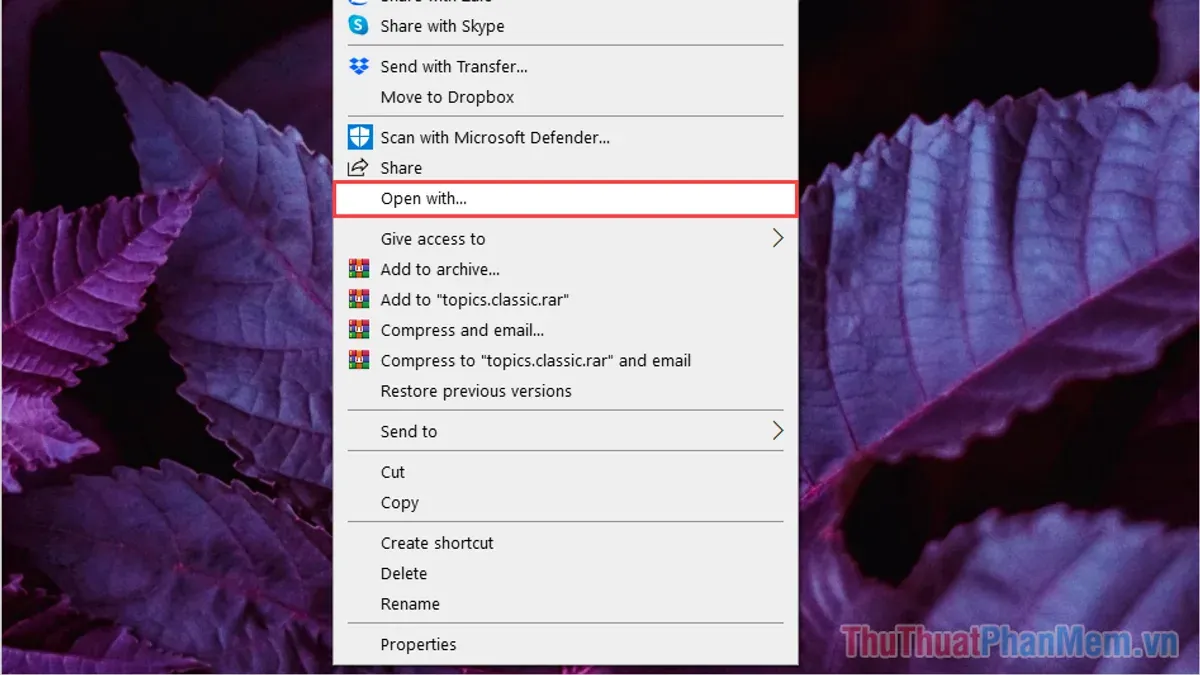
- Right-click the file, select "Properties," and click "Unblock" if the option appears to allow Windows to open the file.
- Ensure the Windows CHM viewer is enabled in Windows Features (search "Turn Windows features on or off" and check "Microsoft HTML Help Viewer").
- Use Windows tools to repair or convert the file before transferring it to Mac.
How to open.chm files on Windows 11 and 10 and why that matters for Mac users
Windows 10 and 11 include a native Microsoft CHM viewer, which offers seamless access to.chm files with built-in features such as a table of contents, full-text search, and smooth navigation between topics. This integrated viewer supports dynamic content like hyperlinks and multimedia better than most Mac third-party apps.
Common Windows issues that affect Mac compatibility include compressed or encrypted.chm files and those relying on Windows-specific scripts or fonts. When these files are transferred to Mac, their formatting or interactive elements may break, causing display problems or navigation errors.
To prepare.chm files for better Mac compatibility, Windows users should first extract the.chm contents using tools like 7-Zip or CHM Decoder. This lets you convert or edit the HTML files before sharing. Alternatively, exporting the.chm content to a PDF or HTML folder on Windows can preserve most formatting and improve cross-platform accessibility.
If you frequently receive.chm files from Windows users and encounter persistent issues, it is practical to ask them for alternative formats such as PDF or HTML. These formats are universally supported and reduce compatibility hurdles on Mac systems.
- How to Open.djvu Files on Mac: Step-by-Step Guide
- How to Open.azw3 Files on Mac: Step-by-Step Guide
- How to Open.mobi Files on Mac: Complete Step-by-Step Guide
- How to Open.epub Files on Mac: Step-by-Step Guide
Frequently asked questions
How to make a chm file?
To make a CHM file, you typically start by creating HTML files and related resources like images and scripts. Then, you compile these files into a CHM using a help compiler such as Microsoft's HTML Help Workshop on Windows. On a Mac, you would need to use virtualization or a Windows emulator to run such tools, or convert your content to CHM on a Windows machine before transferring it back to your Mac.
How to view chm files?
Viewing CHM files on a Mac requires dedicated CHM reader applications such as iChm, CHM Reader, or using open-source tools like xCHM. Alternatively, you can convert CHM files to PDF or HTML formats using conversion software to view them in standard Mac applications like Preview or a web browser.
What is chm file format?
The CHM file format is a Microsoft proprietary format designed for online help documentation. It packages HTML pages, images, and an index into a compressed and compiled file, making it convenient for software help systems but less natively accessible on non-Windows platforms.
How to create a chm file?
Creating a CHM file involves preparing your content as HTML and then compiling it with a CHM compiler. Since Mac does not natively support CHM compilers, you can use Windows tools like HTML Help Workshop through a virtual machine or Boot Camp, or create your documentation in other formats that are more Mac-friendly.
What is a microsoft chm file?
A Microsoft CHM file is a compiled HTML help file used to deliver software documentation. It consolidates multiple HTML pages with navigation controls into a single compressed file, facilitating offline access to help content primarily on Windows systems.
What this advice does not cover and who should do something else
This guide does not cover creating or editing.chm files natively on Mac in full detail because most.chm authoring tools are Windows-only. For advanced.chm authoring, recompiling, or deep editing, you will likely need access to a Windows environment running dedicated software like Microsoft HTML Help Workshop or third-party tools that require Windows.
If your workflow involves frequent creation or complex modification of.chm files, consider using a virtual machine, Boot Camp, or remote desktop to a Windows system for full compatibility. This approach ensures you have access to the complete suite of authoring and debugging features unavailable on Mac.
The most practical next step is to choose a reliable CHM reader app from the Mac App Store or open source options like iChm or Chmox. These apps offer straightforward installation and immediate access to.chm files without complicated setup or conversion. Starting here lets you quickly verify file integrity and content before deciding if conversion or editing is necessary.



