
How to Open.vhd Files on Mac: Complete Step-by-Step Guide
Discover easy methods to open.vhd files on Mac using virtualization tools, mounting options, and conversion techniques to access your data effortlessly.
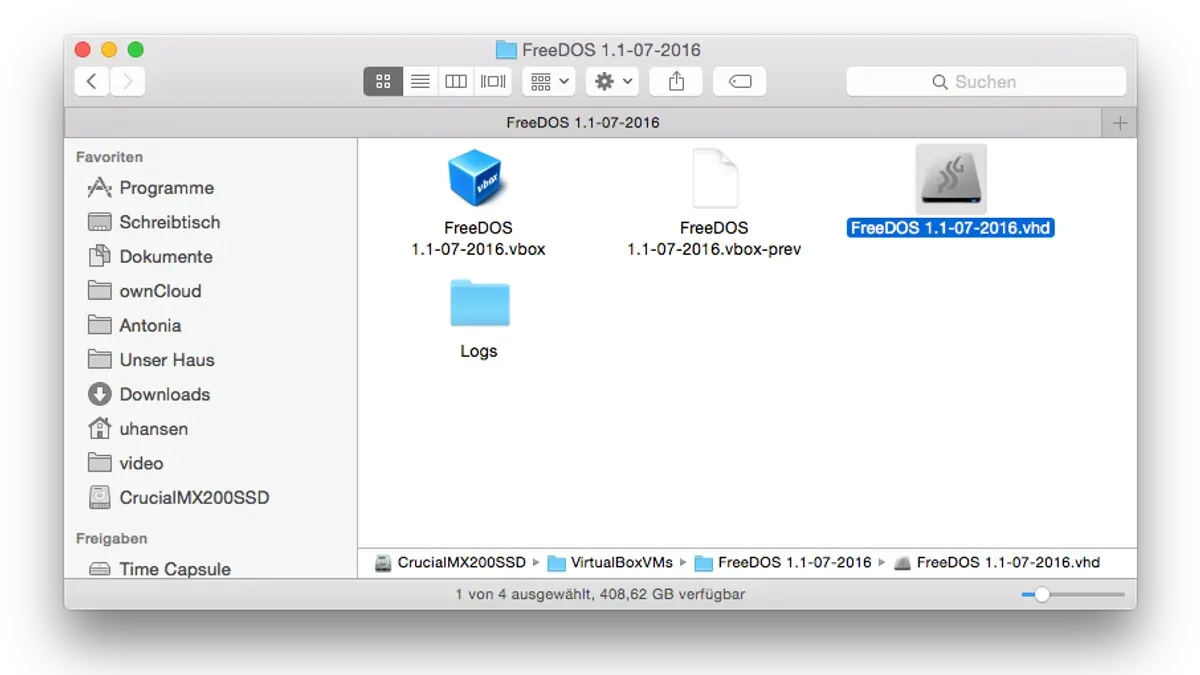
You have a.vhd disk image file that contains important data or a Windows virtual machine, but you’re using a Mac. Opening these files directly on macOS isn’t straightforward since the system doesn’t natively recognize.vhd or.vhdx formats.
This guide explains how to open.vhd file on Mac using several methods, including virtualization tools like VMware and Parallels, native mounting options, and conversion techniques. You’ll learn the pros and cons of each approach, step-by-step instructions for setup, and troubleshooting tips for common issues.
Key takeaways
- Use virtualization software such as VMware Fusion or Parallels Desktop to run.vhd files as virtual machines on Mac.
- Native mounting of.vhd files on macOS is limited but possible via third-party tools or command-line utilities.
- Conversion to other disk image formats like.dmg or.img enhances compatibility without virtualization.
- Understanding your technical comfort and specific needs helps select the best method.
- Common issues include file corruption, permission errors, and incomplete mounts, which can be resolved with specific troubleshooting steps.
Before you start: What you need to open.vhd files on Mac
.vhd and.vhdx files are Virtual Hard Disk formats commonly used by Microsoft virtualization environments. These files act as containers for entire disk images, allowing you to run other operating systems or access data stored within them. Understanding the differences and requirements will help you choose the best way to open these files on your Mac.
On Mac, software support varies between.vhd and.vhdx formats. While.vhd is widely supported,.vhdx—a newer format offering better performance and resilience—is less compatible with some Mac tools.
| Software | .vhd Support | .vhdx Support | Notes |
|---|---|---|---|
| VirtualBox | Yes | Limited (may require conversion) | Free, open-source virtualization |
| VMware Fusion | Yes | Limited (conversion recommended) | Commercial, integrates well with Mac |
| Parallels Desktop | Yes | Partial (some versions support.vhdx) | Commercial, user-friendly interface |
| Third-party mounting tools (e.g., OSFMount) | Yes | No | Typically only mounts.vhd, not.vhdx |
Before proceeding, ensure your Mac is running at least macOS 10.14 Mojave or later for optimal compatibility with virtualization software. Also, verify your.vhd or.vhdx files come from a reliable source and are not corrupted, as damaged files will fail to open or mount correctly.
How to open.vhd file on Mac using virtualization software
Virtualization software offers a practical way to open and use.vhd files on your Mac by running them as virtual disks within a virtual machine. Here are step-by-step instructions for three popular virtualization apps.
Using VirtualBox
- Open VirtualBox and select the virtual machine you want to attach the.vhd file to.
- Click Settings, then go to the Storage section.
- Under the Storage Devices tree, click the Controller: SATA or IDE controller, then click the Add Hard Disk icon.
- Choose Choose existing disk, navigate to your.vhd file, and select it.
- Confirm and start the virtual machine; the.vhd will be mounted as a virtual disk accessible within the guest OS.
You should see the disk appear as an additional drive inside the virtual machine’s file explorer, allowing file access or system boot depending on its setup.
Using VMware Fusion
- Launch VMware Fusion and select the virtual machine you want to use.
- Go to Virtual Machine > Settings > Hard Disks.
- Click the + button to add a new hard disk.
- Choose Use an existing virtual disk and browse to your.vhd file.
- Complete the wizard and start the VM; the.vhd mounts as a virtual drive inside the guest OS.
Note that VMware Fusion supports.vhd files but not.vhdx files natively; conversion to.vhd or other VMware formats may be needed for.vhdx.
Using Parallels Desktop
- Open Parallels Desktop and select the virtual machine.
- Access the virtual machine configuration via Actions > Configure.
- Go to the Hardware tab and click + to add a new hard disk.
- Select Existing Image File, then locate and choose your.vhd file.
- Apply changes and start the VM; the.vhd appears as an additional disk.
Parallels Desktop handles.vhd files smoothly but has limited support for.vhdx; conversion tools may be required for the latter.
Across these tools,.vhd files are generally supported as virtual disks you can add to your virtual machines, while.vhdx files often require conversion or special handling. Confirm your software’s compatibility to avoid errors.
Successful mounting is confirmed when the virtual machine boots or recognizes the added disk, visible in the guest OS's file system or disk management utility.
How to open a.vhdx file in Hyper-V and its relevance to Mac users
The.vhdx file format is a virtual hard disk format primarily created and used by Microsoft's Hyper-V virtualization platform. It offers improvements over the older.vhd format, including larger storage capacity and better corruption protection. However, Hyper-V is a Windows-only feature, which means there is no direct way to open or use.vhdx files natively on a Mac.
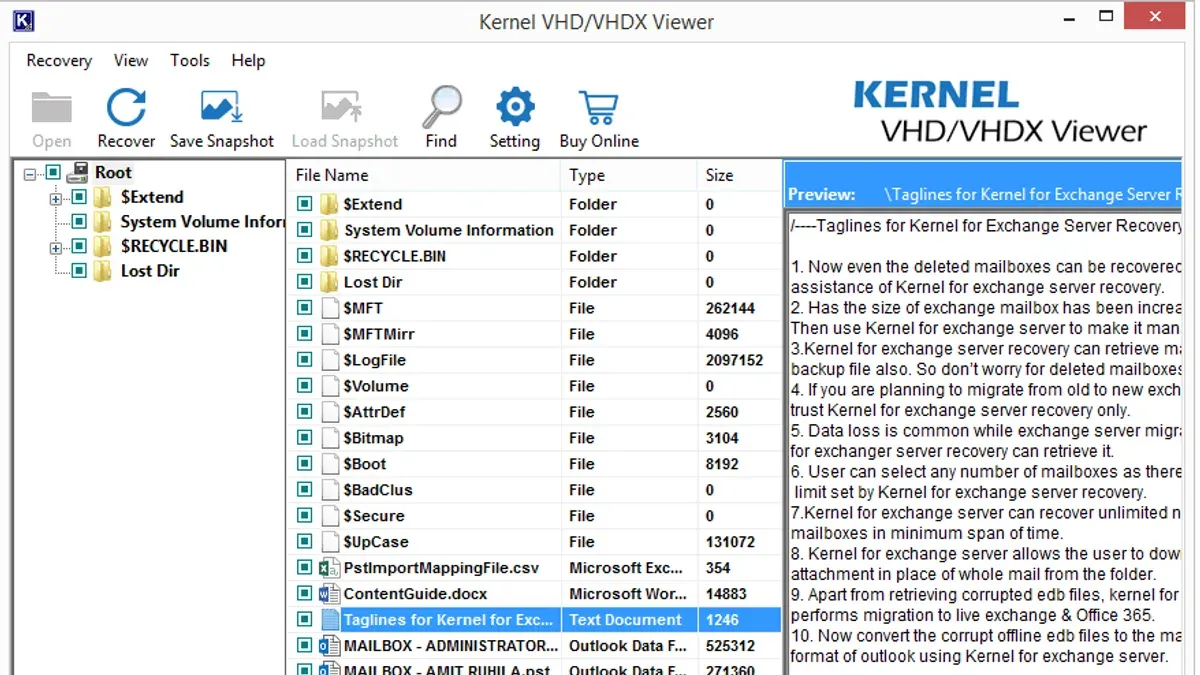
For Mac users, this Windows exclusivity implies that working directly with.vhdx files requires additional steps. The most common workaround is to convert the.vhdx file into a compatible format such as.vhd or.vmdk, which can then be used with Mac virtualization software. Alternatively, running Windows on your Mac through virtualization or Boot Camp allows you to access.vhdx files within a Windows environment.
Several tools can convert.vhdx files. For example, Microsoft’s free Disk2vhd utility can convert physical disks to.vhd, but it does not convert.vhdx files directly. Instead, third-party tools like StarWind V2V Converter or qemu-img support converting.vhdx to.vhd or.vmdk formats.
- Download and install StarWind V2V Converter on a Windows PC or a Windows virtual machine on your Mac. You should see the main interface with source and target options.
- Select your.vhdx file as the source disk. Confirm the file loads without errors.
- Choose.vhd as the target format for conversion. The interface will prompt for a save location.
- Start the conversion process. Upon completion, you will have a.vhd file compatible with Mac virtualization apps.
- Transfer the.vhd file back to your Mac and add it as a virtual disk in your virtualization software (e.g., VMware Fusion or VirtualBox). The virtual machine should recognize the disk and boot or mount as expected.
Using this approach, Mac users can effectively handle.vhdx files despite Hyper-V’s Windows-only limitation by converting the disk image to a supported format or by running a Windows environment on their Mac.
How to use a.vhd file in VMware on Mac
VMware Fusion allows you to add a.vhd file as a virtual disk to an existing virtual machine, enabling access to its contents without creating a new VM. Booting directly from a.vhd file is limited and generally requires prior configuration or conversion.
- Open VMware Fusion and select the virtual machine you want to modify.
- Click on Settings (gear icon) for the selected VM; a settings window will open.
- Choose Hard Disk from the list of devices if available, or click the + button and select Add Hard Disk.
- In the hard disk options, select Use an existing virtual disk and click Choose Disk.
- Navigate to the.vhd file location on your Mac and select it. VMware Fusion will attempt to recognize and attach it.
- Confirm the disk is added as a secondary drive; it should appear in the VM's hardware list under Hard Disk 2 or similar.
- Start the virtual machine. The OS inside the VM should detect the new disk, allowing you to browse or transfer files.
If the.vhd file does not mount or is unsupported, convert it to VMware's.vmdk format using third-party tools like qemu-img, then add the converted disk. Booting from a.vhd is not natively supported in VMware Fusion; instead, create a new VM and convert the.vhd to.vmdk to use it as the primary disk.
Performance depends on the virtual disk type and the host resources. Use SSD storage and allocate sufficient RAM and CPU cores to the VM for smoother access. Compatibility issues may arise with certain.vhd variants, so conversion often improves stability.
| VMware Fusion VM Configuration Example | Setting | Value |
|---|---|---|
| Memory | 4 GB | |
| Processors | 2 cores | |
| Hard Disk 1 | Primary OS disk (.vmdk) | |
| Hard Disk 2 | Secondary disk (.vhd, attached as existing disk) |
How to open Mac HDD on Windows using.vhd files
Accessing Mac-formatted hard drives on Windows is challenging due to file system incompatibility—Macs typically use APFS or HFS+, which Windows cannot read natively. When Mac HDD contents are stored in.vhd files, you can emulate or transfer them to Windows, but you need specialized software to handle the Mac file systems within those virtual disk images.
Several Windows tools can mount or read Mac-formatted.vhd files, each with varying success rates and feature sets. Paragon APFS for Windows and MacDrive are popular commercial options that provide reliable read and write access to APFS and HFS+ volumes. Both allow mounting.vhd files containing Mac partitions, making the data accessible through Windows Explorer.
Free alternatives like HFSExplorer support HFS+ but generally lack APFS support and only allow read access. They require manually loading the.vhd file and extracting files rather than mounting as a drive.
To open a Mac-formatted.vhd file on Windows:
- Install Paragon APFS for Windows or MacDrive. Upon installation, launch the application.
- Use the application’s “Mount Disk Image” or similar option and browse to select your.vhd file. Once loaded, the Mac partition should appear as a new drive letter in Windows Explorer.
- Access files normally through Windows Explorer. You can copy or modify files if the software supports write access.
- When finished, unmount the virtual drive via the software interface to avoid data corruption.
Limitations include the risk of data corruption if the.vhd file is modified improperly or if write support is unstable. Also, some tools may not support newer APFS encryption or snapshots. Always back up data before modifying Mac-formatted.vhd files on Windows.
How to open.vhd files on Mac without virtualization
You can access.vhd files on Mac without running a full virtual machine by using third-party mounting tools or command-line utilities that provide read-only access. This approach lets you extract files from the disk image without the overhead of virtualization software, but it usually does not support.vhdx files natively and offers limited write capabilities.
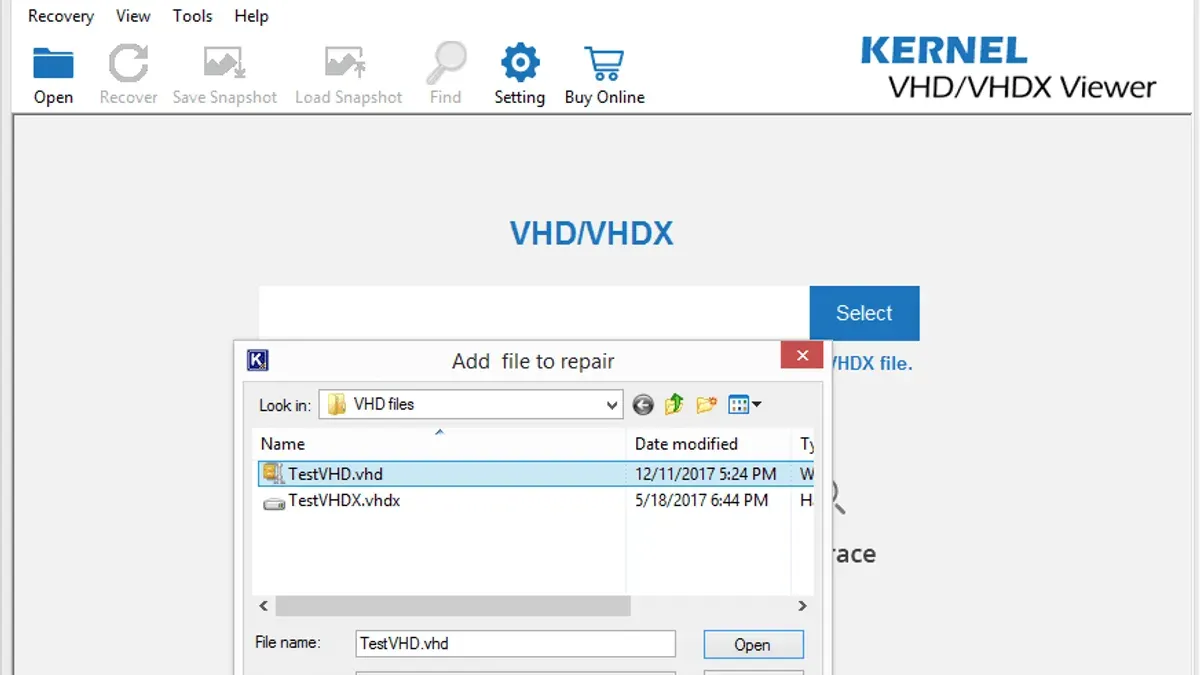
One popular free tool for mounting.vhd files on Mac is hdiutil, a command-line utility built into macOS that supports mounting various disk image formats including.vhd in read-only mode.
- Open Terminal and navigate to the folder containing your.vhd file using
cd /path/to/folder. You should see your.vhd file listed when you runls. - Run the command
hdiutil attach -readonly filename.vhd. If successful, Terminal will output the device identifier (e.g., /dev/disk2s1) and the mount point (e.g., /Volumes/YourDisk). - Open Finder and navigate to the mount point shown in Terminal. You should see the contents of the.vhd file accessible for copy or inspection.
- When finished, return to Terminal and run
hdiutil detach /dev/disk2s1(using the actual device identifier) to unmount the image safely.
This method is practical for quickly retrieving files or browsing contents when you do not need to boot the disk or write data back. However, it does not support.vhdx files, which require conversion or virtualization, and attempts to write to the mounted volume often fail or risk corruption.
Alternatively, lightweight third-party tools like OSFMount (via virtualization on Windows) or 7-Zip (on Windows) can extract.vhd contents but are not native Mac apps. On Mac, extraction without mounting may require converting the.vhd file to a disk image format like.dmg using tools such as qemu-img, then mounting the.dmg.
Troubleshooting common issues when opening.vhd files on Mac
When opening.vhd files on Mac, you may encounter errors due to corruption, incompatibility, or permission restrictions. Identifying the exact problem helps you apply the right fix.
Common error messages and solutions
- "The disk image is corrupted or not recognized": This often indicates file corruption or an unsupported format. Try opening the file with a different virtualization tool or convert the.vhdx file to.vhd using tools like qemu-img. If corruption persists, restore from backup or obtain a new copy.
- "Virtual machine failed to boot from the.vhd file": This may result from incorrect disk attachment or incompatible virtual machine settings. Ensure the.vhd is added as a secondary disk unless converted properly for booting. Check that the VM firmware (BIOS/UEFI) settings match the disk format.
- "Performance is slow when accessing large.vhd files": Large disk images can cause sluggish response. Optimize by increasing VM resource allocation (CPU, RAM), or consider converting the.vhd to a more efficient format like.vmdk if supported.
- "Permission denied when mounting or accessing.vhd files": Mac file permissions may restrict access. Use Finder's Info panel to check file permissions or run chmod 755 in Terminal to grant read/write access. Ensure the virtualization software has Full Disk Access in System Preferences > Security & Privacy.
When to convert file formats or update software
If your software does not support.vhdx or newer.vhd features, convert the files using tools like qemu-img or StarWind V2V Converter for compatibility. Also, keep your virtualization and mounting software up to date to benefit from bug fixes and improved support.
- Identify the error message or symptom you encounter.
- Check your virtualization software’s documentation for compatibility notes.
- Adjust VM settings to match the disk format and ensure correct attachment type.
- Modify file permissions via Finder or Terminal and grant necessary macOS privacy permissions.
- Attempt file conversion if format incompatibility is suspected.
- Update your virtualization or mounting software to the latest version.
- Retry opening the.vhd file; success is indicated by the virtual machine booting or the disk mounting without errors.
- How to Open.NRG Files on Mac: Clear Step-by-Step Instructions
- How to Open.mdf Files on Mac: Step-by-Step Guide
- How to Open and Import PST Files on Mac: Step-by-Step Guide
- How to Open.ost File on Mac: Step-by-Step Practical Guide
Frequently asked questions
How to open vhd file in vmware?
To open a VHD file in VMware, start by creating a new virtual machine or editing an existing one. In the VM settings, select the hard disk section and choose to use an existing virtual disk. Browse to your VHD file and add it. Note that VMware prefers VMDK files, so performance or compatibility might vary slightly.
How to open vhd?
You can open a VHD file on Mac by either mounting it with native tools like Disk Utility or using virtualization software such as VMware Fusion or Parallels Desktop. Mounting allows you to access files directly, while virtualization lets you run the entire disk image as a virtual machine. Choose the method based on whether you want file access or to run an OS.
How to open vhdx file in hyper-v?
To open a VHDX file in Hyper-V, launch Hyper-V Manager and create a new virtual machine. When configuring the virtual hard disk, select the option to use an existing disk and browse to your VHDX file. This method is native to Windows and allows full virtual machine operation using the VHDX disk image.
How to open a vhd in vmware?
Opening a VHD in VMware involves adding the VHD as a virtual disk to your virtual machine. In the VM settings under Hard Disk, select 'Use an existing virtual disk,' then locate the VHD file. VMware may prompt to convert the disk to VMDK format for better compatibility, which can be done using VMware's built-in tools.
How to open a vhdx file?
Opening a VHDX file on Mac typically requires virtualization software such as Parallels Desktop or VMware Fusion, as macOS doesn’t natively support VHDX mounting. Alternatively, you can convert the VHDX to VHD or VMDK using third-party tools before mounting or using it. For Windows users, Hyper-V is the standard method to open VHDX files.
What this guide does not cover and who should do something else
This guide focuses on accessing and using.vhd and.vhdx files on Mac but does not cover creating or extensively editing these disk images. Some advanced features of.vhdx files, such as differencing disks or checkpoint states, may not be fully supported by Mac virtualization software and often require Windows-based tools like Hyper-V for full functionality. If you are unfamiliar with virtualization concepts or system disk management, some steps here might be technically challenging and could risk data loss if not followed carefully. In such cases, consulting with a professional or using dedicated Windows environments might be safer.
The most practical next step is to choose the method that fits your technical comfort and needs. If you want straightforward access without installing extra software, try mounting your.vhd files using macOS's Disk Utility or Terminal commands first. For more complex usage, such as running Windows from the disk image or recovering extensive data, virtualization software like VMware Fusion offers more flexibility with clear interface options for attaching.vhd files.



