
How to Open a.vmdk File on Mac: Clear Step-by-Step Guide
Discover clear steps to open a.vmdk file on Mac using VMware Fusion, VirtualBox, or native mounting methods for easy access to virtual disk contents.
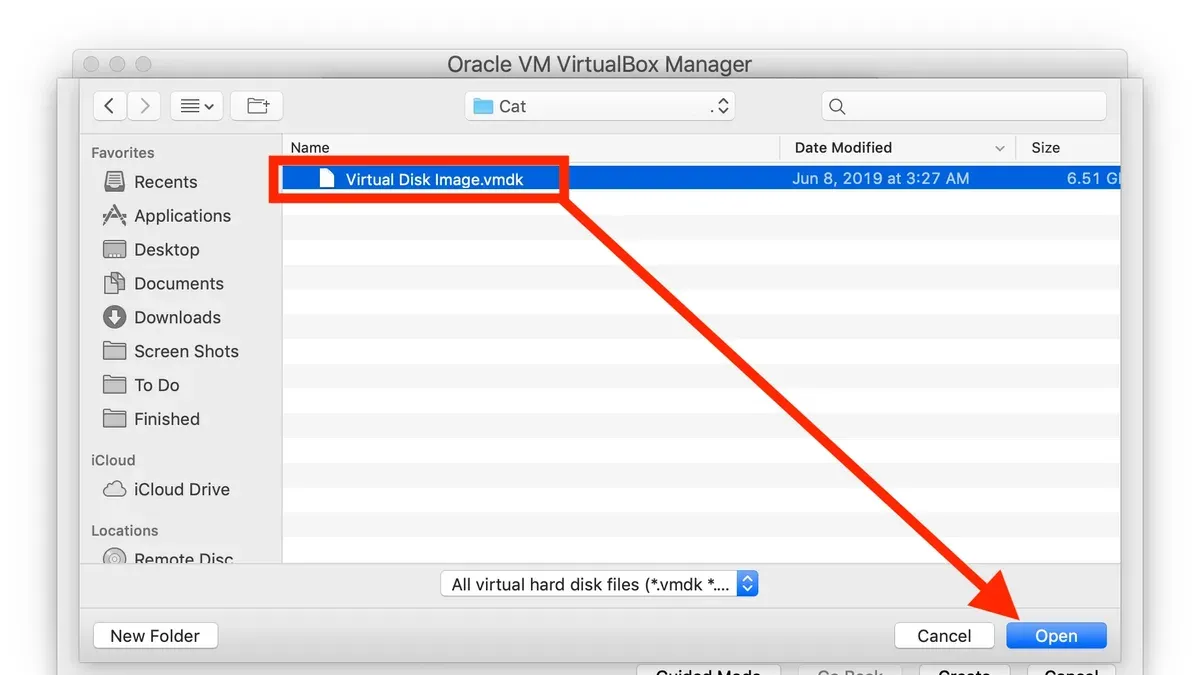
You have a.vmdk file on your Mac but aren't sure how to access its contents. Perhaps it came from a virtual machine backup or a colleague's project, and you need to decide the best way to open, mount, or run it.
This article guides you through how to open.vmdk file on Mac, exploring options like VMware Fusion and VirtualBox, as well as native mounting techniques. You will find clear, practical steps tailored to macOS, helping you weigh ease of use, compatibility, and technical comfort.
Key takeaways
- VMware Fusion offers seamless.vmdk integration with straightforward virtual machine setup.
- VirtualBox is a free alternative that requires specific configuration to attach.vmdk files.
- Native mounting tools on macOS can access.vmdk contents without running a full VM, but with limitations.
- Creating and running.vmdk files effectively depends on matching the virtual disk format with your virtualization software.
- Troubleshooting common errors often involves verifying disk format compatibility and file permissions.
Before you start: What you need to open a.vmdk file on Mac
.vmdk files are virtual disk files primarily created and used by VMware virtualization software to store the contents of virtual machines. To open or work with these files on a Mac, you will need compatible software that understands this format.
Popular options include VMware Fusion and VirtualBox, both of which support macOS and can run virtual machines using.vmdk files. VMware Fusion versions 12 and later are compatible with recent macOS releases like Ventura and Monterey. VirtualBox 7.x also supports these macOS versions but may require additional setup.
Alternatively, third-party mounting tools or command-line utilities like hdiutil can help mount.vmdk files without running a full virtual machine, although this approach can be more technical and has limitations based on the file type.
Keep in mind that.vmdk files come in different varieties: monolithic (single large file, often several gigabytes) or split (multiple smaller files). File size can affect how easily you can move or mount them on your Mac.
Before proceeding, always back up your.vmdk files to prevent data loss. Virtual disk files can become corrupted if accessed improperly.
- Verify your macOS version by clicking the Apple menu > About This Mac; ensure your virtualization software supports it.
- Choose and install virtualization software like VMware Fusion or VirtualBox; successful installation is confirmed by launching the app without errors.
- Locate your.vmdk file and check its size and type (single or split); large files may take longer to open.
- Create a backup copy of your.vmdk file by duplicating it in Finder; confirm the copy appears in the same or a safe location.
What is a.vmdk file and why it matters for Mac users
A.vmdk file, short for Virtual Machine Disk, is a file format that acts as a container for the data stored on a virtual hard drive. Originally specified by VMware, this format encapsulates the contents of a virtual machine’s disk, allowing entire operating systems and applications to run within a virtualized environment. Essentially, it functions much like a physical hard drive but exists as a file on your Mac or other host system.
Virtual machines rely on.vmdk files to maintain a complete snapshot of their virtual disk state, including the operating system, installed software, and user data. This makes.vmdk files a core component of virtualization workflows, enabling you to switch between different OS environments without rebooting your Mac.
Mac users encounter.vmdk files primarily when running Windows or Linux virtual machines through popular virtualization software such as VMware Fusion or VirtualBox. Additionally,.vmdk files may appear as disk image backups or snapshots created for data recovery or migration purposes.
Compared to other virtual disk formats like VirtualBox’s.vdi or Microsoft’s.vhd,.vmdk is known for broad compatibility across virtualization platforms, which is why it is frequently used in cross-platform scenarios. Understanding this format helps you choose the correct tools and workflows to open, mount, or run these files effectively on your Mac.
How to open a.vmdk file in VMware Fusion on Mac
VMware Fusion is a leading virtualization software for Mac that supports.vmdk files natively. Before you begin, ensure you have installed VMware Fusion from the official VMware website and have a valid license or are using the trial version. The software requires macOS High Sierra or later for optimal compatibility.
- Open VMware Fusion and select File > New from the menu bar. You should see the New Virtual Machine Assistant window appear.
- Choose Create a custom virtual machine and click Continue. This allows you to specify an existing disk file.
- On the Installation Method screen, select Use an existing virtual disk and click Continue.
- Click Choose Disk, then navigate to and select your.vmdk file. Confirm your selection by clicking Open.
- Configure the virtual machine settings such as memory allocation, CPU cores, and network adapter under the Finish screen by clicking Customize Settings. A balanced setup for modern Macs generally involves allocating 4 GB RAM and 2 CPU cores for smooth performance.
- Save the virtual machine configuration to a convenient location.
- Start the VM by clicking the Play button. VMware Fusion will boot the virtual machine using the.vmdk file as its disk.
- Interact with your virtual machine through the VMware Fusion window. You can use macOS shortcuts and the VM menu to manage full screen, snapshots, and device sharing.
Performance on Mac hardware depends on your system specifications. For example, Macs with Apple Silicon require VMware Fusion versions optimized for ARM architecture. Proper VM configuration helps avoid sluggishness, especially with resource-intensive guest operating systems.
How to open a.vmdk file in VirtualBox on Mac
Oracle VirtualBox offers a free and open-source alternative to VMware Fusion for handling.vmdk files on Mac. While it supports importing and running virtual machines using.vmdk disk images, it has some limitations in performance and integration compared to VMware Fusion.
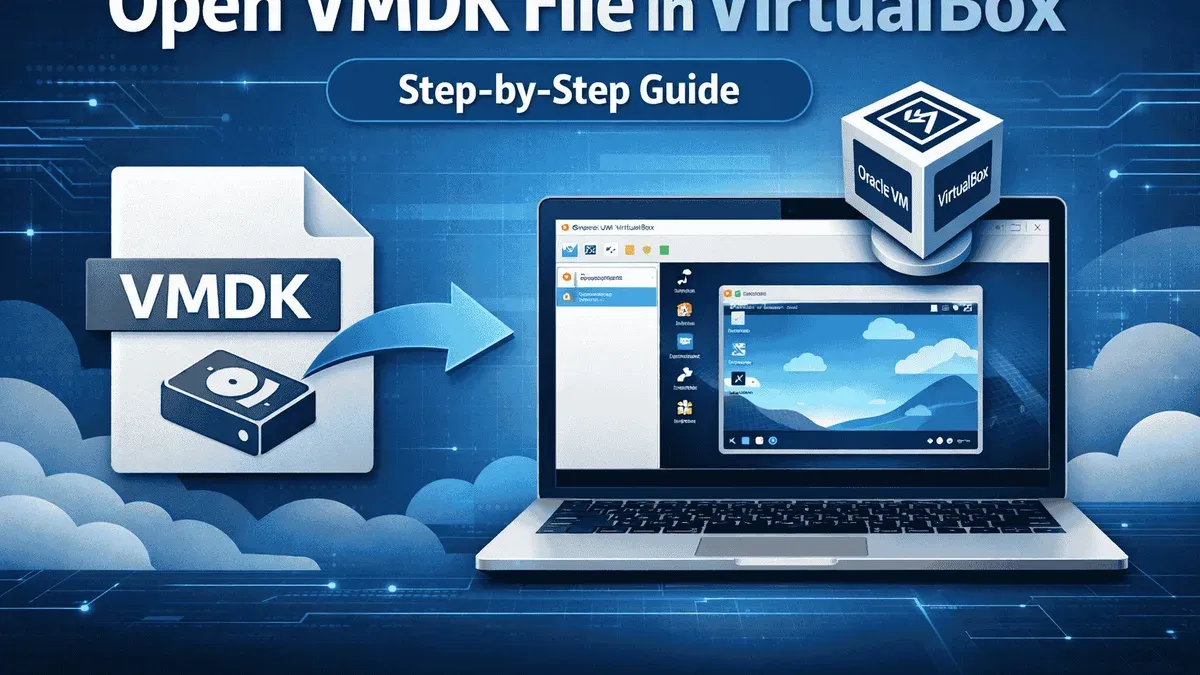
- Download VirtualBox from the official website and install it on your Mac. After installation, launch the VirtualBox application.
- To create a new VM, click the "New" button and proceed through the setup wizard, selecting the OS type and version that matches your.vmdk file.
- When prompted for a hard disk, select "Use an existing virtual hard disk file" and browse to locate your.vmdk file. Attach it and continue to finalize VM creation.
- If you already have an existing VM, open its settings, go to the "Storage" tab, click the hard disk controller, then click the plus icon to add an existing disk. Select the.vmdk file to attach it.
- Start the VM by selecting it and clicking "Start". The virtual machine should boot using the.vmdk as its disk, allowing you to access the contained system and files.
Note that VirtualBox may not support some advanced features of VMware Fusion such as seamless macOS integration, USB device passthrough, or 3D acceleration. Additionally, if the.vmdk was created with snapshots or linked clones, VirtualBox might require converting the file using tools like VBoxManage before it functions properly.
How to mount a.vmdk file on Mac without a virtual machine
If you want to access the files within a.vmdk file directly on macOS without running a virtual machine, you can use third-party tools or command-line methods to mount the disk image.
Using third-party utilities: Tools like vmdk-mounter or commercial software such as Paragon VMDK Mounter allow you to mount.vmdk files as virtual drives. These utilities generally offer read-only access to prevent accidental data corruption. After mounting, the.vmdk appears as a drive in Finder where you can browse and copy files.
Command-line mounting: You can convert the.vmdk file to a macOS-compatible disk image format using qemu-img or use hdiutil if the file is already compatible. For example, converting a.vmdk to.dmg with qemu-img convert -O dmg source.vmdk target.dmg allows you to mount it by double-clicking the.dmg file or using hdiutil attach target.dmg. This approach is often read-only unless you prepare the image specifically for write access.
Read-only vs. read-write: Mounting.vmdk files outside a virtual machine is typically read-only to maintain data integrity, especially since macOS does not natively support write access on many virtual disk formats. Attempting write operations can risk corrupting the virtual disk.
When to mount instead of running a VM: Mounting is preferable if you only need to extract or view files quickly without booting the entire virtual environment. It improves access speed and reduces resource usage but is limited to file-level operations rather than running applications or the OS inside the disk.
- Download and install a tool like vmdk-mounter or Paragon VMDK Mounter.
- Open the application and select your.vmdk file.
- Mount the.vmdk; it should appear as a drive in Finder.
- Browse the mounted volume to access files; copy or open files as needed.
- When finished, eject the mounted volume safely through Finder.
Performance for mounted.vmdk files is generally good for file browsing and copying but will not match running a VM in responsiveness for executing programs. Reliability depends on the tool used; free tools can be less stable or provide read-only access, while commercial options often offer better support and features.
How to create a.vmdk file on Mac
Creating a.vmdk file on Mac can be done either by generating a new virtual disk with virtualization software or by converting existing disk images from other formats.
Using VMware Fusion or VirtualBox to create new virtual disks
- Open VMware Fusion and go to File > New, then select "Create a custom virtual machine" and proceed.
- When prompted for a virtual disk, choose "Create a new virtual disk" and specify the size, typically between 20 GB and 100 GB depending on your use case.
- Save the disk; this will generate a.vmdk file stored in your VM's package, visible in Finder.
- For VirtualBox, open the VirtualBox Manager, click New, and follow the wizard to create a VM.
- In the storage section of the VM settings, click the disk icon and select "Create a new disk," choosing VMDK as the format and setting the desired size.
- After creation, the.vmdk file will appear in the selected folder.
Converting other virtual disk formats to.vmdk
You can convert disk images like.vdi or.qcow2 to.vmdk using the qemu-img command-line tool.
- Open Terminal and run: qemu-img convert -O vmdk source.vdi destination.vmdk for a VirtualBox disk.
- Or convert a QCOW2 file with: qemu-img convert -O vmdk source.qcow2 destination.vmdk.
- After conversion, check the file size using ls -lh destination.vmdk; expect sizes close to the source image.
Converting is useful when migrating virtual machines between platforms or preparing disks for VMware Fusion.
Best practices for sizing and managing virtual disks
Choose a disk size that balances storage availability and performance; oversized disks waste space, while undersized ones limit VM usability.
Use dynamically allocated disks when possible to save space, but note that fixed-size disks may perform better.
Regularly back up your.vmdk files and avoid abrupt shutdowns to protect disk integrity.
Creating custom.vmdk files is ideal for testing environments, isolated application setups, or preserving specific system states.
How to run a.vmdk file on Mac effectively
Choosing the right virtualization platform is key to running a.vmdk file smoothly on your Mac. VMware Fusion generally offers better integration and performance for resource-intensive tasks, while VirtualBox is a free alternative suitable for lighter workloads. Consider your Mac’s hardware capabilities—such as CPU cores and RAM—when allocating resources to the virtual machine.
Optimize VM settings by assigning sufficient CPU cores (at least 2 for moderate tasks) and 4GB or more of RAM depending on the guest OS requirements. Enable hardware virtualization features like VT-x or AMD-V in the VM settings to enhance speed. Disable unnecessary devices and features to reduce overhead.
Manage snapshots carefully to avoid disk bloat and performance degradation. Regularly back up your.vmdk files and snapshots separately to prevent data loss, especially if you encounter corruption or boot failures. Common fixes for boot issues include repairing the virtual disk via VMware or VirtualBox utilities or reattaching the.vmdk file correctly.
Exercise caution with.vmdk files downloaded or shared from unknown sources. Scan for malware before use and consider running the VM in a sandboxed environment to protect your Mac. Keep your virtualization software up to date to benefit from security patches and stability improvements.
- Open your virtualization software and create or select a VM.
- Attach the.vmdk file as the primary disk; confirm it is recognized in the VM settings.
- Configure CPU and RAM allocation according to your Mac’s specs and VM needs.
- Enable hardware virtualization extensions under the VM’s processor settings.
- Start the VM; verify the guest OS boots without errors.
- If the VM fails to boot, use disk repair utilities or reattach the.vmdk file and try again.
- Take snapshots before major changes and back up the.vmdk files externally.
Troubleshooting common issues when opening.vmdk files on Mac
Opening.vmdk files on Mac can sometimes trigger errors related to file corruption, incompatibility, or permission settings. Understanding these issues and their fixes can save time and prevent data loss.
Corrupted or incompatible.vmdk file errors
Error messages like "The virtual disk is corrupted" or "Unsupported disk format" often mean the.vmdk file is damaged or created by an unsupported virtualization platform version. To resolve this, verify the source of the.vmdk file and try opening it in the same or newer virtualization software version. If corruption is suspected, attempt recovery with disk repair tools or restore from backups.
VMware Fusion or VirtualBox failing to recognize.vmdk files
If VMware Fusion or VirtualBox reports "Cannot open the disk" or fails to list the.vmdk when attaching disks, check the file path and extension for typos. Also, ensure the.vmdk is not split or dependent on other files missing from the directory.
Mounting errors and read/write permission problems
When mounting.vmdk files outside virtual machines, permission errors like "Access denied" can occur. Fix this by adjusting permissions: right-click the.vmdk file, select "Get Info," and in the "Sharing & Permissions" section, grant yourself Read & Write access. Alternatively, use sudo in Terminal to mount with administrative privileges.
Handling split.vmdk files
Split.vmdk files consist of multiple segments (e.g., disk-s001.vmdk, disk-s002.vmdk). Attempting to open only one segment triggers errors such as "Invalid disk descriptor." Always load the primary descriptor file (usually without segment numbering) which references the parts. If missing, reconstruct or consolidate the disk using VMware’s vmware-vdiskmanager tool or VirtualBox’s VBoxManage utility.
- Confirm you have all parts of the split.vmdk in the same folder. Successful recognition should list all segments.
- If using VMware Fusion, open Terminal and run vmware-vdiskmanager -r source.vmdk -t 0 destination.vmdk to consolidate; a successful run completes without errors.
- For VirtualBox, use VBoxManage clonehd source.vmdk destination.vdi --format VDI to convert and consolidate; check that the new file opens correctly in VirtualBox.
- If errors persist after these steps, seek professional data recovery or virtualization support to avoid further data loss.
- How to Open.NRG Files on Mac: Clear Step-by-Step Instructions
- How to Open.mdf Files on Mac: Step-by-Step Guide
- How to Open and Use.cue Files on Mac: A Step-by-Step Guide
- How to Open.ost File on Mac: Step-by-Step Practical Guide
Frequently asked questions
How to open vmdk file?
To open a.vmdk file, you typically need virtualization software like VMware Fusion or VirtualBox on your Mac. These platforms allow you to load the.vmdk as a virtual hard disk within a virtual machine. Alternatively, you can mount the.vmdk file directly using third-party tools or command-line utilities designed for macOS if you want to access its contents without running a VM.
How to open vmdk file in vmware?
In VMware Fusion, start by creating a new virtual machine and choose the option to use an existing virtual disk. When prompted, browse to and select your.vmdk file. VMware Fusion will then attach this disk to the VM, allowing you to boot or access the virtual disk contents.
How to run vmdk file?
Running a.vmdk file requires loading it as a virtual disk in virtualization software such as VMware Fusion or VirtualBox. After attaching the.vmdk to a virtual machine, you can power on the VM to run the operating system and applications stored within the disk image. Ensure the VM settings match the guest OS requirements for best performance.
How to use vmdk file in vmware?
To use a.vmdk file in VMware, open VMware Fusion and select “New” to create a virtual machine. Choose “Use an existing virtual disk” when prompted, then locate the.vmdk file on your Mac. Adjust the VM’s hardware settings as needed, such as memory and processor allocation, before starting the machine to access the.vmdk’s contents.
How to open vmdk file in virtualbox?
In VirtualBox, create a new virtual machine and when configuring storage, add a hard disk by selecting “Use an existing virtual hard disk file.” Navigate to your.vmdk file and select it. This attaches the.vmdk as the VM’s primary disk, allowing you to start the VM and use the disk image on your Mac.
What this advice does not cover and when to seek other solutions
This article does not cover modifying the internal contents of.vmdk files beyond mounting and accessing them. If you need advanced disk repair, forensic analysis, or detailed file recovery, specialized tools designed for those purposes are necessary. Additionally, some third-party tools for mounting.vmdk files on Mac may not support all versions or configurations, especially encrypted or compressed variants. Running.vmdk files downloaded from untrusted sources carries security risks; always verify the origin and scan for malware before proceeding.
The most useful next step is to choose the virtualization platform or mounting method that fits your technical comfort level and the task at hand. For most users, starting with VMware Fusion or VirtualBox offers the best balance of compatibility and ease of use. Ensure you follow the specific steps for importing or mounting the.vmdk file within these applications, paying attention to settings like hardware compatibility and disk type, to avoid common pitfalls like read-only mounts or boot failures.



