
How to Open and Use.cue Files on Mac: A Step-by-Step Guide
Discover how to open and use.cue files on Mac with clear steps for playback, mounting, and editing to manage your audio and disc images.
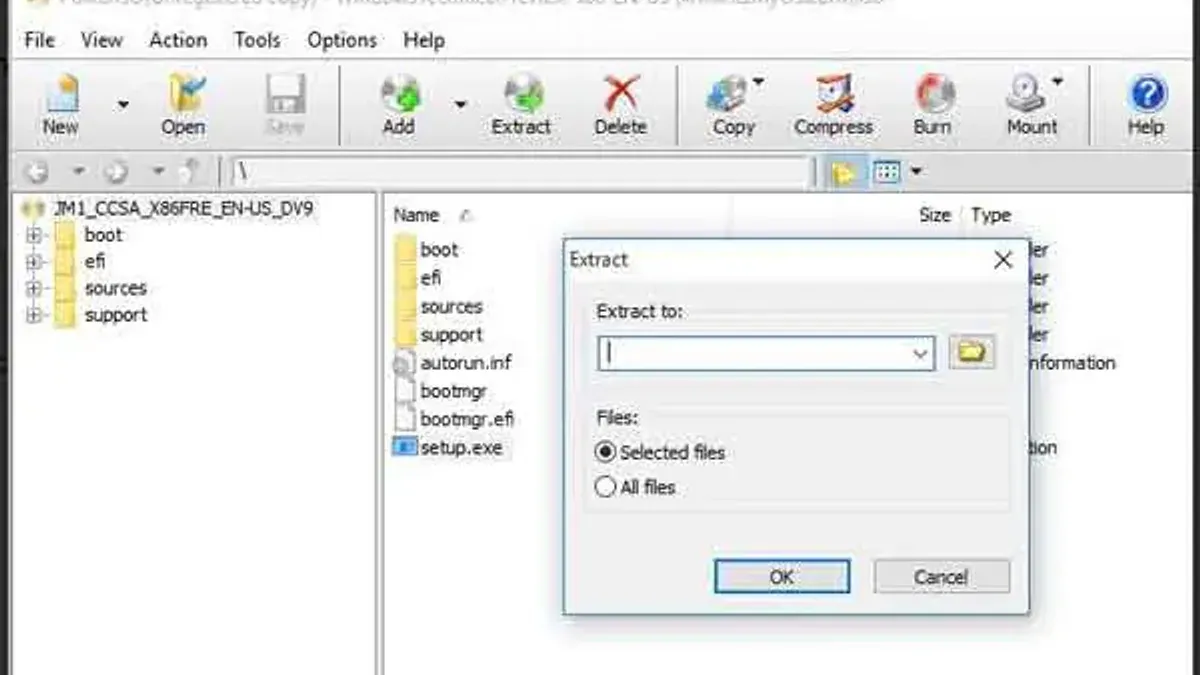
You’ve downloaded an audio album or disc image and noticed a small.cue file accompanying it. If you’re unsure what this file is or how to open it, you’re not alone. Many Mac users encounter.cue files and wonder how to open.cue file on Mac effectively.
This guide covers everything you need to handle.cue files on your Mac. From opening and playing audio tracks using media players to mounting disc images and even creating or modifying.cue files, you’ll find clear step-by-step instructions tailored to different use cases. Whether you want to listen to music, access disc content, or prepare files for burning or streaming, this article will help you navigate the process with confidence.
Key takeaways
- .cue files contain metadata describing tracks in audio or disc image files.
- You can open.cue files on Mac using VLC, IINA, or other compatible media players.
- Mount.cue files with corresponding.bin images using Disk Utility or third-party apps.
- Create or edit.cue files with plain text editors, following specific format rules.
- Troubleshoot common issues like missing audio files or incorrect paths inside.cue files.
Before you start: What you need to work with.cue files on Mac
.cue files are plain text files that describe the layout of tracks on a disc or within an audio collection. They are commonly paired with.bin files, which are disc image data files, or with audio files like.flac,.wav, or.ape for detailed track indexing. Understanding this association helps you decide how to open or use these files effectively.
To work with.cue files on Mac, you need compatible software that can either play, mount, or edit these files. Popular free media players supporting.cue playback include VLC Media Player and Cog, which handle audio tracks with ease. For mounting disc images, paid applications like Daemon Tools for Mac or Toast offer advanced features, although free alternatives such as FUSE for macOS combined with command-line tools can suffice for experienced users.
Most modern Mac systems running macOS versions 10.12 (Sierra) and later support these applications, but always check the specific software requirements before installation. File sizes for.cue-related collections vary widely, from small text files to accompanying audio or image files that can reach several gigabytes, so ensure you have adequate storage and processing capability.
Be cautious about the source of your.cue files and their associated media. Files from unverified sources may be corrupted or carry malware, potentially harming your system or leading to playback issues. Always use trusted download sites or verify file integrity when possible.
How to open a.cue file on Mac using media players
Media players that support.cue files allow you to play audio tracks arranged by the cue sheet without manual track selection. VLC Media Player is a popular choice on Mac for this purpose due to its broad format compatibility.
- Open VLC Media Player on your Mac.
- Go to the menu bar and select File > Open File....
- Navigate to the folder containing your.cue file, then select the.cue file and click Open. You should see the audio start playing, segmented according to the cue sheet.
- If the.cue file references separate audio data (commonly a.bin or.wav file), ensure that the audio file is in the same folder as the.cue file for VLC to locate it automatically.
- If the audio data is embedded or the.cue file references an audio file that is missing or located elsewhere, VLC may fail to play properly or display errors.
Other media players like Cog or Audirvana can also open.cue files but may have varying levels of support for complex cue sheets with multiple indexes or non-audio commands.
Note that media players primarily focus on audio playback and will not mount or provide access to disc images or data tracks defined in the.cue file.
If you only have a.cue file without accompanying audio files, playback will not be possible as the cue sheet contains no audio data itself. In such cases, you can attempt to source the missing audio or consider mounting the disc image if applicable.
How to mount.cue files on Mac for disc image access
Mounting.cue files paired with.bin files as virtual discs allows you to access their contents without burning physical media. This is useful for managing disc images and extracting files directly on your Mac.
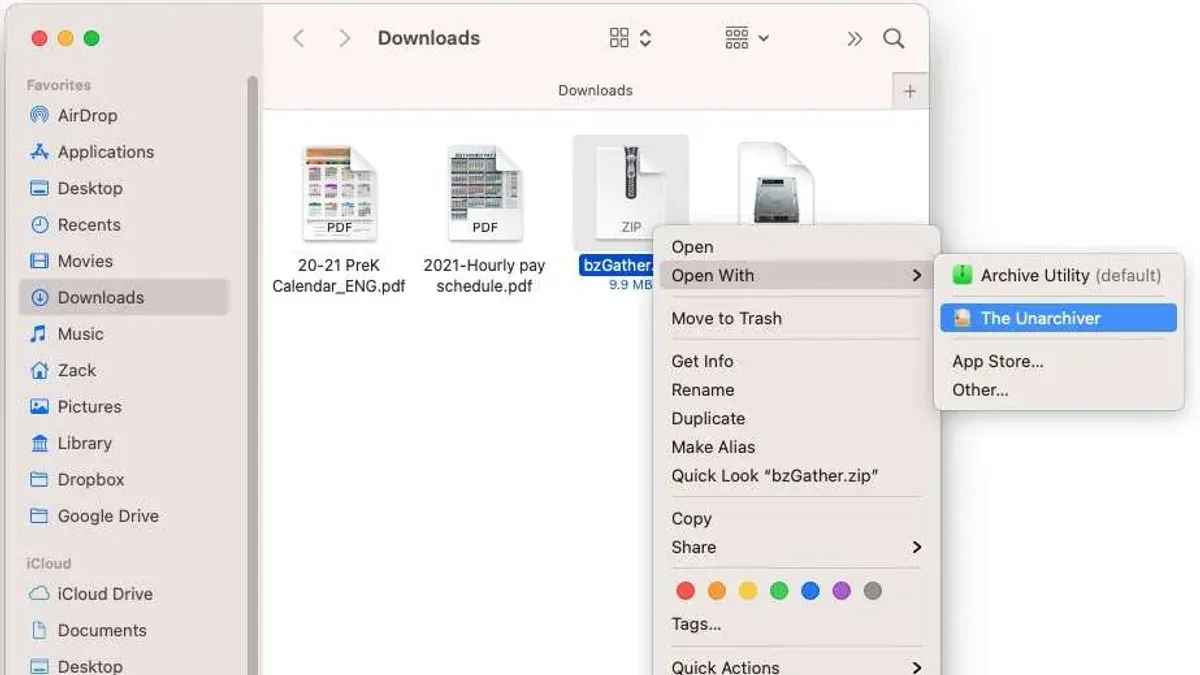
Common software options include DAEMON Tools for Mac and Roxio Toast Titanium, as native macOS tools typically do not support mounting.cue/.bin images directly.
- Download and install DAEMON Tools for Mac or Roxio Toast Titanium from their official websites.
- Open the installed application and locate the option to mount images, often found in the main menu or toolbar.
- Navigate to your.cue file via the file browser within the app. Select the.cue file paired with its.bin file.
- Confirm the mount action. The software will create a virtual drive accessible in Finder’s sidebar under Devices.
- Open the virtual drive in Finder to verify the mounted image and browse its contents as you would with a physical disc.
If mounting fails, check that both the.cue and corresponding.bin files are present and correctly linked in the.cue file's text. Some software may fail if the paths in the.cue file are absolute or incorrect.
Alternative tools include FUSE for macOS with appropriate filesystem modules, but these require technical setup and may not support all disc image formats reliably.
Overall, DAEMON Tools offers a user-friendly interface with broad compatibility, while Toast Titanium integrates well for users needing additional disc burning features. Native macOS tools lack this mounting capability for.cue files, making third-party solutions necessary.
How to create and make a.cue file on Mac
A.cue file is a plain text file that defines the layout of tracks within an audio or disc image file. It uses a specific syntax to list track indexes, file names, and other metadata, allowing software to interpret the structure correctly.
Here is a basic example of.cue file content for an audio file named "album.bin":
FILE "album.bin" BINARY
TRACK 01 AUDIO
INDEX 01 00:00:00
TRACK 02 AUDIO
INDEX 01 03:45:00
This structure indicates two audio tracks within the "album.bin" file, with each track's start time specified.
Manually writing a.cue file
- Open TextEdit or any plain text editor on your Mac and create a new document.
When done, you should see a blank text file ready for input. - Write the FILE line referencing your audio or image file, followed by TRACK and INDEX lines describing each track.
After completing this, your file should resemble the sample above, adjusted to your audio files and track timings. - Save the document with a.cue extension, ensuring the file format is plain text and not rich text.
You should now have a.cue file linked to your audio or disc image file.
Using software tools for automatic.cue creation
Some audio extraction and disc imaging tools for Mac, such as XLD (X Lossless Decoder) or ImgBurn (via virtualization), can generate.cue files automatically when ripping CDs or creating disc images.
- Open your chosen tool and load the audio or disc image source.
The interface should display options for output formats and metadata. - Select an option to generate a.cue file alongside the primary audio or image output.
After processing, the software creates a.cue file correctly formatted to match the output. - Verify the generated.cue file by opening it in a text editor to check file names and track listings.
The file should be consistent with your audio or disc image files.
Best practices and common pitfalls
- Ensure the.cue file references the exact file names of audio or binary files, including correct capitalization and extensions.
- Maintain accurate track start times; incorrect INDEX values cause playback or mounting errors.
- When manually editing, avoid adding extra formatting or invisible characters, which can corrupt the file.
- Using software tools reduces errors but verify the output when possible to avoid mismatches.
Creating.cue files manually offers full control but requires careful attention to syntax, while software-assisted creation is faster and generally safer for most users.
How to modify a.cue file on Mac
Editing a.cue file on Mac involves careful adjustments to text entries that define tracks, file paths, and indexes. The simplest tool for this task is a plain text editor like TextEdit (set to plain text mode) or third-party editors such as Sublime Text or Visual Studio Code, which offer syntax highlighting that can help avoid formatting errors.
Follow these steps to safely modify your.cue file:
- Open the.cue file in your chosen text editor. You should see a structured list of commands such as FILE, TRACK, TITLE, and INDEX.
- Locate the line with the file path after the FILE keyword. Update it if the audio file has moved, ensuring the path and filename match exactly, including case sensitivity. After saving, the file path change will be reflected when opening the.cue file in compatible software.
- To change a track title, find the TITLE entry under the relevant TRACK section and replace the text between quotation marks. For example, changing TITLE "Track 01" to TITLE "New Song Name". Save the file to apply changes.
- Adjust track indexes only if you have precise timing information. The INDEX 01 line specifies the track start time; incorrect values can cause playback issues.
- Save your edits and then test the modified.cue file by opening it in a media player like VLC or mounting software. Confirm tracks play correctly and titles display as intended.
Common mistakes include missing quotation marks around titles, incorrect file paths, or altering the file structure (like removing required keywords). These errors can cause the.cue file to fail loading or lead to playback skipping tracks.
For example, changing a file path from "album.wav" to "Album.wav" on a case-sensitive file system without updating the.cue file will result in load errors. Similarly, omitting the INDEX 01 line will prevent the track from starting properly.
Using a text editor that highlights syntax issues can reduce errors. Always keep a backup of the original.cue file before making changes.
How to run and use.cue files for streaming or other advanced uses on Mac
Running a.cue file can mean different things depending on your goal—whether it’s streaming audio, integrating with DJ software, or embedding in a media server. Because.cue files are essentially pointers to audio tracks, their use in streaming contexts often requires compatible players or conversion steps.
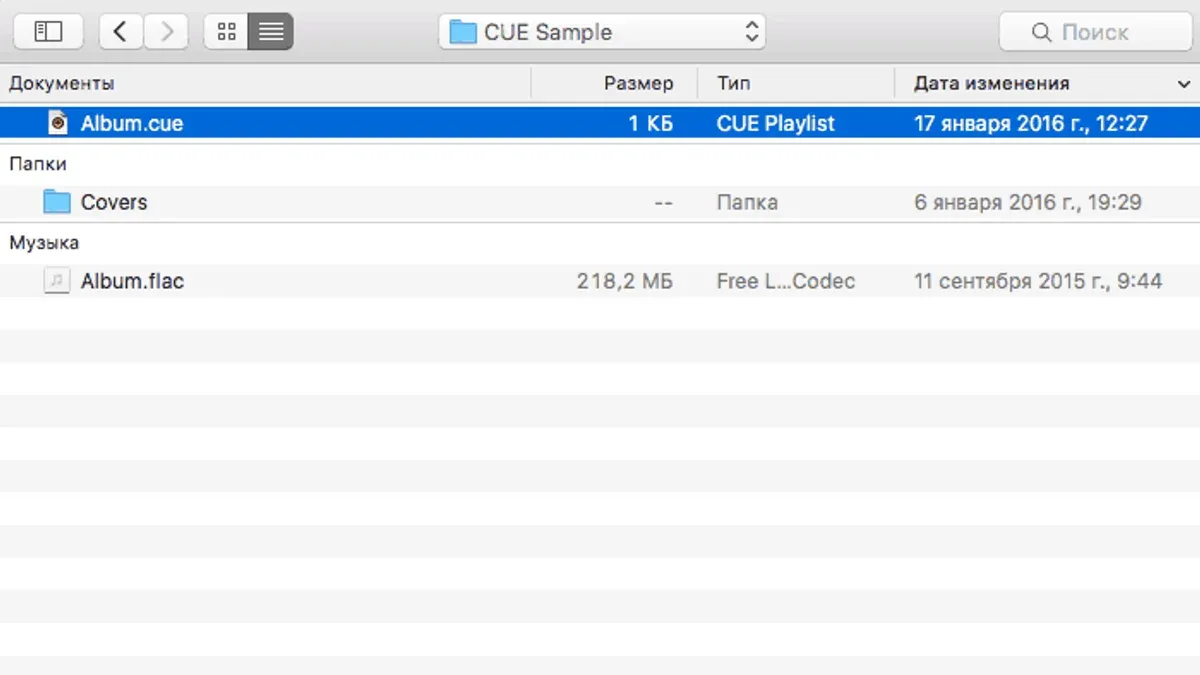
Several Mac applications support streaming or playlist playback from.cue files. VLC Media Player is a common choice, allowing you to stream the audio tracks referenced by the.cue file over a local network or to connected devices. However, VLC’s streaming capabilities with.cue files can sometimes be limited by how well the.cue references the underlying audio files, potentially causing track splitting issues.
For more dedicated streaming or DJ workflows, software like Mixxx or DJay Pro supports.cue files to manage track segments during live mixing. These apps read.cue data to navigate tracks seamlessly but may require audio files in standard formats like WAV or FLAC for optimal performance.
Streaming apps on iOS and some Mac platforms often lack native.cue support, limiting direct use. To improve compatibility, converting the.cue and its associated audio files into a single, indexed format such as a gapless FLAC or an indexed MP3 is advisable. Tools like XLD (X Lossless Decoder) on Mac can generate these files, preserving track information while simplifying streaming.
- Open your.cue file with VLC on Mac.
- From the menu, select "Media" > "Stream" to start streaming your audio over the network; you should see streaming status in the interface.
- If using DJ software like Mixxx, import the audio file and the.cue file to load track markers; the cue points should appear in the track timeline.
- To convert for better streaming, launch XLD, open the.cue file, and export to a single indexed FLAC or MP3 file; verify the exported file retains track markers in compatible players.
While.cue files provide valuable track structure, their reliance on external audio files and limited support in many streaming apps means preparing or converting files is often necessary for smooth advanced use on Mac.
Troubleshooting common issues when opening or using.cue files on Mac
If your.cue file won’t open or is not recognized, first confirm the file association with your chosen software. For example, if VLC reports "Unsupported file format," try opening the.cue file through the player's "Open File" menu instead of double-clicking it. Also, verify the.cue file extension hasn’t been altered accidentally.
Mismatched or missing audio or bin files often cause errors like "File not found" or playback stopping prematurely. Check that the.cue file references the exact names and locations of associated files. If you’ve moved files, update paths inside the.cue file using a text editor. If audio files are missing, the.cue alone cannot function properly.
Corrupted or incomplete.cue files may trigger parsing errors or fail to load tracks correctly. If editing the file manually, ensure syntax correctness—each track entry must follow the format strictly. When errors persist, consider obtaining a fresh copy or regenerating the.cue file with software.
Performance issues during playback or mounting, such as stuttering or slow loading, can stem from large file sizes or insufficient system resources. Closing other applications and verifying disk health can improve responsiveness. Also, try alternative media players or mounting tools known for better.cue support.
When persistent problems occur, switching to different software often resolves compatibility issues. For instance, if mounting fails with one tool, try Toast Titanium or DAEMON Tools. For playback, alternatives like Cog or Audirvana may handle.cue files more smoothly.
- Verify file associations or open the.cue via the media player's open dialog; successful opening shows listed tracks or starts playback.
- Check.cue file references by opening it in a text editor; corrected paths should match actual file locations.
- Confirm all related audio/bin files are present; missing files will cause error messages or incomplete playback.
- Inspect the.cue file for syntax errors; a well-formed file displays track info without errors in the player.
- Close unused apps to free resources; improved playback or mounting speed indicates performance relief.
- Try alternate software if issues persist; successful mounting or playback confirms compatibility.
- How to Open.torrent Files on Mac: Step-by-Step Guide
- How to Open and Play.flac Files on Mac: Step-by-Step Guide
- How to Open.ape File on Mac: Clear Step-by-Step Guide
- How to Open.ogg Files on Mac: Clear Step-by-Step Guide
Frequently asked questions
How to use.cue files?
.cue files serve as index files that describe the layout of tracks within a disc image or audio file. You typically use them alongside corresponding.bin or audio files to accurately play, burn, or mount the content as intended. Opening the.cue file with compatible media players or mounting software allows you to access the full disc or audio session structure.
How to run a cue file?
Running a.cue file usually means mounting it as a virtual disc or opening it in a media player that supports cue sheets. You can mount the.cue file using Mac utilities like Disk Utility or third-party apps such as Daemon Tools. Alternatively, open it in players like VLC by selecting the.cue file, which will then play the associated tracks in order.
How to play cue files?
To play.cue files on Mac, use media players that support cue sheets, such as VLC or Audirvana. Open the.cue file directly within the player rather than the audio tracks alone to preserve track indexing and gaps. This approach lets you navigate individual tracks seamlessly as if playing a physical CD.
How to mount cue files?
Mounting a.cue file on Mac requires software that can interpret cue sheets and emulate the disc image. You can use Disk Utility by opening the.cue file if it is paired with a.bin file, or rely on third-party apps like Daemon Tools or Toast. Mounting creates a virtual drive, letting you access the disc contents without physical media.
How to make a cue file?
Creating a.cue file involves generating a plain text document that defines track start times and metadata. You can use audio software like Exact Audio Copy or specialized cue sheet editors on Mac to write the file. Make sure to align track indexes precisely with the associated audio files for accurate playback or burning.
Limits of this guide and when to seek other resources
This guide focuses exclusively on handling.cue files on Mac systems. It does not cover Windows or Linux methods beyond brief mentions for comparison; users on those platforms should consult dedicated resources tailored to their environment. Some advanced.cue file features, such as those involving proprietary or less common disc image formats, may not be fully supported by free Mac applications covered here. Additionally, if your.cue file lacks accompanying audio or BIN files, its usefulness is limited since the.cue file mainly acts as an index or descriptor.
For complex use cases involving professional audio editing, specialized disc authoring, or integration with niche streaming software, consider dedicated commercial tools or platform-specific utilities that offer broader format support and advanced functionality.
To move forward effectively, identify the exact purpose you have for your.cue file—whether playback, disc mounting, or editing—and select the most straightforward method outlined here that matches that goal. Starting with a reliable media player like VLC to open your.cue file is often the simplest first step to verify your files are intact and correctly linked.



