How to Use Ping and Traceroute in Mac Terminal: A Step-by-Step Guide
This guide shows how to use ping and traceroute in Mac Terminal to diagnose network issues and understand data paths easily.
You notice your Mac's internet is slow or certain websites aren’t loading. Before calling your service provider, you want to understand what’s happening on your network.
This guide explains how to ping and traceroute in Mac Terminal, essential tools for diagnosing connection issues and understanding the path your data takes. You'll learn when to use each command, how to interpret their results, and what to do if one works but the other doesn’t.
Key takeaways
- Ping checks if a device is reachable and measures latency in milliseconds.
- Traceroute maps the path packets take, showing each hop between your Mac and the target.
- Being able to ping but not traceroute can indicate firewall or routing restrictions.
- Use both commands together for a fuller picture of network health.
- Common pitfalls include misreading timeouts and ignoring packet loss patterns.
Before you start: What you need to use ping and traceroute in Mac Terminal
To use ping and traceroute commands in Mac Terminal, you need to meet a few basic requirements. First, ensure you can open the Terminal app. It’s located in Applications > Utilities > Terminal. When you launch it, a window with a command prompt should appear, ready to accept typed commands.
You should have a basic understanding of the command line interface, including how to enter commands and interpret simple outputs. Familiarity with network concepts like IP addresses (e.g., 8.8.8.8) and hostnames (e.g., www.apple.com) will help you understand and use these tools effectively.
Administrative privileges are generally not required to run ping or traceroute, so you can perform these tests without needing to enter your password.
Finally, confirm your Mac is connected to a network—either Wi-Fi or Ethernet. Without an active connection, these commands cannot reach remote hosts.
- Open Finder and navigate to Applications > Utilities.
- Double-click Terminal. You should see a window with a prompt showing your username and a blinking cursor.
- Check your network status by clicking the Wi-Fi icon in the menu bar or running ifconfig in Terminal. Look for an active IP address under your network interface.
If all these steps are successful, you are ready to use ping and traceroute commands.
How to ping in Mac Terminal
The ping command sends ICMP echo requests to a specified hostname or IP address to test network connectivity. It helps determine if a remote host is reachable and measures the round-trip time for packets.
- Open the Terminal app on your Mac.
- Type
pingfollowed by a space and then the hostname or IP address you want to test. For example,ping www.apple.com. - Press Enter. The command will start sending packets continuously, displaying each response with details.
- To stop the ping process, press Ctrl + C. This will also show a summary of packet loss and timing statistics.
- To limit the number of packets sent, use the
-coption followed by a number. For example,ping -c 4 www.apple.comsends exactly four packets.
Sample output lines include the packet size, the responding IP address, the sequence number, time-to-live (TTL), and the round-trip time (in milliseconds). The summary after stopping shows packets transmitted, received, packet loss percentage, and average round-trip time. Minimal packet loss and low round-trip times indicate good connectivity.
How to do a traceroute on Mac
The traceroute command maps the path that packets take from your Mac to a destination, showing each hop along the way. Unlike ping, which tests reachability and latency to a single host, traceroute reveals intermediate routers and potential delays.
- Open Terminal on your Mac.
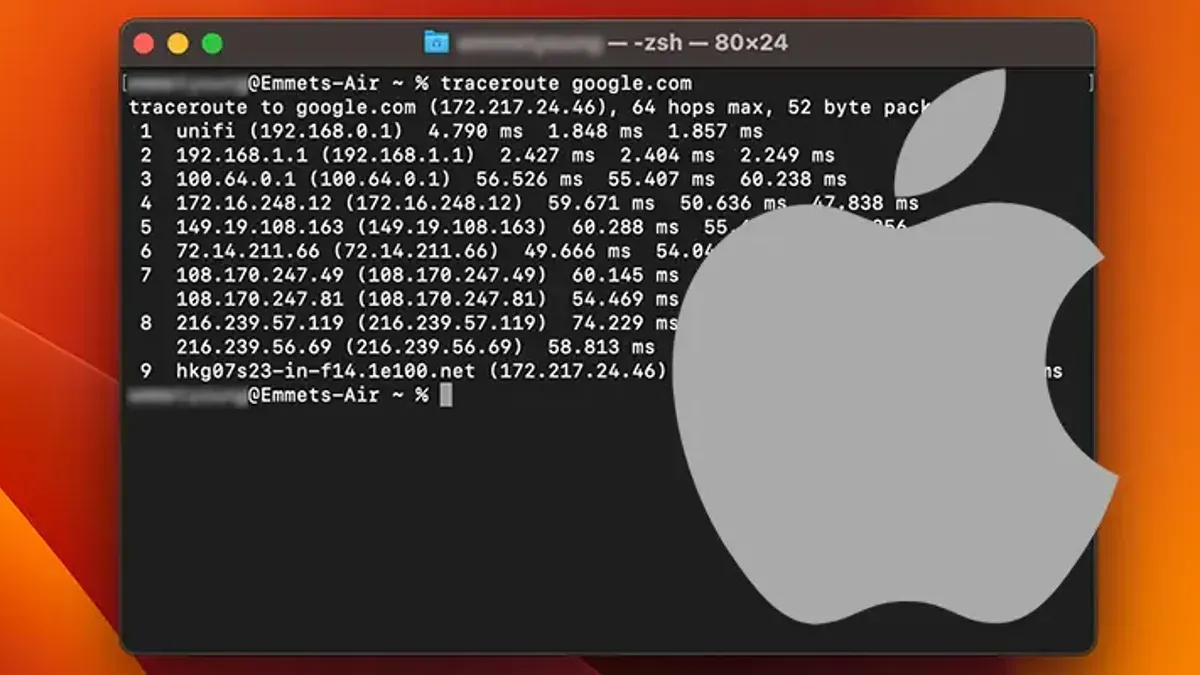
- Type traceroute example.com (replace example.com with your target domain) and press Enter.
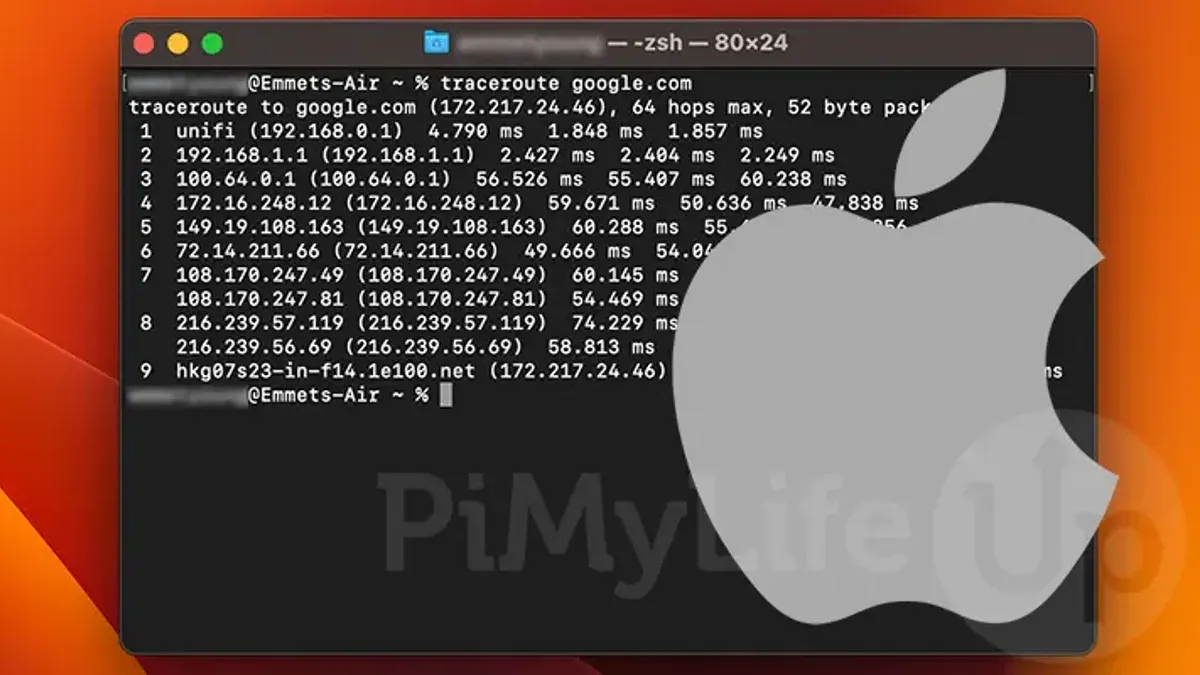
- Watch the output list each hop with its IP address or domain name and three round-trip time measurements in milliseconds.
- Each line represents a router between you and the destination. If you see an asterisk (*) instead of a time, that hop did not respond within the default timeout.
- To customize the command, use -w followed by seconds to set timeout per probe (e.g., traceroute -w 3 example.com) or -m followed by a number to limit maximum hops (default is 64).
Analyzing the traceroute helps identify where delays or failures occur by showing which hop introduces latency or blocks packets.
Able to ping but not traceroute: What it means and what to do
You may find that ping works successfully while traceroute fails to complete. This happens because ping uses ICMP echo requests, which most devices allow through, while traceroute sends UDP packets by default or ICMP packets in some cases. Some firewalls or routers block traceroute packets to prevent network mapping, resulting in incomplete traceroute outputs or timeouts.
Network devices along the route might also be configured to ignore or deprioritize traceroute probes, causing missing hops or failure messages. This filtering does not usually affect ping, which is why ping replies can still come through.
To verify if filtering is the issue, compare the outputs for the same host:
| Command | Typical Output |
|---|---|
| ping example.com -c 3 | 3 packets transmitted, 3 received, 0% packet loss, time 200ms |
| traceroute example.com | 1 192.168.1.1 1 ms 2 ms 1 ms 2 * * * 3 * * * |
The asterisks indicate no response from hops beyond your router, suggesting packet filtering.
- Check your Mac’s firewall and any security software settings for rules blocking UDP or ICMP traceroute packets. When adjusted, traceroute should begin to show hop details beyond your local network.
- If you have access, review your router or network firewall configurations to ensure traceroute packets are allowed to pass through.
- Try running traceroute with ICMP probes by using the -I option:
traceroute -I example.com. This sometimes bypasses UDP filtering and may yield results. - If traceroute still fails, consider that intermediate network devices or your ISP may be purposely blocking traceroute probes; in this case, you can rely on ping for connectivity checks and consult your ISP for further diagnostics.
Difference between traceroute and ping: When to use each
Ping and traceroute serve distinct but complementary roles in network troubleshooting. Ping checks if a host is reachable and measures basic latency by sending ICMP echo requests, providing a quick response on connection status and packet loss.
Traceroute, on the other hand, maps the path packets take to a destination, showing each intermediate hop and the delay at every step. This helps identify where delays or failures occur along the route.
Used together, ping confirms basic connectivity while traceroute diagnoses path-specific issues, giving a fuller picture of network health. However, ping cannot reveal route details, and traceroute may be blocked or limited by network devices, affecting accuracy.
| Feature | Ping | Traceroute |
|---|---|---|
| Protocol Used | ICMP Echo Request/Reply | UDP packets by default (ICMP optional) |
| Primary Purpose | Check reachability and latency | Discover network path and intermediate delays |
| Typical Use Case | Verify if a host is up and measure response time | Identify where packet loss or delays occur |
| Limitations | No route details, limited error context | May be blocked by firewalls, slower results |
Using ping and traceroute commands together for effective network diagnosis
Combining ping and traceroute commands provides a comprehensive approach to diagnosing network issues. Start by running ping to confirm that the target host is reachable and to measure latency. If ping responses show high packet loss or significant delay, you know there’s a connectivity problem.
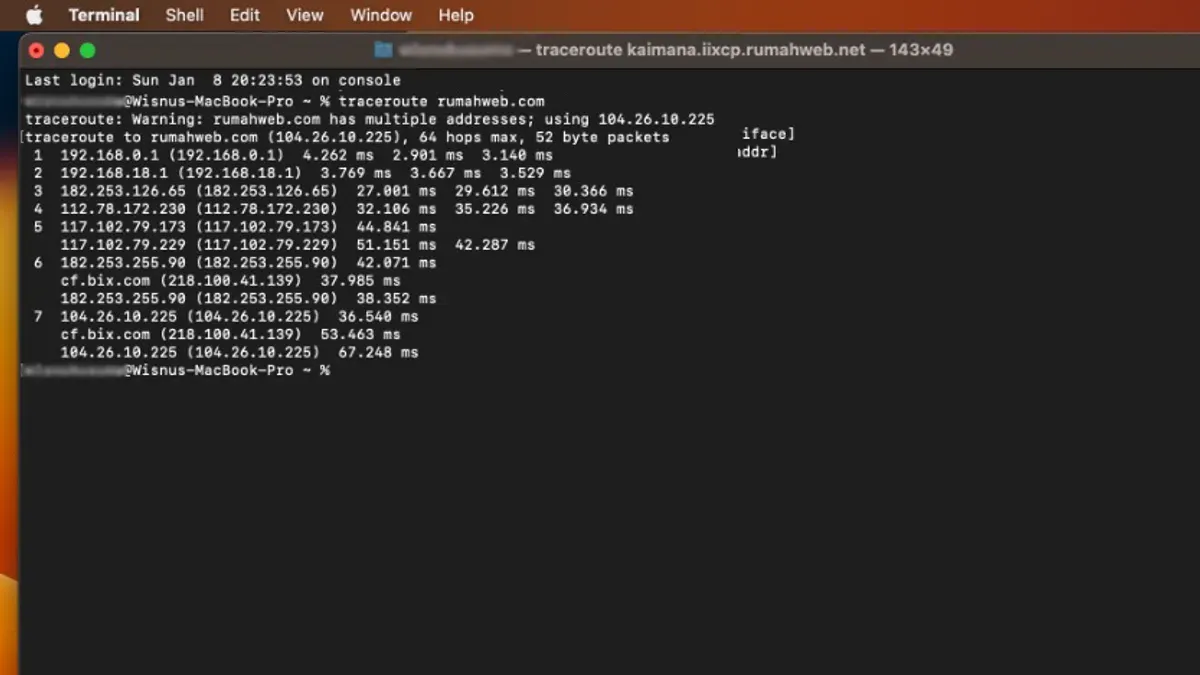
Next, run traceroute to trace the path packets take to the destination. This reveals where delays or blocks occur along the route. For example, if ping to example.com returns with high latency but traceroute shows a delay at a specific hop, the issue likely lies with that network segment.
If ping fails while traceroute partially completes, it may indicate filtering on ICMP packets or intermittent routing problems. Conversely, successful ping but stalled traceroute suggests firewall interference with traceroute probes.
- Open Terminal and run
ping -c 5 example.com. You should see five replies with round-trip times indicating host availability. - Run
traceroute example.com. Observe each hop's response times to identify where delays or failures occur. - Compare results: a sudden increase in latency or a timeout at a hop pinpoints the problematic network segment.
- If traceroute stalls but ping works, try
sudo traceroute -I example.comto use ICMP packets and bypass some firewall restrictions. - Use combined findings to decide if the problem is local, with your ISP, or beyond—guiding your next troubleshooting steps or support calls.
Troubleshooting common issues with ping and traceroute in Mac Terminal
- Permission denied or command not found errors: If you see "ping: command not found" or "traceroute: command not found", verify your Terminal’s PATH environment variable includes /sbin and /usr/sbin where these commands reside. Use
echo $PATHto check. If the command exists but you get "Operation not permitted", ensure the Terminal app has the necessary permissions under System Preferences > Security & Privacy > Privacy > Full Disk Access or Developer Tools. - No response or 100% packet loss: Receiving no replies during ping indicates the destination is unreachable or blocked. Confirm the target address is correct and reachable from other devices. Disable any active firewall or VPN temporarily to check if they interfere.
- Traceroute showing asterisks or timeouts: Seeing * * * instead of hop information means probes are blocked or dropped. This often happens due to router or firewall filtering. Try running traceroute with ICMP probes using
sudo traceroute -I [hostname]to bypass some filters. Expect some hops to be hidden if strict filtering is in place. - Network configuration or DNS resolution problems: If commands fail with messages like "unknown host", verify your DNS settings in System Preferences > Network > Advanced > DNS. Try pinging an IP address directly to isolate DNS issues. Restarting your router or renewing your DHCP lease can resolve transient network problems.
- How to Monitor Network Traffic in Mac Terminal: A Step-by-Step Guide
- How to Check Open Ports in Mac Terminal: A Step-by-Step Guide
- How to Flush DNS Cache in Mac Terminal: Step-by-Step Guide
- How to Use SSH in Mac Terminal: A Clear Step-by-Step Guide
Frequently asked questions
How to trace ping route?
Tracing a ping route involves using the traceroute command rather than ping. While ping checks the reachability of a host by sending ICMP echo requests, traceroute maps the path packets take to reach that host by sending packets with incrementally increasing Time To Live (TTL) values. On a Mac, you can run traceroute [hostname or IP] in Terminal to see each hop along the route.
Does traceroute use ping?
Traceroute does not use the ping command itself but relies on similar ICMP or UDP packets to measure each hop's response time. Unlike ping, which sends repeated echo requests to a single target, traceroute sends packets with varying TTL values to identify each intermediate router along the path. This distinction means traceroute provides detailed route information, whereas ping focuses on connectivity and latency.
How to ping on packet tracer?
Packet Tracer, Cisco’s network simulation tool, allows you to ping devices within the simulated network. To ping, open the Command Prompt on a device within Packet Tracer, then type ping [IP address] and press Enter. This simulates the ICMP echo request within your virtual network environment for troubleshooting.
What is ping and traceroute?
Ping is a command that tests the reachability of a device on a network by sending ICMP echo requests and measuring response times. Traceroute identifies the path packets take to reach a destination, showing each router or hop along the way and the time taken for each. Both tools help diagnose network connectivity and performance but serve different purposes.
Mac terminal ping to port: is it possible?
Ping in Mac Terminal cannot target a specific port because it operates at the ICMP level, which does not use ports. If you need to check connectivity to a particular port, you can use other tools like nc (netcat) or telnet to test TCP port availability instead.
What this guide does not cover
This guide does not cover advanced network monitoring tools or diagnosing hardware-level network failures. If you require deep packet inspection, detailed traffic analysis, or commercial-grade diagnostics, you should consult specialized software solutions or network professionals. Similarly, issues involving physical cabling, router firmware, or ISP outages may need hardware troubleshooting beyond the scope of Terminal commands.
The most useful next step is to practice using ping and traceroute on different network targets, such as your router's local IP address and external websites. This hands-on approach helps you recognize typical latency ranges and hop patterns, making it easier to spot anomalies in your own network environment.