How to Stop Mail from Loading Remote Images in Mail App
Learn how to stop Mail from loading remote images in Mail app to protect your privacy and control your email image loading settings.
You open your Mail app and notice that images in your emails load automatically, but you’re concerned about privacy and data use. Many emails include remote images that can track when and where you open a message, which might not be something you want to allow by default.
This article explains how to stop Mail from loading remote images in Mail app on your devices. You will learn step-by-step how to disable this feature on iPhone, iPad, and Mac, manage exceptions for trusted senders, and understand the privacy and usability trade-offs involved. By the end, you will be equipped to control your Mail app’s image loading behavior thoughtfully and securely.
Key takeaways
- Disable "Load Remote Images" in Mail settings on iPhone and iPad via Settings > Mail.
- Turn off remote image loading on Mac through Mail > Preferences > Viewing tab.
- Add trusted contacts to your VIP or safe sender list to allow images selectively.
- Be aware that turning off remote images can affect how some emails display.
- Review and adjust settings if images still load automatically after changes.
Before You Start: What You Need to Know
Remote images are pictures embedded in emails that load from external servers when you open a message. Mail apps load these images automatically by default to display the email as the sender intended. However, these images often include tracking pixels—tiny, invisible files that notify the sender when and where you opened the email. This practice is widespread, with many marketing emails using such pixels to gather data about recipients.
Stopping Mail from loading remote images can protect your privacy by preventing senders from tracking your activity. It also helps reduce data usage, which is useful if you have limited bandwidth or are on a metered connection. Keep in mind, though, that some emails may look incomplete or less visually appealing without these images.
This guide covers how to disable remote image loading on iPhone, iPad, and Mac devices using the built-in Mail app. Before you begin, make sure your device’s operating system and Mail app are updated to the latest versions, as settings and options can change with updates.
Turn Off Remote Images on iPhone and iPad
To stop Mail on your iPhone or iPad from automatically loading remote images, you need to adjust a setting within your device's Mail preferences. This helps protect your privacy by preventing senders from tracking when you open their emails. However, turning off this setting means emails may appear less visually complete until you choose to load images manually.
- Open the Settings app on your iPhone or iPad.
When you open Settings, you see a list of apps and system options. - Scroll down and tap Mail.
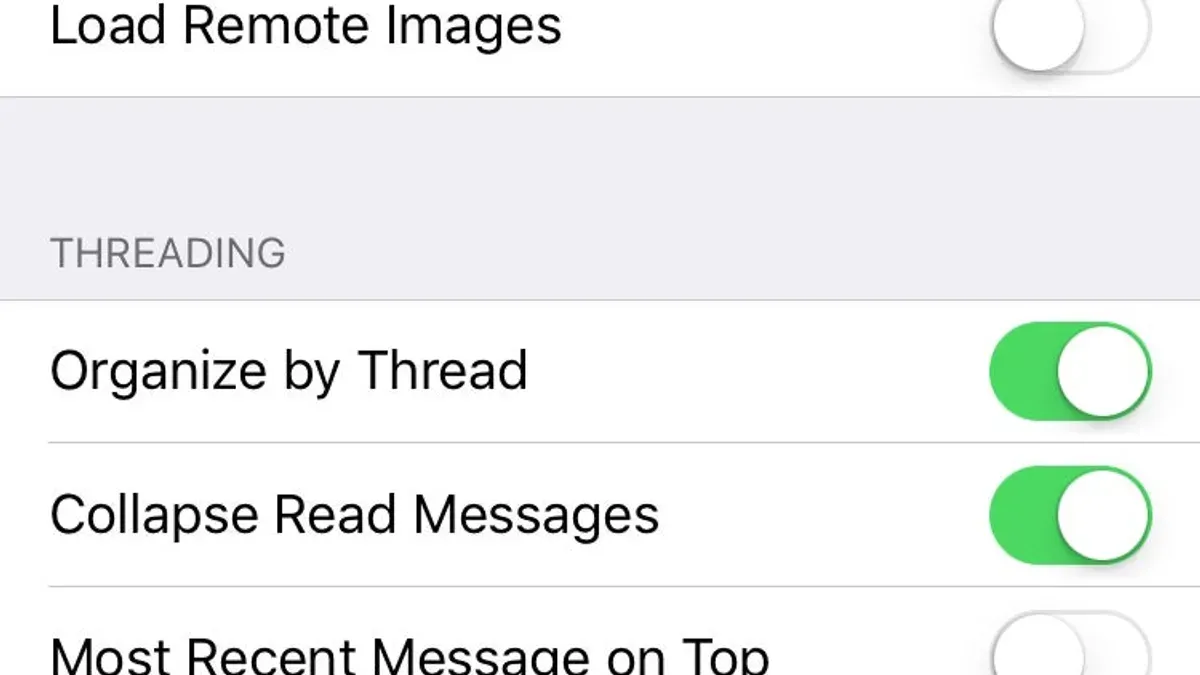
This opens the Mail-specific settings menu. - Find the option labeled Load Remote Images.
By default, this toggle is usually on, allowing images to load automatically. - Tap the toggle next to Load Remote Images to turn it off.
The toggle will move to the left and change color (usually from green to gray), indicating images will no longer load automatically. - Return to the Mail app and open an email containing images.
You will see placeholders or empty spaces where images would be, preserving your privacy. - If you want to view images for a specific email, tap the message header and select Load All Images or a similar option to load images only in that email.
This lets you control which messages load images without turning the global setting back on.
By following these steps, you gain control over when images load in your emails, balancing privacy with convenience. Remember that some emails may look incomplete until you choose to load the images manually.
Disable Remote Images in Mail App on Mac
To stop the Mail app on your Mac from automatically loading remote images, you need to adjust its preferences. This option controls whether external content like images and tracking pixels load when you open an email, impacting both privacy and how emails appear.
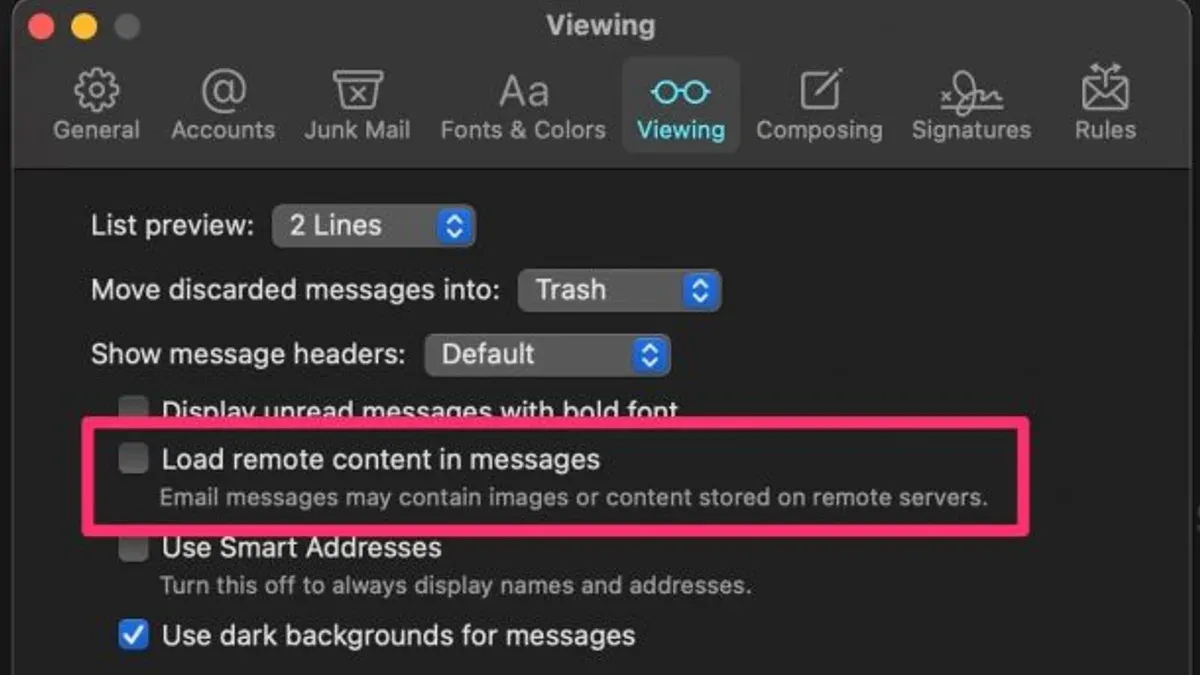
- Open the Mail app on your Mac. You should see the menu bar at the top of your screen.
- Click on Mail in the menu bar, then select Preferences... from the dropdown menu. A new window will open.
- In the Preferences window, click the Viewing tab.
- Look for the option labeled Load remote content in messages. By default, this box is checked, allowing remote images to load automatically.
- Uncheck the box next to Load remote content in messages. When you close Preferences, remote images will no longer load automatically in your emails.
With this setting turned off, emails will show placeholders or empty spaces where images would normally appear. This prevents tracking but may make some emails look less polished or harder to read. Depending on your macOS version, this option might be worded slightly differently or found under a different tab, but it generally remains in the Viewing or Reading section of Mail preferences.
Manage Exceptions for Trusted Senders
You might want to block remote images generally but still allow them from certain trusted contacts. This selective loading balances convenience and privacy, letting you view images when you know the sender is safe while keeping your data protected from unknown sources.
To manage exceptions, you can add trusted senders to a whitelist or mark them as VIPs. When you do this, the Mail app automatically loads remote images from these contacts, bypassing the general restriction you set for other emails.
- Open the Mail app and find an email from a sender you trust. You should see an option like "Add to VIPs" either by tapping their name or clicking the sender’s address. When successful, you’ll see a VIP star icon next to their name.
- For whitelisting via contacts, open the Contacts app and add or confirm the sender’s email address. Mark them as a favorite or create a group labeled “Trusted Senders.” Emails from these contacts will allow images to load automatically.
- Check your Mail app settings under Notifications or VIP settings to ensure VIP emails load remote images by default. This setting usually overrides the global image loading restriction.
Keep in mind that trusting any sender carries some risk. Even trusted contacts could have their accounts compromised, leading to unwanted tracking or malicious content. Always balance convenience with caution and update your trusted list regularly.
For example, you might whitelist coworkers whose emails you read daily, ensuring images like charts or signatures load automatically. Meanwhile, unknown newsletters remain blocked to protect your privacy and data.
Troubleshoot Common Issues When Disabling Remote Images
After disabling remote images, you might notice some emails looking incomplete or broken because images often carry important visual information. To view these images selectively, look for a “Load Images” or “Load Remote Content” button or link within the email itself—tapping or clicking it will load images for that message only.
Sometimes settings to block remote images may not save properly or revert after app updates. If this occurs, go back to Settings > Mail on iPhone or iPad, or Mail > Preferences > Viewing on Mac, and confirm that the Load Remote Images option remains disabled. If the problem persists, restarting your device or reinstalling the Mail app can help reset these preferences.
Note that blocking remote images can affect how newsletters or marketing emails display, as these often rely heavily on images for layout and content. If emails appear unusually plain or missing key elements, manually loading images or temporarily enabling remote loading for trusted senders can restore full functionality.
If your Mail app behaves unexpectedly after changing these settings, resetting them to default can resolve issues. On iOS, navigate to Settings > Mail > Reset or, on Mac, use the Mail > Preferences > General tab to reset settings. This step often fixes glitches caused by corrupted preferences.
Understand the Privacy and Usability Trade-Offs
Blocking remote images in Mail significantly reduces one common method of tracking: web beacons embedded in images that notify senders when you open an email. However, it does not stop all tracking methods, such as tracking links or fingerprinting techniques that gather data through your interactions. Experts acknowledge that while disabling remote images enhances privacy, it is only one layer of a broader email security approach.
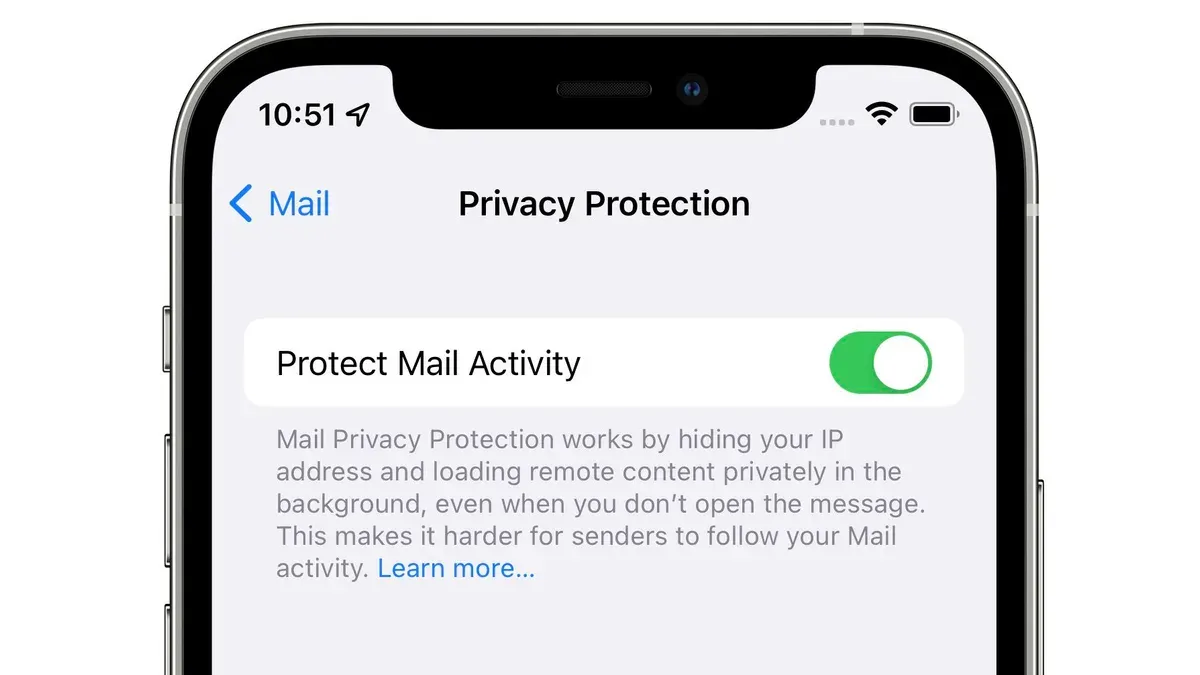
There is a trade-off between privacy and email aesthetics. Many newsletters and promotional messages rely on images to convey information or branding, so blocking images can make emails appear incomplete or harder to read. Convenience also plays a role; some users prefer the automatic loading of images to avoid extra taps or clicks, especially if they trust the sender.
To strengthen your email privacy, consider combining image blocking with other measures like using strong spam filters, regularly updating your Mail app, and avoiding clicking suspicious links. Users who prioritize a seamless email experience and regularly receive trusted, image-rich emails might choose to keep image loading enabled despite the privacy risks.
Frequently asked questions
Will disabling remote images stop all email tracking?
Disabling remote images blocks most common tracking methods that rely on invisible images loaded from external servers. However, some tracking can still occur through other techniques like tracking links or embedded scripts, so it does not guarantee complete prevention. It's a strong step to enhance privacy but not an absolute shield against all tracking.
Can I load images manually for specific emails after disabling automatic loading?
Yes, when automatic loading is off, you can choose to load images manually for individual emails. Usually, a prompt or button appears within the email allowing you to load images safely when you trust the sender. This gives you control to view images only when you decide.
Does turning off remote images affect how attachments appear?
Disabling remote images does not affect attachments like PDFs, documents, or photos directly attached to the email. Attachments are downloaded with the message and are separate from remote images loaded via the internet. So you can still access and open attachments normally regardless of image loading settings.
How do I know if my Mail app version supports these settings?
Check your Mail app’s preferences or settings menu for options like "Load Remote Images" or "Load External Content." On iPhone and iPad, this is often under Settings > Mail. For Mac, look in Mail > Preferences > Viewing. If these options are missing, your version may not support selective image loading, and updating the app or OS might be necessary.
What This Advice Does Not Cover
While disabling remote images in the Mail app helps reduce some forms of tracking and conserves data, it does not block all email tracking methods. Techniques like tracking through links or read receipts remain active unless you use additional privacy tools or email services with enhanced protections. If you require comprehensive email privacy, consider combining this approach with secure email providers, VPNs, or browser extensions designed to block trackers.
Also, this guide focuses on the Mail app built into Apple devices. If you use third-party email clients or different platforms, their settings and controls may vary significantly. For those users, consulting the specific app’s support resources will be necessary.
The single most effective next step is to review and adjust your Mail app’s settings regularly, especially after system updates. This ensures any changes or new features related to image loading and privacy remain configured to your preference, maintaining your control over what content loads automatically.
See also: How to Fix Mail Not Syncing in Mail App: Step-by-Step Solutions · How to Block a Sender in the Mail App: Clear Steps for Apple Users · How to Set Up Mail Rules in the Mail App: A Step-by-Step Guide · How to Use Remind Me for Follow Ups in Mail App: A Step-by-Step Guide