
Switching from Canvas to Schoology: Your Expert Transition Guide
Learn how to smoothly switch from Canvas to Schoology by mastering key features, account setup, and avoiding common pitfalls for a confident start.
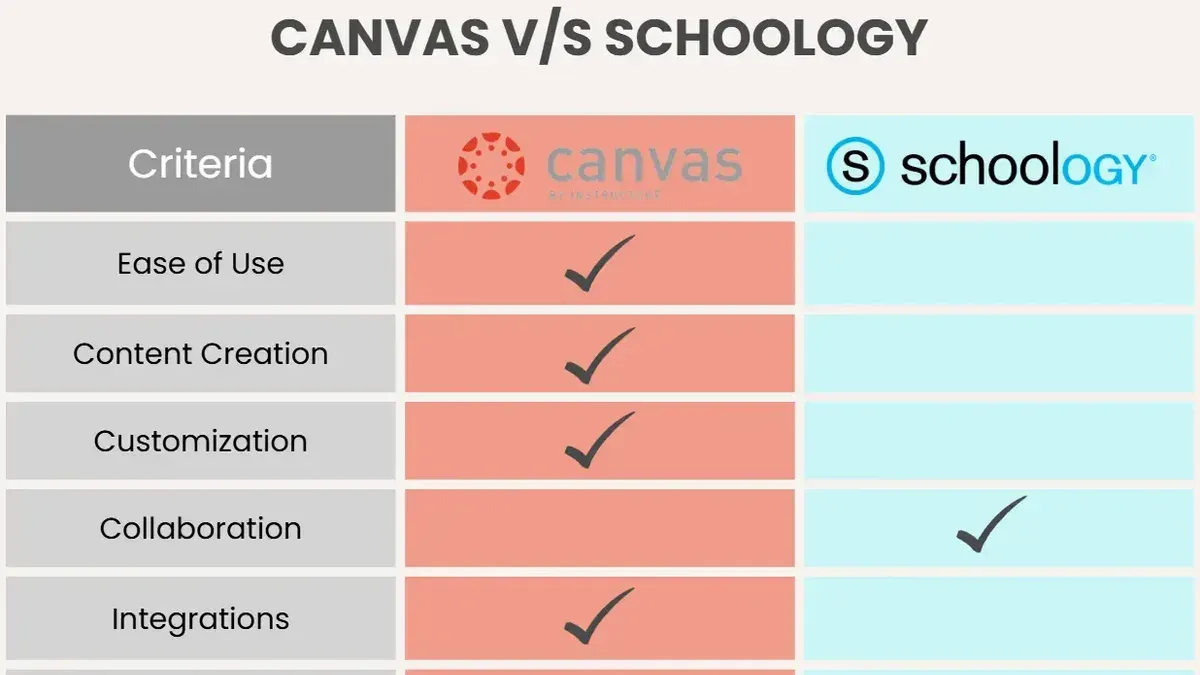
Short answer: Switching from Canvas to Schoology requires understanding the key differences in interface and functionality, setting up your new Schoology account correctly, and adapting to its unique features for both teaching and learning. While both platforms serve as learning management systems, Schoology offers distinct customization options and grade management tools that you need to master for a smooth transition.
This guide walks you through every step of switching from Canvas to Schoology, covering how to access and configure your account, customize your learning experience as a student, manage classes and grades as a teacher, and secure your account. You will also learn how to avoid common pitfalls during the transition and clarify misconceptions about how the two platforms differ in practice, ensuring you feel confident and prepared on day one with Schoology.
Understand what Canvas and Schoology are and why switching matters
Canvas and Schoology are comprehensive learning management systems (LMS) designed to facilitate course delivery, grading, and communication between educators and students. Both platforms support virtual classrooms, assignment submissions, and integrate with Student Information Systems (SIS) to synchronize grades and attendance efficiently.
Schools often switch between these LMS platforms due to strategic considerations such as preferred feature sets, ease of integration with existing tools, or district-wide mandates. For example, a school might choose Schoology over Canvas because Schoology offers deeper integration with specific SIS solutions or provides a more customizable interface for students and teachers.
Below is a comparison of key features and integration capabilities to clarify differences:
| Feature | Canvas | Schoology |
|---|---|---|
| Course Creation | Robust, with modular content pages | Flexible, supports rich media and third-party apps |
| Gradebook Sync | Automatic sync with major SIS platforms | Real-time sync, customizable grading scales |
| Communication Tools | Announcements, messaging, video conferencing | Discussion boards, messaging, direct notifications |
| Third-Party Integrations | Wide range including Google Workspace, Microsoft Teams | Strong integration with Google Workspace and district tools |
Imagine a school district that initially used Canvas but found its grading sync with their SIS was limited to batch updates once a day. Switching to Schoology enabled real-time grade synchronization, reducing manual errors and improving transparency for students and parents.
How to access Schoology and set up your account after switching
Begin by navigating to your school’s official Schoology login page, typically found via the school district’s website or directly at https://www.schoology.com. Select your institution from the dropdown menu before entering your credentials. If you used Canvas before, your username might be your school email or a provided ID—verify this with your school’s IT department.
If you’re logging in for the first time and don’t have a password yet, look for the “Forgot Password?” link on the login screen. Enter your registered email address to receive a password reset link. Follow the instructions carefully, setting a strong password that meets Schoology’s security requirements, usually including a mix of letters, numbers, and special characters.
Once logged in, verify your account details by clicking your profile icon and selecting Account Settings. Check that your name, email, and role (student or teacher) are correct, as permissions and access depend on this information.
For example, a teacher switching from Canvas should confirm they have access to course creation tools, while students should verify enrollment in their current classes. If permissions seem limited, contact your school’s LMS administrator promptly.
- Access the official Schoology login page via your school’s website or schoology.com
- Select your school and enter your username and password
- Use “Forgot Password?” if you need to reset your password
- Verify account details and role in Account Settings
- Confirm access to necessary courses and permissions or contact support if issues arise
How to change schools in Schoology when moving between institutions
Sometimes you need to update your Schoology account to reflect a new school affiliation, such as when transferring between districts or starting at a different institution. Changing schools ensures your courses, permissions, and access align with the new environment.
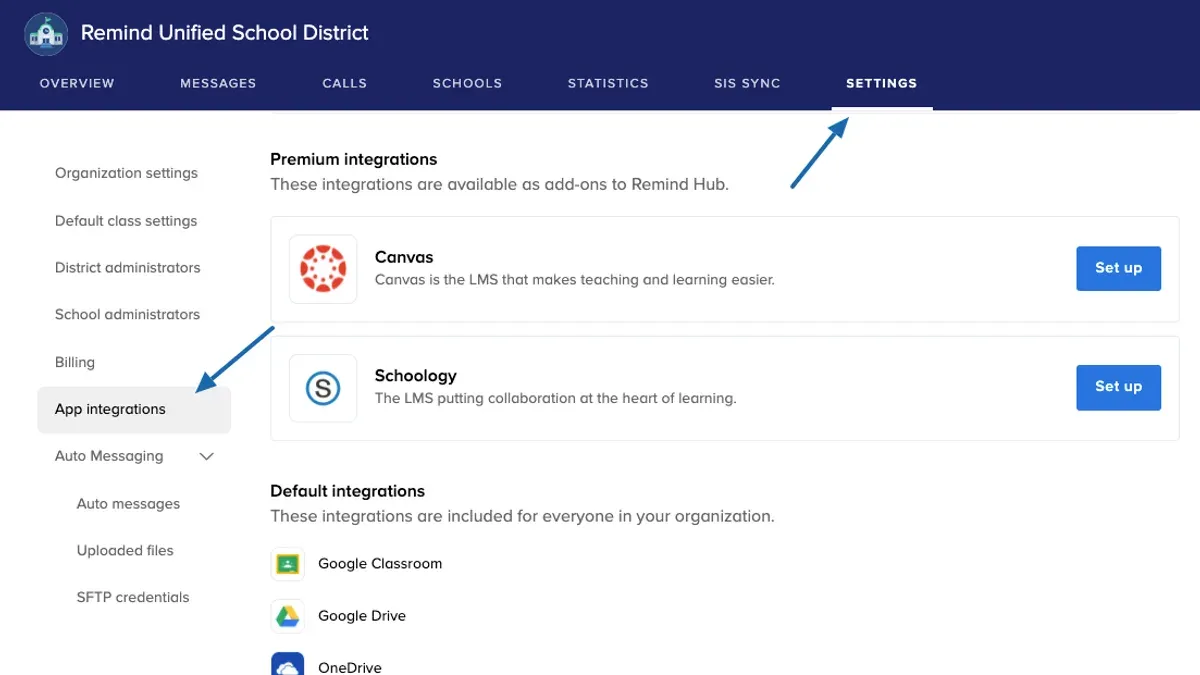
To initiate a school change, you cannot directly switch schools in your profile. Instead, you must request the change through your current or new school’s Schoology administrator. Typically, this involves informing the administrator at your new school that you need your account affiliated with their domain.
Once the administrator approves and processes your request, your account will be linked to the new school, and your course enrollments will update accordingly. This process can take several days depending on administrative workflows.
For example, imagine you move from Lincoln High to Roosevelt Academy. You contact Roosevelt’s Schoology administrator and provide your current Schoology username and ID. Roosevelt’s admin verifies your information and submits a domain transfer request to Schoology support. After approval, usually within 3-5 business days, you log in to find your account affiliated with Roosevelt Academy and new courses visible.
Remember, communication with both your previous and new school’s administrators is key to a smooth transition.
- Contact your new school’s Schoology administrator
- Provide your current Schoology username and ID
- Request a domain transfer or school affiliation change
- Wait for administrative approval, typically a few days
- Log in to verify your new school affiliation and course access
How to customize Schoology as a student for a personalized learning experience
Customizing your Schoology profile helps boost engagement and makes navigating your courses easier. Start by changing your profile picture: go to your name in the top right corner, select Settings, then Basic Information, and upload an image that represents you. A clear photo or avatar personalizes your presence and helps teachers and classmates recognize you quickly.
Next, organize your courses visually by adding or creating course images. In your Courses tab, click the three dots next to a course and choose Edit Course. Upload an image that relates to the subject—like a microscope for biology or a globe for geography—to help you identify classes at a glance. Before-and-after visuals show a plain list transformed into a colorful, intuitive dashboard, reducing confusion and saving time.
Finally, adjust language preferences for a more accessible interface. Navigate to Settings > Language and select your preferred language from the dropdown menu. This ensures menus, notifications, and help content display in the language you understand best, enhancing your learning experience.
- Change profile picture via Settings > Basic Information
- Add course images through Courses > Edit Course
- Set language preferences in Settings > Language
How to use Schoology for teachers: creating virtual classes and managing grades
To create a virtual class in Schoology, navigate to the "Courses" tab and select "Add Course." Enter your course name, description, and select the appropriate grade level and term. Organize your course by creating folders and adding materials such as assignments, quizzes, and resources under the "Materials" section.
Grade syncing in Schoology connects with your school’s Student Information System (SIS) via the "Grade Sync" feature found under "Manage Grades." Unlike Canvas, which offers more automated and flexible grade sync options, Schoology's sync may require manual setup and periodic adjustments to ensure accuracy. For example, after entering grades in Schoology, you must confirm sync settings to push grades to the SIS, which may not update in real time.
When managing assignments, use consistent naming conventions and due dates to keep students informed. Communicate clearly through the "Updates" feed or direct messaging to address questions promptly. For example, you might create a folder named "Week 1: Algebra Basics" containing all related assignments and post reminders in the Updates section.
- Go to "Courses" > "Add Course" to start a new virtual class
- Create folders in "Materials" to organize content logically
- Use "Manage Grades" > "Grade Sync" to connect with your SIS and verify sync settings regularly
- Name assignments clearly and set due dates to help students track progress
- Utilize the "Updates" feed to communicate timely information and answer student queries
How to change your grades on Schoology and understand grade management policies
Only teachers and designated administrators have the authority to change grades in Schoology. Students cannot directly edit their grades due to strict grade management policies designed to maintain academic integrity and transparency.
When a teacher needs to update a grade, they should navigate to the course Gradebook. From there, select the specific assignment or assessment, locate the student’s current grade, and enter the new score. After saving, Schoology automatically logs the change with a timestamp and the user’s name, maintaining a clear audit trail.
For example, if a teacher notices a grading error on a quiz scored 75 but should be 85, they access Gradebook > Quiz > Student’s grade, update it to 85, then click Save. This action is recorded in the Grade Change Log accessible to admins and teachers, ensuring accountability.
Students who believe their grade is incorrect must submit a formal request to their teacher or school administrator. The teacher can then review the request, verify the grade, and make adjustments if warranted. This process prevents unauthorized grade changes and supports fair grading practices.
- Only teachers and admins can change grades
- Use Gradebook > assignment > edit grade to update scores
- Changes are logged with user and timestamp
- Students request grade corrections through teachers or admins
How to change your Schoology password securely and protect your account
To change your Schoology password, start by clicking your profile icon at the top right corner, then select Account Settings. In the left menu, choose Security, and click Change Password. Enter your current password, then type a new password that meets security guidelines—at least 12 characters, combining uppercase and lowercase letters, numbers, and symbols. A password strength meter will indicate if your choice is strong enough. For example, "P@ssw0rd123!Secure" scores higher than "password123".
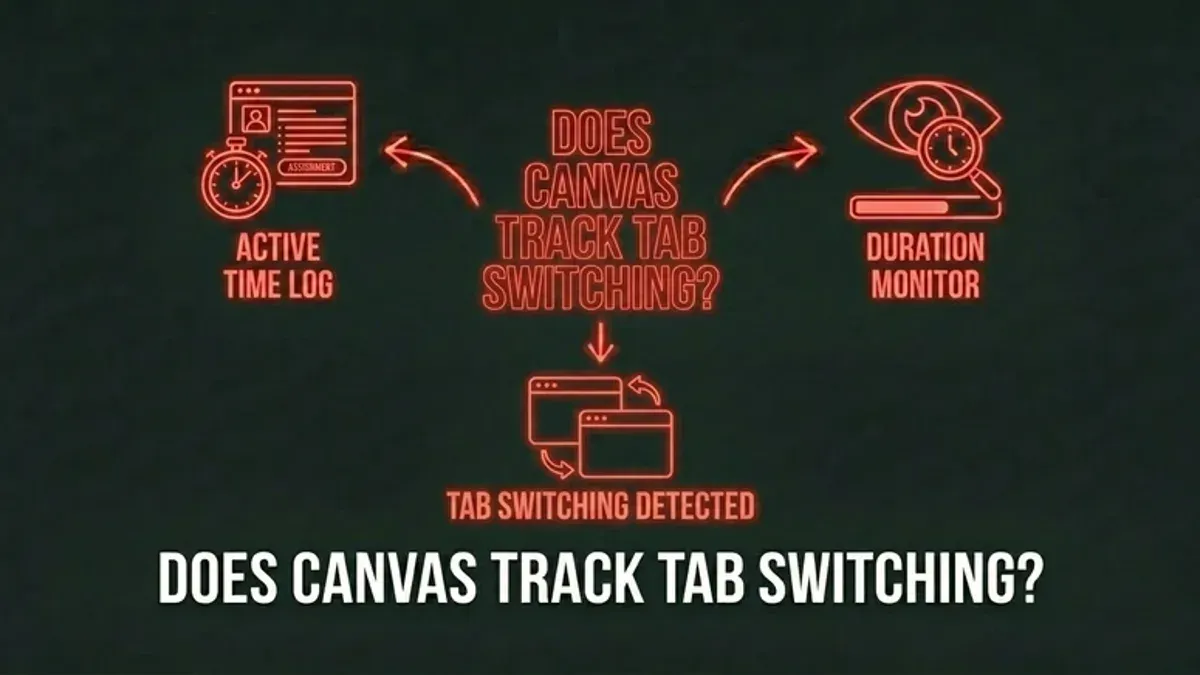
Enabling two-factor authentication (2FA), if your institution supports it, adds a crucial security layer. This option typically appears under Security Settings and may involve a mobile app or SMS code verification during login.
If you forget your password, use the Forgot Password? link on the login page to receive a reset email. Follow instructions promptly, and verify your identity via any additional steps your school requires.
- Go to profile > Account Settings > Security > Change Password
- Create a strong password with mixed characters and minimum length
- Enable two-factor authentication if available
- Use the Forgot Password option for account recovery
- Regularly update your password to maintain security
Can Schoology detect switching tabs during assessments? What you need to know
Schoology’s assessment platform does not have built-in functionality to detect when a user switches browser tabs during a test. Unlike some LMS tools that integrate with lockdown browsers or specialized proctoring software, Schoology itself focuses on delivering assessments but leaves monitoring to external solutions.
For example, Canvas offers integration with Respondus LockDown Browser, which can prevent tab switching and limit access to other applications during an exam. Schoology can also be paired with third-party proctoring tools, but on its own, it cannot track or flag if a student moves away from the test tab.
This means that while Schoology records submission times and tracks responses, it cannot technically enforce or detect academic integrity breaches relating to tab switching by itself. Educators should combine Schoology assessments with clear honor codes, time limits, question randomization, and, if needed, third-party proctoring services to maintain integrity.
Picture a scenario where a student opens a new tab to search for answers. Schoology won’t log this action or alert the teacher. However, a lockdown browser integrated with Schoology could block this behavior entirely.
- Schoology alone does not detect tab switching during tests.
- Third-party lockdown browsers or proctoring integrations are required for active monitoring.
- Use time limits, randomized questions, and honor codes alongside platform features.
Common mistakes to avoid when switching from Canvas to Schoology
One frequent pitfall is not verifying the integration settings with your Student Information System (SIS). Without confirming that the SIS sync is properly configured in Schoology’s Admin Panel under System Settings > Integrations, grade synchronization can fail, causing missing or inaccurate grade data. For example, a middle school experienced delayed grade updates because their SIS API token was expired, which went unnoticed until grade submission deadlines.
Another common error is overlooking the need for comprehensive user training. Both teachers and students benefit from guided tutorials on Schoology’s interface and tools. When a district skipped this step, educators struggled with assignment submissions and communication features, while students reported confusion navigating courses, resulting in increased support tickets.
Finally, ignoring Schoology’s customization options reduces user engagement and efficiency. Simple actions like enabling course color-coding or setting notification preferences under Account Settings > Notifications can vastly improve the experience. A high school that neglected these settings saw lower participation rates and frustration from users overwhelmed by default layouts.
- Verify SIS integration tokens and sync settings in the Admin Panel before switching.
- Provide targeted training sessions for teachers and students on Schoology’s key features.
- Encourage use of customization settings such as notifications and course visuals to enhance usability.
Read next
- Switching from Canvas to Moodle: Your Expert Transition Guide
- Moving from Canvas to Google Classroom: Your Essential Checklist
- Switching from Canvas to Brightspace: Your Complete Expert Guide
- Switching from Canvas to Blackboard: Your Expert Guide
Frequently asked questions
How to change schoology picture?
To change your profile picture in Schoology, click your profile icon in the top-right corner, then select "Settings." Under the "Basic Information" tab, click the current picture or placeholder image, then upload a new photo from your device. Remember to save your changes to update your profile picture.
How to change the language on schoology?
Schoology allows you to change the display language by clicking your profile icon and selecting "Settings." Scroll down to find the "Language" dropdown menu, choose your preferred language, and save the changes. The interface will refresh to show the selected language.
How to change schoology password?
To change your Schoology password, go to your profile icon and click "Settings." Under the "Password" section, enter your current password followed by the new password twice for confirmation. Save your changes to secure your account with the new password.
How to create course image in schoology?
In Schoology, teachers can add or change a course image by navigating to the course page, clicking "Course Options" on the right sidebar, and selecting "Edit Course." Under the "Course Image" section, upload an image that represents the course. Save the changes to display the new image on the course page.
How to change schoology picture
Changing your Schoology profile picture is done through your account "Settings." Click your profile icon, select "Settings," then click your current image to upload a new one. Make sure to save after uploading for the change to take effect.
What this guide does not cover
This guide does not cover institution-specific IT policies or backend data migration processes, which require coordination with your school’s IT department. If you need to transfer large volumes of course content, student records, or integrate Schoology with other campus systems, consult your IT administrators or vendor support for tailored solutions.
Quick checklist
- Confirm your Schoology account activation via your institution’s login portal.
- Update your profile and notification settings for timely communication.
- Switch your active school under Account Settings if transferring institutions.
- Customize your dashboard with widgets to prioritize your courses and assignments.
- Create and organize virtual classes using the Course Creation wizard for teachers.
- Understand your school’s grading policies before attempting any grade changes.
- Change your password regularly via Account Settings > Security to protect your account.
- Avoid common pitfalls like assuming Schoology settings mirror Canvas exactly.
- Be aware that Schoology can log suspicious tab-switching behavior during assessments.
The single most useful next step is to log into your Schoology account and explore the Account Settings menu to familiarize yourself with customization options and security features. This hands-on approach ensures you feel confident navigating your new learning environment and sets a solid foundation for your transition.



