How to Change VK Password: Clear Steps for Secure Account Access
This article provides clear, practical steps on how to change your VK password to keep your account secure and manage settings effectively.
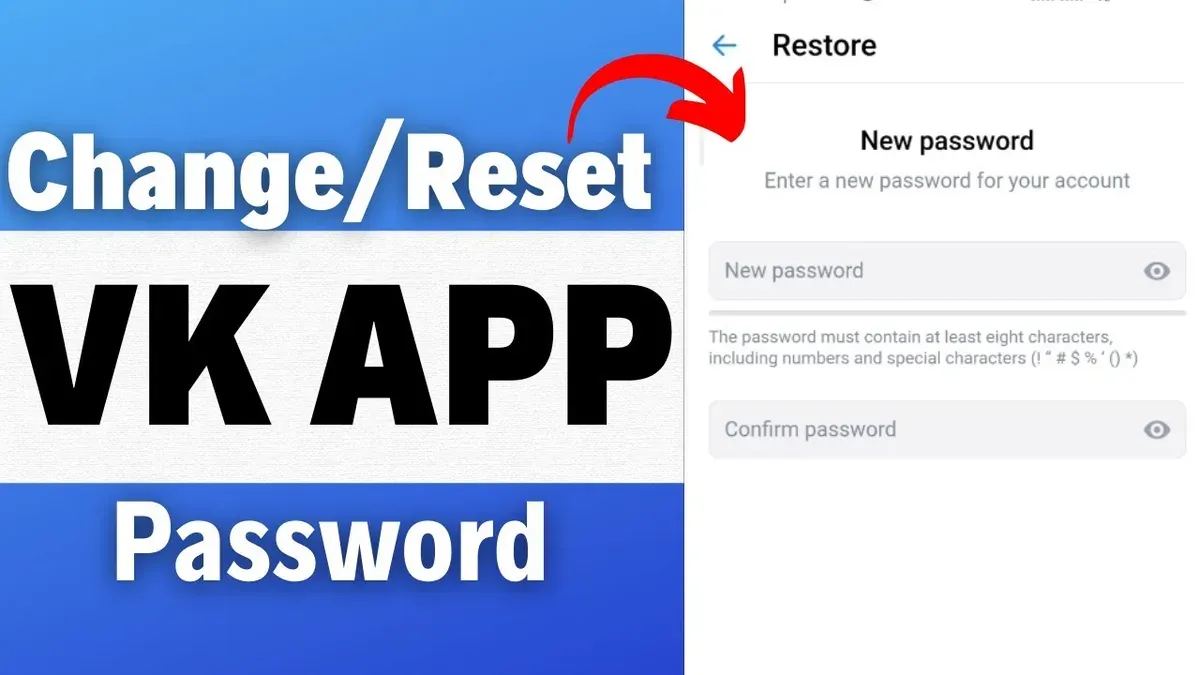
This article explains how to change VK password with clear, practical steps to secure account access and manage VK settings effectively.
Changing the VK password involves navigating to the security section within the VK account settings. It requires current login credentials and access to the linked phone number or email for verification. Understanding this process helps prevent unauthorized access and aids in account recovery when needed.
Beyond password updates, VK users often need guidance on account creation, deletion, and handling common issues related to identity and security. This guide covers these areas to provide a comprehensive resource for VK account management.
Before You Start: What Is Needed to Change VK Password
Changing a VK password requires access to the current VK account credentials, such as the registered phone number, email address, or the existing password. If these credentials are unavailable, users must have access to VK’s account recovery options like the linked phone number or email to regain access before attempting a password change. A device with internet access is essential, whether it is a desktop or laptop using a supported browser (Chrome, Firefox, Edge, Safari) or a mobile device with the VK app installed.
Basic familiarity with VK’s account settings navigation helps locate the password change option quickly. This includes knowing where the “Settings” menu is and how to access “Security” or “Account” sections within the VK interface. Users should understand that changing the password does not delete the account or affect other services linked to VK, such as third-party apps authorized via VK login.
- Ensure the device is connected to the internet and open the VK website or app. A login screen should appear.
- Log in with current credentials or use recovery options if credentials are lost. Successful login leads to the VK main feed or profile page.
- Locate and open the “Settings” menu, typically found via the profile icon or sidebar. The settings panel should display various account management options.
- Confirm access to the “Security” or “Account” section where password change options are listed. The password change interface should be visible.
Tip: Keep recovery details like phone number and email updated in VK settings to simplify password changes and account recovery.
How to Change VK Password: Step-by-Step Guide
- Log into the VK account at https://vk.com or open the VK mobile app. Successful login leads to the main feed or profile page.
- Navigate to the account settings. On desktop, click the profile photo in the top-right corner, then select "Settings" from the dropdown menu. In the mobile app, tap the three horizontal lines in the bottom-right (iOS) or top-left (Android), then tap "Settings".
- In Settings, find and select the "Security" or "Password" section. This page displays options related to account protection and password changes.
- Enter the current password in the designated field. Then, create a new strong password that meets VK’s security requirements—usually at least 6 characters with a mix of letters and numbers.
- Confirm the new password by typing it again in the confirmation field. Click or tap "Save Changes" or the equivalent button to update the password.
- Check for any confirmation prompts. VK may send a notification on the site or an email to confirm the password change. Follow any additional verification steps if requested.
Tip: Use a password manager to generate and store a strong VK password securely.
How to Create VK Account with Email and VK Account Sign Up Methods
- Go to the VK registration page at vk.com and select the option to sign up using email instead of phone number. The form will adjust to ask for email-related details.
- Enter the required fields: first and last name, valid email address, and desired password. The password field requires a mix of letters, numbers, and symbols to ensure strength.
- Submit the form. VK will send a confirmation code to the provided email address to verify its validity.
- Check the email inbox for the VK verification message and retrieve the code. Enter this code on the VK site when prompted to complete email verification.
- Once confirmed, a VK ID is automatically generated. This unique identifier links to the account and is used for login and profile access.
- Complete any additional profile setup steps, such as adding a profile picture or birthday, if desired. These are optional and can be done later.
Tip: Choose a password that is at least 8 characters long, combining uppercase and lowercase letters, numbers, and special characters to maximize security from the start.
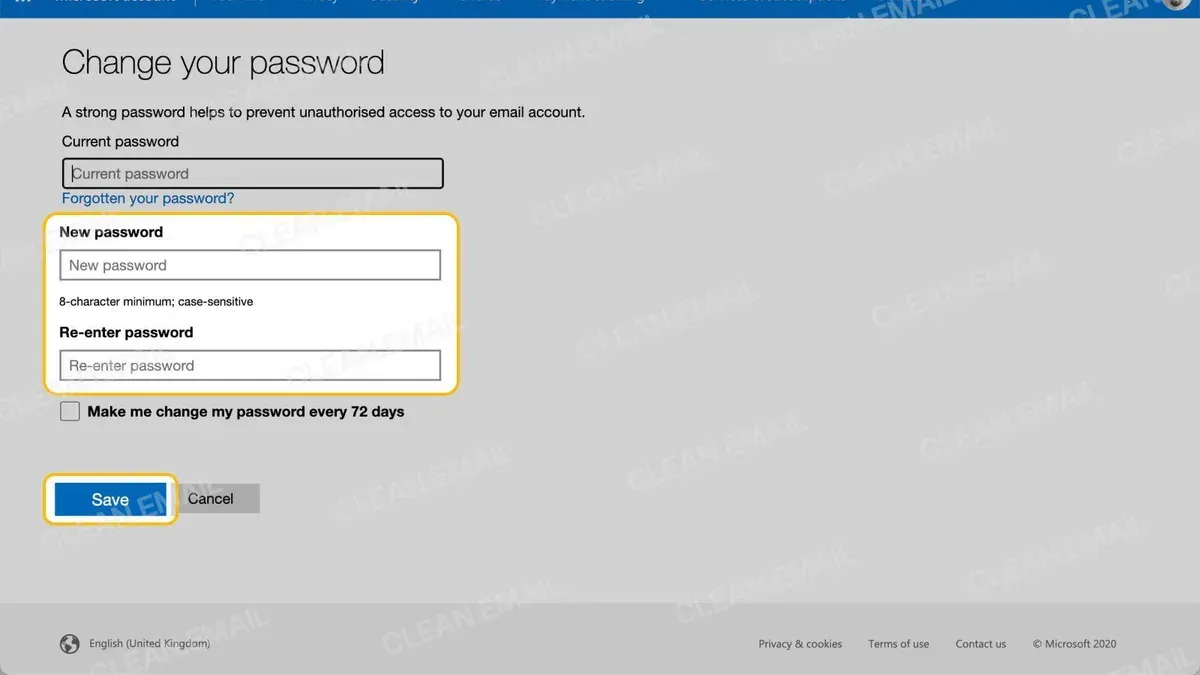
How to Delete VK Account Safely
Deleting a VK account is a permanent action that removes access to all VK services linked to the profile. Unlike changing a password, which only modifies access credentials, account deletion erases personal data after a set period and disconnects all associated applications.
- Log in to VK and go to Settings by clicking your profile picture in the top right corner.
- Scroll down to the Account section and select Delete your account at the bottom of the page.
- Choose a reason for leaving from the provided options or enter a custom message, then click Delete account.
- Confirm the deletion by entering the account password if prompted; a confirmation message will appear indicating the account is scheduled for deletion.
VK immediately restricts account access upon request. Personal data remains on VK servers during a 7-month grace period, allowing reactivation by logging back in. After this time, VK permanently deletes all user data, including messages, photos, and connections. However, some information such as messages sent to other users may remain visible to recipients.
Warning: Deleting the account disables all connected apps and services instantly, and this action cannot be undone after the grace period. Users should back up important data before proceeding.
According to VK's official policy, accounts are deactivated immediately but fully erased only after several months, providing a recovery window.
Troubleshooting Common Issues When Changing VK Password
If the current password is forgotten, initiating the Password Recovery process is essential. Navigate to the VK login page and select "Forgot password?". Enter the registered phone number or email. VK will send a recovery code or link; entering this correctly grants access to reset the password. Failure to receive the code often relates to incorrect contact info or spam filters.
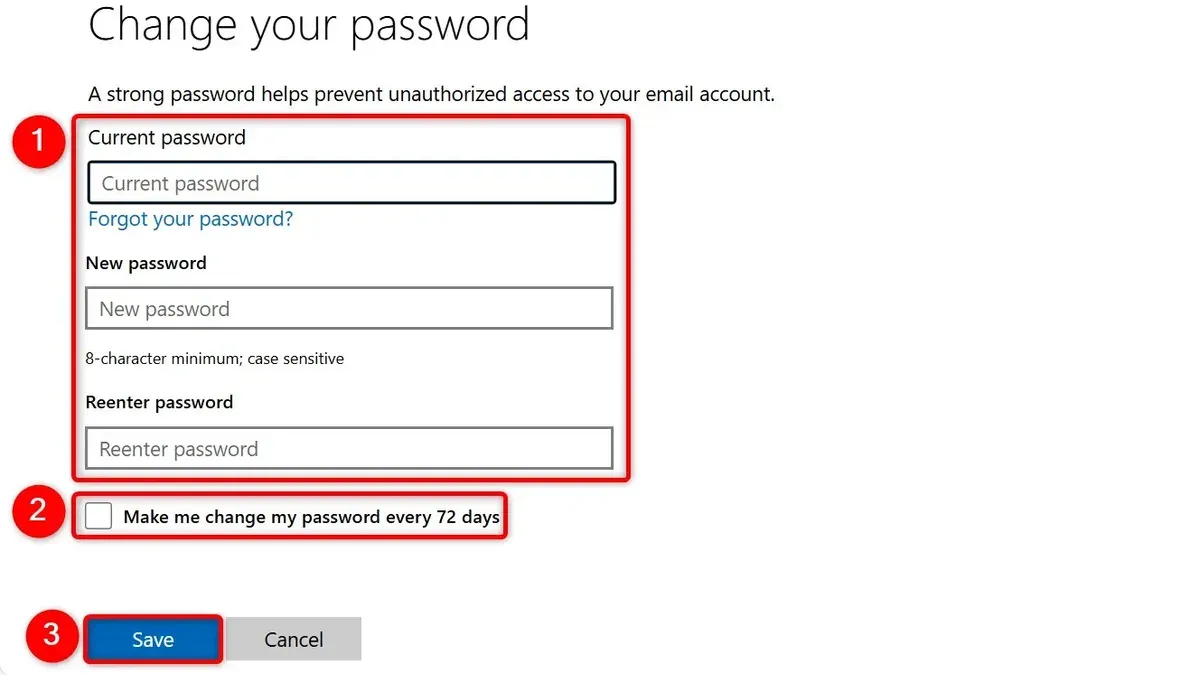
VK account lockouts or suspicious activity alerts typically require additional verification. When locked out, a message prompts to verify identity through phone or email confirmation. Completing this restores access. Ignoring these prompts or multiple failed attempts may extend lockout duration.
Two-factor authentication (2FA) can block password changes if the verification code is unavailable. In such cases, use backup codes generated during 2FA setup or request a code resend. If 2FA device is lost, account recovery must be pursued via VK support with identity proof.
Browser or app errors during password saving often arise from outdated software or cache problems. Clearing the browser cache or updating the VK app resolves many issues. For example, if "Save" button remains unresponsive, refreshing or switching browsers helps. Persistent errors might require reinstalling the app or checking internet connectivity.
Frequently asked questions
How to download from vk?
Downloading content from VK typically requires using the platform's official features or third-party tools. For videos, users can save them directly if the uploader has enabled downloads. Alternatively, browser extensions or dedicated software can facilitate downloading, but caution is advised to avoid violating VK's terms of service or copyright rules.
What is a vk account?
A VK account is a user profile on VKontakte, a social networking service popular in Russia and other countries. It allows individuals to connect with friends, share media, join communities, and use various VK features like messaging and streaming. The account is secured by login credentials such as email or phone number and a password.
How to change vm password?
Changing a virtual machine (VM) password depends on the platform hosting the VM. Generally, it involves accessing the VM's management console or operating system directly and using the password change command or interface. For example, within the VM's OS, a user can reset the password using standard account settings or command-line tools.
How to change vm password in azure portal?
In the Azure Portal, navigate to the Virtual Machines section, select the target VM, and click on the 'Reset password' option under the Support + Troubleshooting menu. Choose the username, enter a new password, then save the changes. This process resets the password without needing to access the VM OS directly.
What is vk.com on my twitter messages?
VK.com links appearing in Twitter messages typically refer to content shared from the VKontakte platform. This can include links to user profiles, posts, photos, or videos hosted on VK. Such links are common when users share VK content across social media networks like Twitter.
What This Guide Does Not Cover
This guide focuses strictly on the basic process of changing a VK password, creating and deleting VK accounts, and resolving common related issues. It does not cover advanced security settings such as enabling or managing two-factor authentication (2FA). Users who have lost access to all login methods or whose accounts have been compromised should contact VK support directly for specialized assistance. Additionally, this guide does not address third-party app permissions or detailed privacy controls.
For continued account security, the most effective next step after changing a password is to regularly review active sessions and connected devices. This can be done by navigating to Settings > Security > Active Sessions to detect and terminate any unauthorized logins. Maintaining vigilance over account activity complements password management and helps prevent unauthorized access.
See also: How to Change iCloud Password: Step-by-Step Guide for Every Device · How to Change Your Proton Mail Password: Clear Steps and Tips · How to Change Your Skype and Sky Passwords: Clear Steps and Tips · How to Change Lemon8 Password: Clear Steps and Related Account Actions