
How to Open.vob Files on Mac: Practical Step-by-Step Guide
Discover practical steps to open and play.vob files on Mac using QuickTime alternatives and conversion tips for seamless viewing.
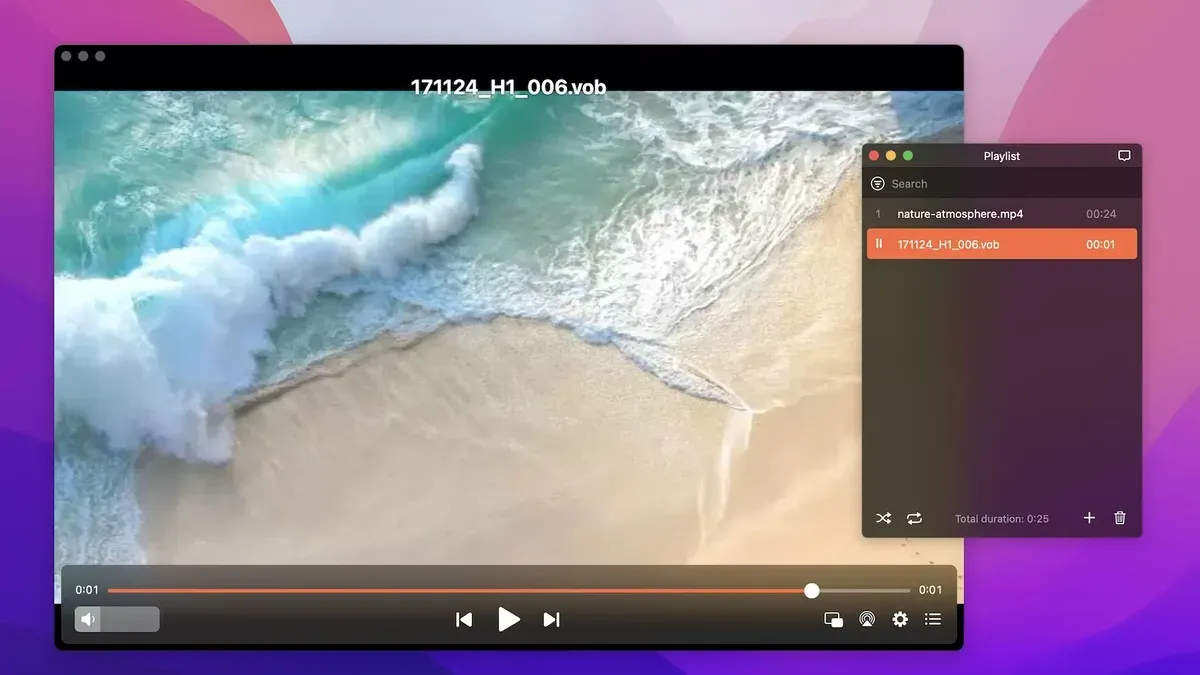
You have a.vob file on your Mac, but double-clicking it doesn’t open the video as expected. Maybe you tried QuickTime and saw an error or no playback at all. If you’ve ever wondered how to open.vob file on Mac reliably, this guide is for you.
This article walks you through practical steps to open and play.vob video files on your Mac or MacBook. It compares native solutions like QuickTime with third-party players, explains why.vob files behave differently on Macs, and offers tips on converting.vob files for smoother playback. Whether you’re unfamiliar with.vob formats or seeking the best software options, you’ll find clear, actionable advice here.
Key takeaways
- VLC Media Player opens.vob files on Mac without extra codecs or plugins.
- QuickTime needs third-party components or alternatives to play.vob files.
- .vob files are DVD video segments, so their format differs from common video files.
- Converting.vob files to MP4 improves compatibility and playback ease on Mac.
- Understanding file structure helps troubleshoot common playback issues.
Before you start: What you need to open.vob files on Mac
.vob files are video objects stored within the VIDEO_TS folder of DVD video discs. They contain multiplexed video, audio, subtitles, and menu content formatted for DVD playback. On a technical level,.vob files typically use MPEG-2 video compression along with AC-3 or PCM audio streams.
Mac computers do not natively support.vob playback through the default QuickTime Player because Apple’s built-in codecs and container support exclude MPEG-2 video in.vob containers. This limitation means you need additional software or codecs to open these files on your Mac.
Before you attempt to open.vob files, ensure your Mac's operating system is reasonably up to date, as some third-party apps require recent macOS versions for compatibility. Also, verify you have sufficient free storage space since large.vob files can range from hundreds of megabytes to several gigabytes.
File integrity is another key consideration. Damaged or corrupted.vob files may fail to open or cause playback errors. Confirm your files are complete and properly extracted from the DVD source.
To summarize what is necessary:
- Identify.vob files obtained from DVD video sources; you should see files named like "VTS_01_1.VOB" in a VIDEO_TS folder.
- Confirm your Mac runs an updated version of macOS to support modern playback apps.
- Have a reliable video player installed that supports.vob playback, such as VLC Media Player, as Apple’s default tools lack this capability.
- Ensure the.vob files are not corrupted by testing playback in a trusted app or verifying the source DVD.
According to official VLC documentation, VLC supports.vob files directly on macOS without additional conversion. Apple Support notes that QuickTime does not natively play.vob, highlighting the need for third-party players or conversions.
How to open a.vob video file on Mac using VLC Media Player
VLC Media Player is the most reliable and widely used free application for opening.vob files on Mac. It supports a broad range of video formats, including DVD-based.vob files, without the need for additional codecs or plugins. VLC is frequently updated and highly rated by users for its compatibility and ease of use.
- Go to the official VLC website at videolan.org/vlc and click the "Download VLC" button to get the Mac version. You should see a.dmg file download.
- Open the downloaded.dmg file by double-clicking it. A window will appear showing the VLC application icon and the Applications folder shortcut.
- Drag the VLC icon into the Applications folder. This installs VLC on your Mac.
- Open the Applications folder and double-click VLC to launch it. The VLC player window will open, ready to use.
- To play a.vob file, click "File" in the menu bar, select "Open File...", then navigate to and select your.vob file. The video should begin playing immediately in VLC’s window.
- Use the playback controls at the bottom of the VLC window to pause, play, or skip. You can also access video and audio settings from the "Window" menu or the toolbar to adjust subtitles, audio tracks, and video effects.
- If VLC does not open the.vob file, ensure your macOS is updated and the.vob file is not corrupted. Re-downloading VLC or restarting your Mac can resolve minor glitches.
VLC’s user rating remains high across various platforms due to its stability and comprehensive format support, making it the preferred choice for Mac users handling.vob files.
How to play.vob files on MacBook Pro using QuickTime with Perian alternatives
QuickTime, the native macOS media player, cannot open.vob files directly because it lacks support for DVD video container formats. Historically, users relied on Perian, a third-party plugin, to extend QuickTime’s capabilities. However, Perian’s development ceased around 2012 and it is incompatible with modern macOS versions.
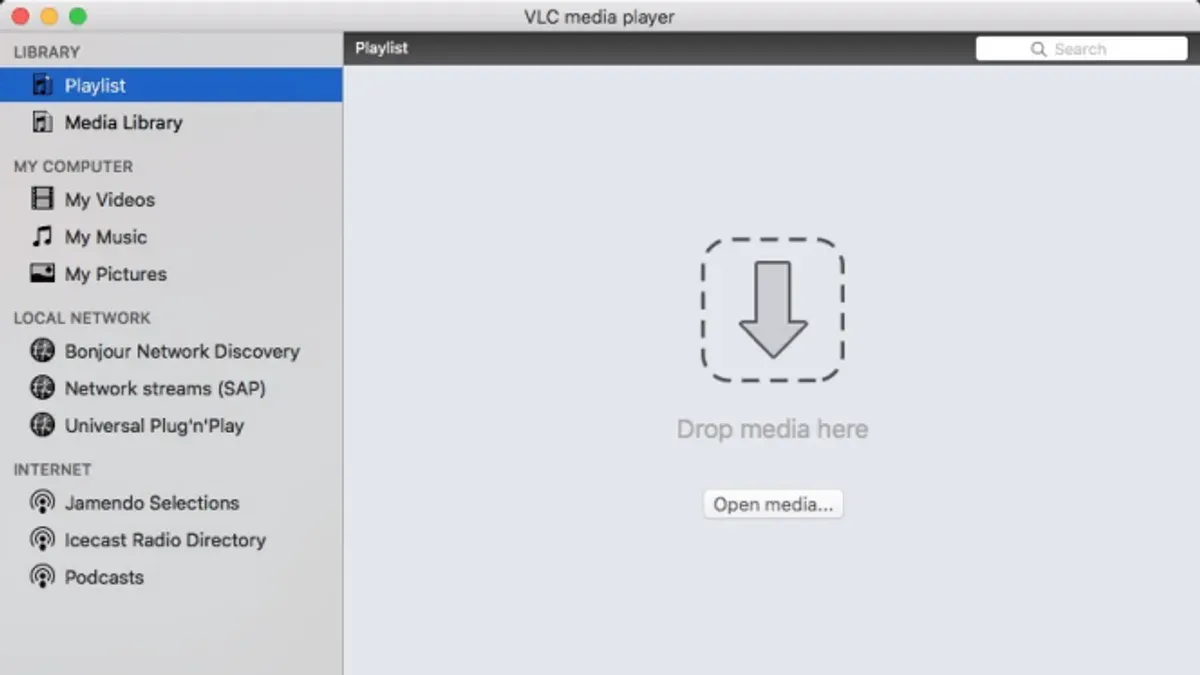
Since Perian is no longer supported, alternative methods are necessary to achieve a similar native playback experience or system-wide codec support for.vob files.
| Plugin/Codec Pack | Compatibility | Pros | Cons |
|---|---|---|---|
| Movist | macOS latest versions | Supports many formats, integrates well with QuickTime interface | Paid app, not a system-wide codec pack |
| IINA | macOS 10.12 and later | Modern UI, wide codec support, open source | Standalone player, does not integrate with QuickTime |
| FFmpeg-based tools (e.g., FFmpegX) | Older macOS versions | Extensive format support | Complex setup, outdated interface, limited modern macOS support |
For a QuickTime-like experience, Movist is the closest alternative, providing a user interface familiar to QuickTime users and supporting.vob playback without additional conversions.
- Download Movist from its official website or the Mac App Store.You should see the installer package or app appear ready for installation.
- Install Movist by dragging it into the Applications folder.Movist should now be available in your Applications list.
- Open Movist and drag your.vob file into the player window or use File > Open.The.vob video should start playing without errors.
- Optionally, set Movist as the default player for.vob files by selecting a.vob file in Finder, choosing File > Get Info, expanding "Open with," selecting Movist, and clicking "Change All."From now on, double-clicking.vob files will open them in Movist.
Note that these alternatives do not enable native QuickTime playback of.vob files but provide a smooth experience on MacBook Pro without requiring complex codec installations.
How to open.vob files on Windows and why Mac methods differ
Windows 10 and later versions provide more native support for.vob files compared to macOS. Windows Media Player, included by default, can often play.vob files directly without extra codecs, although this depends on the specific Windows installation and codec availability. Microsoft documentation confirms that Windows Media Player supports DVD video formats, which encompass.vob files, allowing straightforward playback for many users.
Besides Windows Media Player, common Windows applications such as VLC Media Player, KMPlayer, and PotPlayer also offer robust support for.vob files. These programs provide consistent playback regardless of codec issues and often include additional features like subtitle support and format conversion.
On the other hand, macOS does not natively support.vob files in its default video players, which is why third-party applications or plugins are necessary. The DVD-based structure of.vob files requires specific decoding components that macOS does not include by default, unlike Windows. This difference in system-level codec support explains why Mac users must use apps like VLC or Movist to open.vob files.
If you transfer.vob files between Windows and Mac, ensure the files retain their original folder structure if they are part of a DVD rip, as this can affect playback. Also, use external drives formatted in exFAT or FAT32 to ensure cross-platform compatibility without file corruption.
How to open.vob files on a laptop or generic MacBook models
Different Mac laptops, including MacBook Air, standard MacBook, and older MacBook Pro models, vary in hardware capability and macOS compatibility, which impacts.vob file playback performance. Ensuring your macOS version supports your chosen media player is essential; for example, VLC updates require macOS 10.11 or later.
Older MacBook Pros or MacBooks with slower processors and less RAM may struggle with high-bitrate.vob files, causing choppy playback. Lightweight players like IINA or Movist can offer smoother results than heavier alternatives.
- Verify your macOS version by clicking the Apple menu > About This Mac. Confirm it meets the minimum requirements for your media player (e.g., VLC needs macOS 10.11+). Successful verification means you can proceed with supported software.
- Download and install a lightweight media player such as Movist from its official website. After installation, open the app to check it launches without errors.
- Locate your.vob file in Finder, then right-click (or Control-click) and select Open With > Movist. The file should start playing smoothly if your Mac’s hardware is adequate.
- If playback stutters, try lowering the video quality or closing other applications to free system resources. Smooth playback indicates your hardware handles the file well.
- For MacBook Air or older models with limited CPU power, consider converting.vob files to a more optimized format like MP4 using HandBrake. This step improves compatibility and playback fluidity.
Reports from users indicate that mid-2010s MacBook Pros play.vob files with VLC or Movist reasonably well, while MacBook Air models from around 2015 and earlier benefit from using lighter players or converting files first.
How to convert.vob files to Mac-friendly formats for easier playback
Converting.vob files to formats like.mp4 or.mov can improve compatibility with Mac applications, simplify editing, and facilitate sharing across devices without needing specialized players.
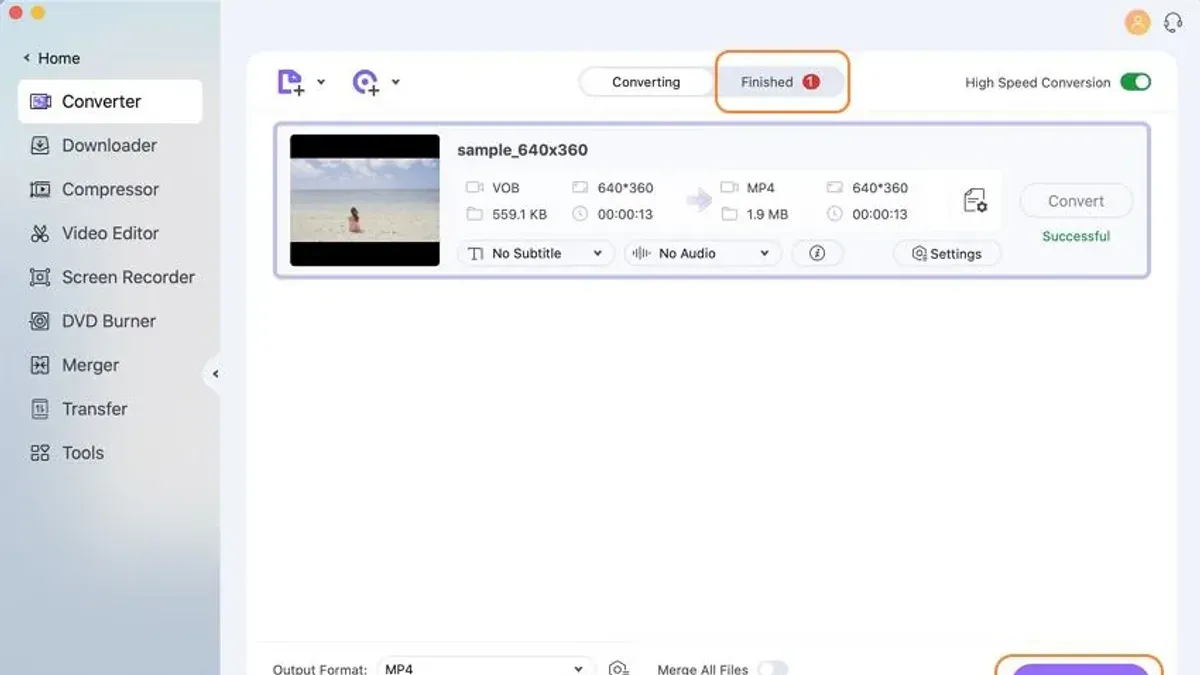
Popular free converters include HandBrake and Adapter, while paid options like Wondershare UniConverter offer additional features such as faster processing and batch conversion.
Here’s how to convert a.vob file using HandBrake:
- Download and install HandBrake from its official website. When opened, you should see the main interface with options to select a source.
- Click "Open Source" and navigate to your.vob file. Once selected, the file will load and display its details in HandBrake.
- Under "Preset," choose "Fast 1080p30" or a similar preset suitable for general use. The preview should reflect these settings.
- Set the output format to MP4 by ensuring the "Container" option is set to "MP4" in the Summary tab.
- Choose the destination folder by clicking "Browse" under "Save As". Confirm the chosen path appears correctly.
- Click "Start Encode" to begin conversion. A progress bar will show the status, and completion triggers a notification.
- Locate the converted.mp4 file in the destination folder and verify playback with your preferred Mac video player.
Converting often reduces file size, but quality may slightly decrease depending on compression settings. HandBrake balances speed and quality well, though faster conversions can lower visual fidelity.
For example, a 700MB.vob file might convert to a 400–500MB.mp4 with minimal quality loss, facilitating easier storage and smoother playback on Mac devices.
Troubleshooting common issues when opening.vob files on Mac
If your.vob files won’t open or play in VLC or other apps, start by confirming the file is complete and not corrupted. VLC may display errors such as "Your input can’t be opened: VLC is unable to open the MRL" or "Cannot play the file. Missing codec?" These often indicate file damage or codec issues.
To handle corrupted or incomplete.vob files, try playing the file in a different player like Movist or MPV. If the problem persists, the file may be partially downloaded or damaged beyond repair, requiring a fresh copy.
Audio and video sync problems are common with.vob files. In VLC, you can adjust sync manually via Tools > Track Synchronization. Use the Audio Track Synchronization slider to correct lagging or leading sound. This setting should immediately improve playback synchronization.
Codec errors or missing codec messages occur when the app lacks support for specific encoding variants. Updating VLC or your third-party player to the latest version often resolves these issues, as does updating macOS to ensure system codecs are current.
If errors continue, consider reinstalling the app. Uninstall VLC or your chosen player, then download the latest version from the official site. After reinstalling, test the.vob file again.
- Open VLC and attempt to play the.vob file. If it doesn’t open, note any error message displayed.
- Try opening the file in an alternative player like Movist. Successful playback here suggests VLC-specific issues.
- If audio is out of sync, go to Tools > Track Synchronization in VLC and adjust the audio delay slider until sync improves.
- Check for app updates by selecting VLC > Check for Updates or the equivalent in your player. Install updates if available.
- Reboot your Mac and try playing the file again to clear temporary glitches.
- If problems persist, uninstall the player by dragging it to the Trash, then reinstall the latest version from the official source.
- Ensure your macOS is updated via System Preferences > Software Update to maintain codec support.
Following these steps should resolve most common.vob playback issues on Mac, reducing frustration and improving your viewing experience.
- How to Open.flv Files on Mac: Practical Step-by-Step Guide
- How to Open and Play WMV Files on Mac: Practical Step-by-Step Guide
- How to Open AVI Files on Mac: Step-by-Step Practical Guide
- How to Open MKV Files on Mac: Practical Step-by-Step Methods
Frequently asked questions
How to open vob files on windows?
On Windows, you can open.vob files using media players like VLC Media Player or Windows Media Player with the appropriate codecs installed. VLC supports.vob files natively, so simply right-click the file, choose "Open with," and select VLC. If using Windows Media Player, ensure you have the necessary codec pack, such as K-Lite Codec Pack, installed to enable playback.
How to open a vob video file?
To open a.vob video file, use a compatible media player like VLC Media Player, which supports.vob playback without additional setup. Alternatively, you can convert the.vob file into a more common format like MP4 using video conversion software for smoother compatibility across devices.
How to open vob file in laptop?
Opening a.vob file on a laptop depends on your operating system. On Mac or Windows laptops, VLC Media Player is a reliable choice. Install VLC, then open the.vob file directly through the app’s "File" menu or by right-clicking the file and selecting VLC as the default player.
How to open vob files windows 10?
Windows 10 users can open.vob files using VLC Media Player, which works seamlessly without extra codecs. Alternatively, you can install codec packs like K-Lite to enable playback in Windows Media Player. Right-click the.vob file, select "Open with," and choose your preferred player.
How to open vob file on mac?
On a Mac, the recommended way to open.vob files is with VLC Media Player, which can handle these files natively. QuickTime does not support.vob files directly, so third-party plugins or converting the file to a Mac-friendly format like MP4 may be necessary if you prefer QuickTime.
What this guide does not cover and who should look elsewhere
This guide does not cover professional DVD authoring or editing of.vob files, which require specialized software beyond playback and basic conversion. If you need to edit video content within.vob files or create DVDs with menus and chapters, consider dedicated DVD authoring tools like Adobe Premiere Pro or DVD Studio Pro, which offer advanced features not addressed here.
The single most useful next step is to download and install VLC Media Player if you have not already done so. VLC is a reliable, free, and open-source player that supports.vob files natively on Mac without additional codecs or plugins. Opening your.vob files with VLC will often be the fastest and simplest way to view your videos without conversion or complex setup.



