How to Install BetterTouchTool on Mac: A Step-by-Step Guide
This guide shows you how to install BetterTouchTool on Mac safely and configure it for full functionality with clear, practical steps.
You want to customize how your Mac responds to gestures and input devices beyond what macOS offers by default. Installing BetterTouchTool is the first step, but it requires specific permissions and setup to function properly.
This article explains how to install BetterTouchTool on Mac, guiding you through downloading the official installer, completing the installation, configuring necessary permissions, updating the app, and resolving common issues.
Checked in November 2026 against macgrove.app, MacUpdate, folivora.AI (full list at the end); limits like these change, so the date matters.
BetterTouchTool versions and compatibility
| Aspect | Details |
|---|---|
| macOS support | Requires macOS 12 or later |
| Processor compatibility | Works on Intel and Apple Silicon Macs |
| License options | 45-day free trial; $15 one-time purchase for 2 years updates; $25 lifetime license; also available via Setapp |
| Latest version | 6.989 (released October 29) |
| Built-in features | Over 600 actions and triggers, window snapping, clipboard manager, floating menus |
What you need before installing BetterTouchTool
Make sure your Mac runs macOS 12 or newer and has an Intel or Apple Silicon processor. Confirm your system version by selecting About This Mac from the Apple menu.
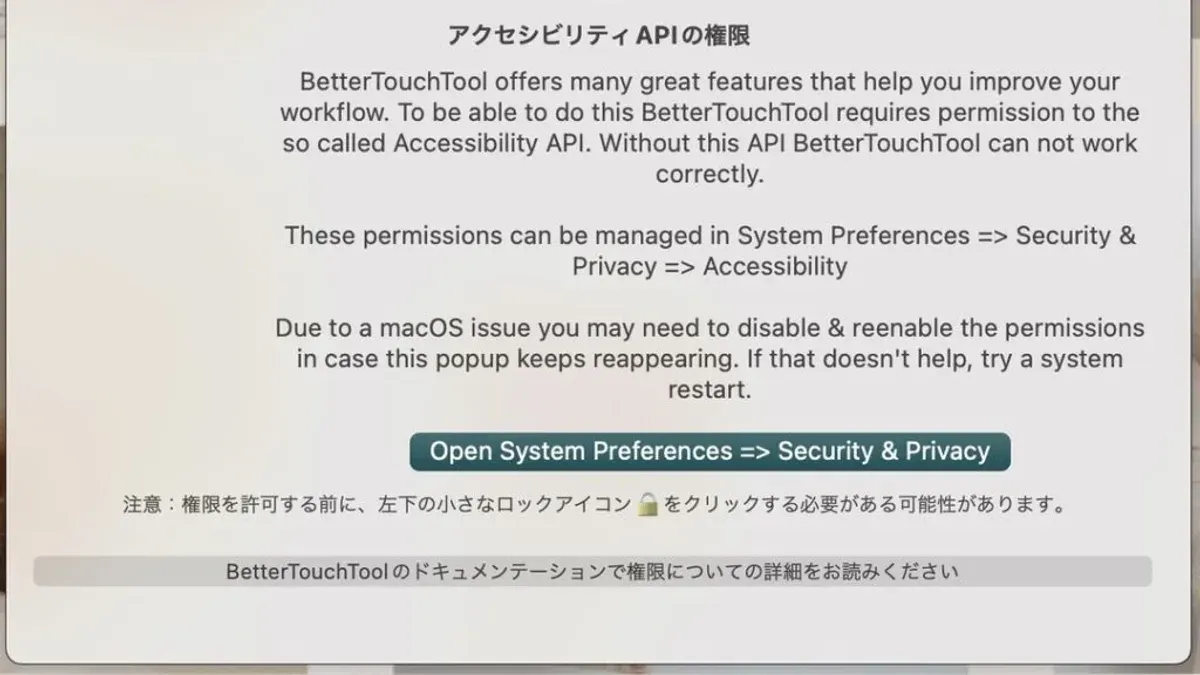
You will need to grant BetterTouchTool Accessibility and Input Monitoring permissions in macOS settings for it to detect gestures and control inputs.
An internet connection is necessary to download the app and verify your license. Familiarity with macOS privacy settings will help when granting permissions.
Downloading BetterTouchTool safely
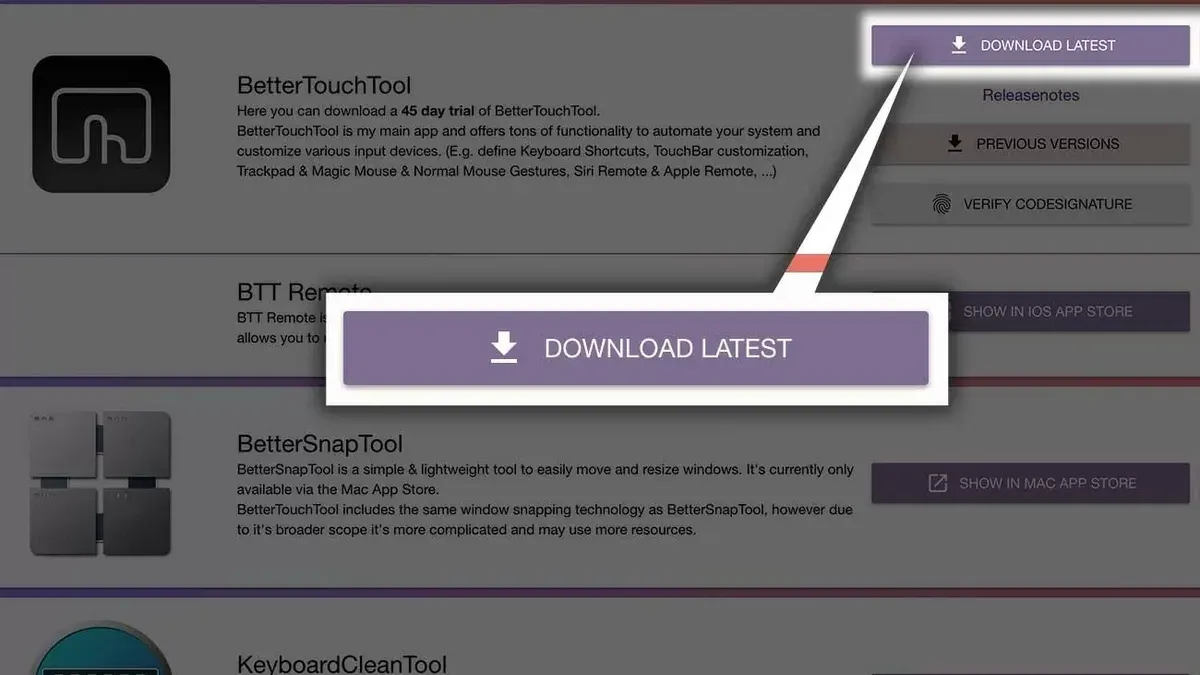
- Visit the official website at https://folivora.ai.
- Click the download button clearly labeled for macOS to get the latest installer.
- Wait for the .dmg file to download completely.
- Verify the file size matches what the site lists to ensure integrity.
- Avoid downloading from unofficial sites to prevent outdated or malicious versions.
Installing BetterTouchTool on your Mac
- Open the downloaded .dmg file by double-clicking it.
- Drag the BetterTouchTool app icon into the Applications folder shortcut shown in the window.
- Launch BetterTouchTool from the Applications folder. If macOS warns about the app being from an unidentified developer, choose Open to proceed.
- When prompted, grant BetterTouchTool Accessibility permission:
• Open System Preferences > Privacy > Accessibility.
• Unlock the padlock and check the box next to BetterTouchTool. - Next, grant Input Monitoring permission:
• In the Privacy tab, select Input Monitoring.
• Check the box for BetterTouchTool and restart the app if requested. - Confirm BetterTouchTool launches without further permission prompts.
Updating BetterTouchTool
- Open BetterTouchTool and select Preferences from the gear icon.
- Go to the About tab and click Check for Updates.
- If an update is available, download and install it; the app will restart automatically.
- If no update is found, your version is current.
- You can also manually download the latest version from the official website and replace the app in Applications.
- If update errors occur, revisit permissions for Accessibility and Input Monitoring and re-enable them.
Common installation and permission issues
BetterTouchTool requires Accessibility and Input Monitoring permissions to function. Missing these causes the app to not detect gestures or crash.
If the app fails to open or crashes immediately:
- Quit BetterTouchTool completely.
- Open System Preferences > Privacy > Accessibility and Input Monitoring.
- Ensure BetterTouchTool is listed and checked in both sections. If missing, add it manually.
- If macOS blocks the app, open the General tab in Security & Privacy and click Open Anyway.
- Restart BetterTouchTool after adjusting permissions.
- Temporarily disable other input customization tools that may conflict with BetterTouchTool.
Choosing the right BetterTouchTool license
BetterTouchTool offers a 45-day free trial to explore its features. Afterward, you can buy a license based on your needs:
- $15 license: One-time payment grants two years of updates.
- $25 license: One-time payment for lifetime updates.
Choose the $15 option if you prefer a shorter update cycle or want to try updates again later. Opt for the $25 lifetime license if you want uninterrupted access to all future updates.
Deciding if BetterTouchTool suits your setup
BetterTouchTool provides extensive customization for macOS input devices, including gestures, window snapping, clipboard management, and floating menus. It works on both Intel and Apple Silicon Macs running macOS 12 or later.
If you require deep gesture customization and are comfortable granting Accessibility permissions, BetterTouchTool is a strong choice. For users on older macOS versions or those unwilling to grant these permissions, alternatives may be necessary, though none match BetterTouchTool’s breadth.
Windows users looking for similar tools will need to explore separate utilities like AutoHotkey or SharpKeys, as BetterTouchTool is exclusive to macOS.
Documentation used
- macgrove.app — bettertouchtool — macgrove.app
- Download BetterTouchTool for Mac | MacUpdate — MacUpdate
- BetterTouchTool — Great Tools for your Mac — folivora.AI
- BetterTouchTool Tutorial: Trackpad Gestures, Window Snapping, and Custom Actions — Toolsmith — Toolsmith