
Mac Keyboard Shortcut for the Ctrl Alt Delete Equivalent Explained
Discover the Mac keyboard shortcut to Ctrl Alt Delete equivalent and how to manage unresponsive apps and system tasks effectively on macOS.
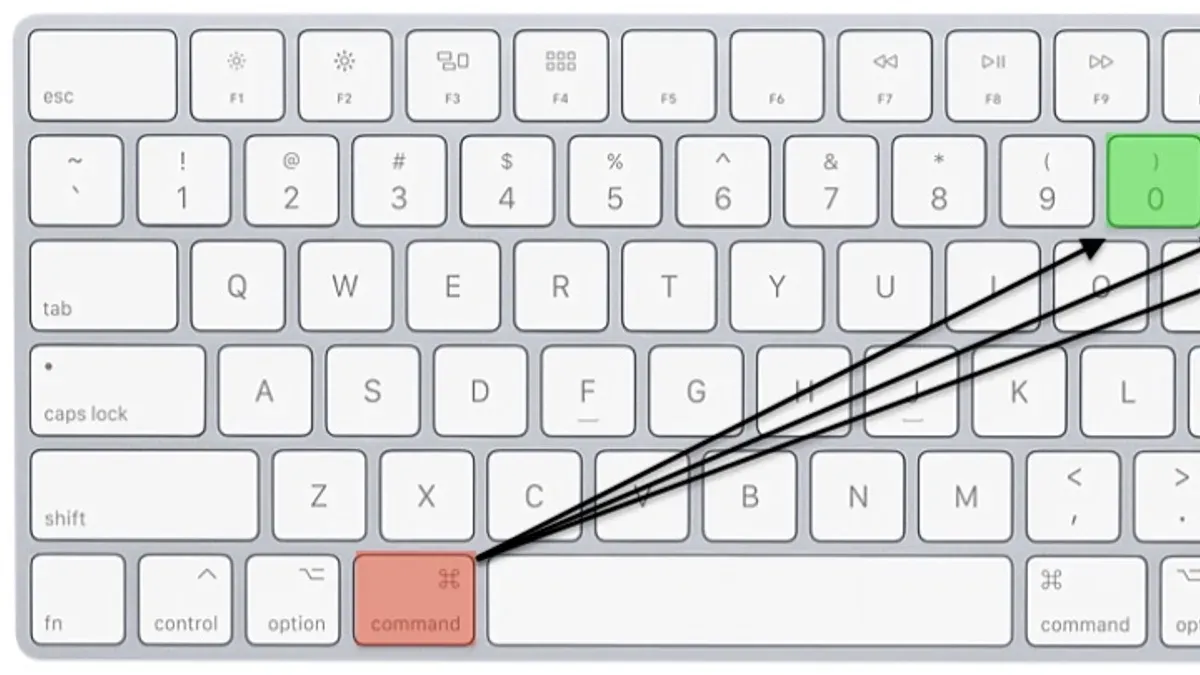
Your Mac becomes unresponsive, and instinctively, you reach for the familiar Windows shortcut: Ctrl+Alt+Delete. But on a Mac, this combination doesn’t trigger the same response, leaving you wondering about the Mac keyboard shortcut to Ctrl Alt Delete equivalent.
This article explains why Macs approach this functionality differently and guides you through the keyboard shortcuts and system features designed to manage unresponsive apps, lock the screen, log out, or restart your Mac. Understanding these differences helps you handle system tasks effectively without frustration.
Key takeaways
- Macs do not use Ctrl+Alt+Delete but offer separate shortcuts for Force Quit, Lock Screen, and other tasks.
- Command+Option+Escape opens the Force Quit window to close unresponsive apps.
- Control+Command+Power button restarts your Mac without prompting to save documents.
- Lock your screen quickly with Control+Command+Q or via the Apple menu.
- Understanding Mac’s approach improves your workflow and system control during freezes.
What Ctrl Alt Delete Does on Windows and Why Macs Approach It Differently
On Windows, pressing Ctrl+Alt+Delete brings up a security screen that offers quick access to several functions: locking the computer, switching users, logging out, opening the Task Manager, and changing passwords. This single shortcut acts as a centralized control panel for managing security and system tasks, especially useful when an application becomes unresponsive.
macOS, by contrast, does not use one universal shortcut for these functions. This difference stems from Apple's design philosophy and system architecture, which aim to keep user interactions streamlined and context-specific rather than funneling multiple controls through a single command. For example, macOS separates tasks like locking the screen (via Control+Command+Q), force quitting apps (Command+Option+Escape), and logging out (from the Apple menu), distributing them across distinct shortcuts and menu options.
To visualize this, imagine needing to force quit a frozen app on Windows: you press Ctrl+Alt+Delete, select Task Manager, then end the process. On a Mac, you use Command+Option+Escape directly to access the Force Quit window, bypassing an intermediate screen. This approach reflects macOS’s preference for targeted actions over a unified control interface.
| Function | Windows (Ctrl+Alt+Delete) | macOS Alternative |
|---|---|---|
| Lock Screen | Option on Ctrl+Alt+Delete screen | Control+Command+Q shortcut |
| Task Manager / Force Quit | Task Manager from Ctrl+Alt+Delete | Command+Option+Escape launches Force Quit window |
| Log Out | Option on Ctrl+Alt+Delete screen | Apple menu > Log Out |
| Switch User | Option on Ctrl+Alt+Delete screen | Fast User Switching menu in macOS menu bar |
| Change Password | Option on Ctrl+Alt+Delete screen | System Preferences > Users & Groups |
How to Access the Mac Equivalent Functions Using Keyboard Shortcuts
To manage unresponsive apps on a Mac, use Command + Option + Escape. This opens the "Force Quit Applications" window, displaying a list of running apps. Selecting an app and clicking "Force Quit" immediately closes it, similar to ending a task on Windows. For example, if Safari freezes, pressing this shortcut brings up the dialog where you can select Safari and force it to close.
To lock your screen quickly, press Control + Command + Q. This shortcut immediately locks your Mac, requiring your password to regain access. Alternatively, you can set up "Hot Corners" in System Preferences > Desktop & Screen Saver > Screen Saver tab to trigger the lock by moving your cursor to a specific corner.
For a more detailed view of running processes and resource usage, open Activity Monitor via Spotlight (Command + Space, then type "Activity Monitor"). This tool functions like Windows Task Manager, showing CPU, memory, and energy use per app.
To log out or switch users, use the Apple menu in the top-left corner or press Shift + Command + Q to log out. This shortcut prompts a confirmation dialog before signing you out. Switching users can also be done from the login window or fast user switching menu if enabled.
Using the Force Quit Window Effectively to Manage Unresponsive Apps
When an app stops responding, the Force Quit window is your primary tool to regain control without restarting your Mac. To open it, press Command+Option+Escape, then select the frozen app from the list and click Force Quit. This action immediately terminates the app, freeing system resources but risking unsaved data loss within that app.
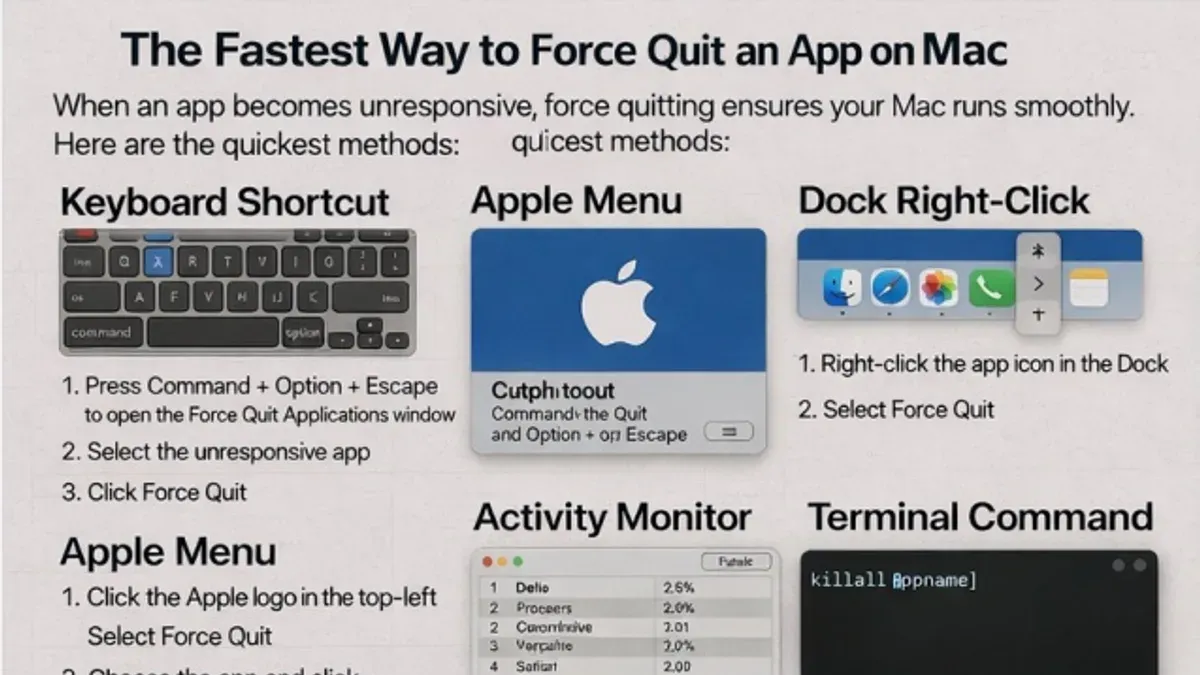
For example, if Safari freezes while editing multiple tabs, opening Force Quit lets you close Safari quickly. You should first try to save any work if possible before forcing the app to quit.
Force Quit targets the app level, making it a straightforward fix for most unresponsive software. However, if an app repeatedly freezes or behaves erratically, you might opt for Activity Monitor (found in Applications > Utilities) to inspect running processes and system resource usage. Activity Monitor allows you to quit processes more selectively or identify memory-heavy tasks affecting performance.
Using Force Quit is generally safe, but it is a last resort for frozen apps rather than a regular shutdown method. Relying on it too often may indicate deeper software issues that need troubleshooting.
Practical Applications Beyond Force Quit: Locking, Logging Out, and Restarting
When you step away from your Mac, quickly locking the screen is essential for security. Press Control + Command + Q to lock your Mac instantly, without needing to open menus or wait for a screen saver. This shortcut is faster than navigating to the Apple menu and selecting “Lock Screen,” making it convenient in office environments where you might leave your desk briefly.
For logging out or switching users, macOS doesn’t have a dedicated single shortcut, but you can use Shift + Command + Q to log out immediately after a confirmation prompt. This is handy when you need to hand your Mac to another user without shutting down. Alternatively, enabling fast user switching in System Preferences adds a menu bar icon for quick user changes without logging out fully.
Restarting or shutting down your Mac can also be expedited with keyboard shortcuts. Control + Command + Power button forces an immediate restart, bypassing prompts, while Control + Option + Command + Power button shuts down the Mac directly. These commands are useful if the system is sluggish or unresponsive, but they should be used cautiously to avoid data loss.
Imagine you’re in a busy office meeting, and you need to leave your Mac unattended: locking with Control + Command + Q takes a second, preventing unauthorized access. If you’re handing off your Mac to a colleague, Shift + Command + Q logs you out swiftly, ensuring your session ends securely. For emergencies where the system hangs, the restart shortcut provides a quick reset without navigating menus.
Common Mistakes and Misunderstandings About Mac’s Ctrl Alt Delete Equivalent
One common error is expecting a single Mac shortcut to perform all functions that Ctrl+Alt+Delete handles on Windows. Mac separates these tasks across different shortcuts and menus, which can confuse users accustomed to one unified command. For instance, trying to use Command+Option+Escape to log out or restart will not work since it only opens the Force Quit window.
Another frequent misunderstanding is equating Force Quit with shutting down or logging out. Force Quit specifically targets unresponsive applications, not system-level functions. Users who repeatedly force quit apps without restarting or logging out may overlook underlying issues causing instability.
Apple’s documentation warns against overusing Force Quit, as it can lead to unsaved data loss and disrupt system performance. A typical scenario involves a user force quitting a frequently crashing app multiple times in a session, expecting it to resolve the problem permanently. Instead, a restart or checking for updates might be necessary.
When This Shortcut Advice Does Not Apply
There are situations where the typical Mac keyboard shortcuts for managing unresponsive apps or system tasks may not work as expected. For example, if you are using a remote desktop session or running macOS inside a virtual machine, the shortcuts like Command+Option+Escape might be intercepted by the host system or not passed through correctly, requiring you to use the remote system’s controls instead.
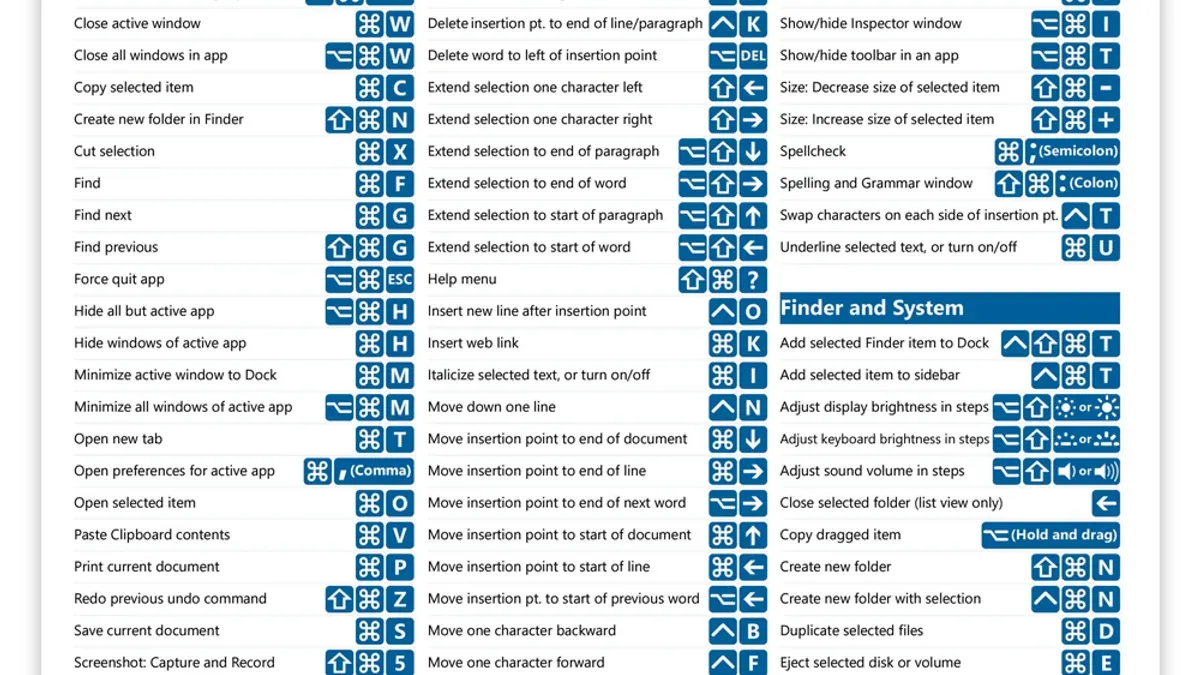
Hardware malfunctions such as a stuck key or software issues like a frozen input driver can also prevent these shortcuts from functioning. In these cases, rebooting via the physical power button or using macOS’s Recovery Mode may be necessary. For instance, holding the power button to force a shutdown might be the only option if all input methods are unresponsive.
If you encounter persistent problems beyond shortcut access—such as kernel panics or system instability—advanced troubleshooting steps are recommended. Apple’s official support site provides guidance on using Safe Mode, running Disk Utility, or reinstalling macOS, which go beyond keyboard shortcuts and address deeper system issues.
- How to Restart Your Mac Using Keyboard Shortcuts
- Mac Keyboard Shortcut to Open Notification Center: Quick Access Explained
- Mac Keyboard Shortcut to Open Mission Control: A Practical Guide
Frequently asked questions
What is the Mac equivalent of Ctrl+Alt+Delete?
The Mac equivalent is not a single shortcut but a set of commands accessed through different key combinations. The closest function to Windows’ Ctrl+Alt+Delete is Command + Option + Escape, which opens the Force Quit Applications window to close unresponsive apps. Other system management tasks like locking the screen or accessing Activity Monitor use different shortcuts or methods.
How do I force quit an app on a Mac?
To force quit an app, press Command + Option + Escape to open the Force Quit Applications window. Select the unresponsive app from the list and click "Force Quit." Alternatively, you can right-click the app's icon in the Dock while holding the Option key and choose "Force Quit" from the menu.
Can I lock my Mac with a keyboard shortcut?
Yes, you can lock your Mac quickly by pressing Control + Command + Q. This immediately locks the screen and requires your password or Touch ID to log back in. Another option is pressing Shift + Control + Power (or Shift + Control + Eject on older Macs) to put the display to sleep, which also protects your session.
Is there a way to open Activity Monitor quickly like Task Manager?
You can open Activity Monitor by using Spotlight Search: press Command + Spacebar, type "Activity Monitor," and press Enter. Unlike Windows’ Task Manager, there is no default single keyboard shortcut to launch Activity Monitor directly, but creating a custom shortcut or using Spotlight is the fastest method.
This guide does not cover advanced troubleshooting or system modifications
This guide does not cover system-level troubleshooting requiring Terminal commands or third-party utilities. If you encounter persistent system freezes, kernel panics, or hardware-related issues, using built-in shortcuts like Force Quit or locking the screen may not resolve the problem. In those cases, consulting Apple Support, visiting an authorized service provider, or exploring command-line diagnostics might be necessary.
The most useful next step is to familiarize yourself with the Force Quit Applications window, accessible by pressing Command + Option + Escape. This shortcut provides a straightforward way to close unresponsive apps without affecting the entire system, aligning with Mac’s philosophy of managing tasks at the application level rather than invoking a system-wide interrupt as Windows does. Mastering this can save you time and avoid unnecessary restarts or logouts.



