
How to Open and Run.ipa Files on Mac and Other Devices
Discover how to open and run.ipa files on Mac and other devices with step-by-step instructions and essential tips for smooth app installation.
You have an.ipa file on your Mac and want to know how to open it to install or run the app. Maybe you received the file from a developer or downloaded it from a source, but double-clicking doesn’t launch the app as you might expect.
This article explains how to open.ipa files on Mac using Apple Configurator 2, as well as the proper methods for iPhone, iPad, Windows, and PC. You will learn platform-specific steps, how to install and test apps from.ipa files, and avoid common misconceptions about these package files.
Key takeaways
- Use Apple Configurator 2 on Mac to install.ipa files on connected iOS devices.
- You cannot run.ipa files directly on Mac without appropriate tools or simulators.
- Installing.ipa files on iPhone or iPad usually requires sideloading tools or TestFlight.
- Windows and PC users need third-party software or virtualization for.ipa management.
- Always verify the source of.ipa files to avoid security risks.
Before you start: What you need to open.ipa files
An.ipa file is an iOS application archive package that contains the app data required to install and run an app on Apple devices like iPhone and iPad. It is the equivalent of an.apk file on Android. Understanding that.ipa files are designed specifically for Apple's ecosystem is crucial before attempting to open or run them on various devices.
To work with.ipa files, you need appropriate hardware and software depending on your device:
- A Mac running macOS Catalina 10.15 or later is typically required for managing.ipa files using Apple Configurator 2 or Xcode.
- An iPhone or iPad with iOS 13 or newer can open and install.ipa files under certain conditions.
- Windows PCs require additional tools such as iTunes (version 12.7 or earlier) or third-party software to handle.ipa files, but support is limited.
Apple enforces strict security restrictions on app installations, meaning you generally need a valid Apple ID and sometimes access to developer tools to install.ipa files outside the App Store. Unauthorized installation of apps can lead to security risks and may violate Apple's terms of service.
Many users encounter issues like apps failing to install or open due to missing prerequisites such as outdated macOS versions, unsigned.ipa files, or lack of proper permissions. Ensuring your system meets these requirements reduces common problems.
- Check your device's operating system version:
- On Mac, go to Apple menu > About This Mac and verify macOS 10.15 or higher.
- On iPhone/iPad, open Settings > General > About to find iOS version.
- Ensure you have a valid Apple ID signed in to your device or Mac; you should see your name in System Preferences or Settings.
- Download and install Apple Configurator 2 from the Mac App Store if you plan to use Mac for.ipa management; open it to confirm it launches properly.
- For Windows users, install iTunes version 12.7 or earlier or compatible third-party software and confirm it recognizes your connected iOS device.
Following these steps prepares you to open, install, or run.ipa files with fewer complications.
How to open.ipa file on Mac using Apple Configurator 2
Apple Configurator 2 is a free macOS app designed to manage iOS devices and install apps via.ipa files. To begin, download it from the Mac App Store and install it on your Mac.
- Open the Mac App Store, search for "Apple Configurator 2," and click "Get" to download and install the app. Once installed, launch Apple Configurator 2.
- Connect your iPhone or iPad to your Mac using a compatible USB cable. The device should appear in the Apple Configurator 2 window.
- Click on the connected device icon to select it.
- From the menu bar, choose "Actions" > "Add" > "Apps." A file browser window will open.
- Navigate to the location of your.ipa file, select it, and click "Add." The app will begin installing on the connected device.
- During installation, Apple Configurator 2 verifies the app’s signature and compatibility. You can monitor progress in the app’s status column.
- Upon successful installation, the app will appear on your iOS device’s home screen, and Apple Configurator 2 will show a status of "Installed" or "Succeeded."
Installation success rates depend on factors like app signing and device compatibility. If the.ipa file is unsigned or restricted, installation will fail with an error message. Apple Configurator 2 offers clear status updates to help identify issues.
How to open.ipa files on iPhone and iPad directly
iOS devices do not natively allow you to open or install.ipa files directly from file managers or browsers due to Apple's security restrictions. The official way to install apps is through the App Store, which ensures apps are vetted and signed by Apple. However, if you have a legitimate.ipa file and want to sideload it, third-party tools like AltStore offer a workaround.
AltStore allows you to install.ipa files by sideloading apps without jailbreaking your device. This method uses a developer certificate issued to your Apple ID and requires periodic revalidation. Keep in mind that sideloaded apps may have limited trust and could be revoked by Apple, affecting their availability.
To use AltStore:
- Download and install AltServer on your Mac or PC from altstore.io. Launch it and connect your iPhone or iPad via USB.
- In AltServer, select "Install AltStore" and choose your connected device. Enter your Apple ID credentials when prompted.
- On your iOS device, go to Settings > General > Device Management, find your Apple ID, and trust it to enable AltStore to run.
- Download the.ipa file you want to open on your device or transfer it via AirDrop or Files app.
- Open AltStore, go to the "My Apps" tab, tap the "+" button, and select the.ipa file to install it.
- Wait for the installation to complete. The app will appear on your Home screen, ready to open.
Sideloading carries risks such as app instability, potential security vulnerabilities, and the need to refresh certificates every seven days for free Apple IDs. Official App Store apps offer a safer experience with ongoing updates and support. Some users successfully use AltStore for testing or apps unavailable on the App Store but should weigh these trade-offs carefully.
How to open.ipa files on Windows and PC
Windows cannot natively run.ipa files as these are iOS app packages designed specifically for Apple devices. However, you can extract the contents of an.ipa file for inspection or use emulators and simulators to attempt running iOS apps on a Windows machine.
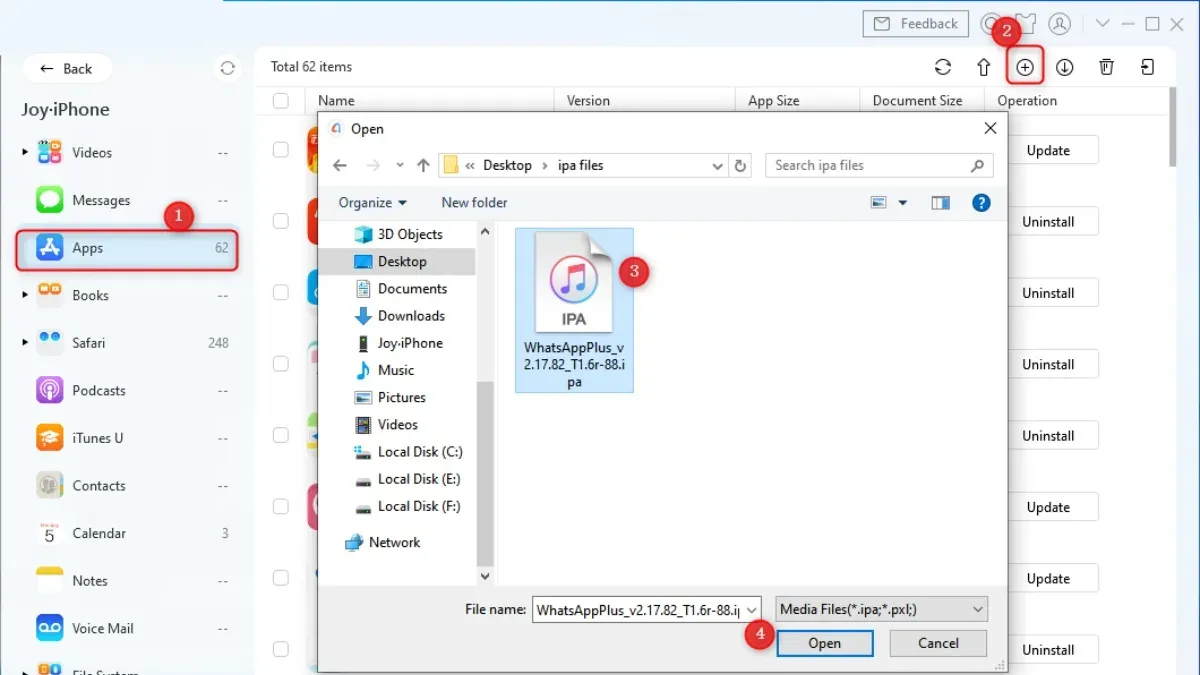
Extracting.ipa file contents on Windows
- Locate the.ipa file you want to open and make a copy to avoid accidental changes.
- Rename the file extension from.ipa to.zip. You should see a prompt asking if you want to change the file extension; confirm to proceed.
- Right-click the renamed.zip file and select "Extract All" or use a tool like 7-Zip to extract its contents.
- After extraction, open the folder to inspect the Payload folder where the app's.app bundle resides. This lets you view resources like images and metadata but not run the app.
Using emulators and alternatives
Some Windows iOS emulators such as iPadian claim to run iOS apps but typically do not support.ipa files directly; they simulate an iOS-like interface with a limited app selection. Their performance can be inconsistent and often does not match actual device behavior.
More reliable alternatives include setting up a Mac virtual machine on your Windows PC using software like VMware or VirtualBox, which allows you to run Xcode and Apple Configurator for installing.ipa files. Another option is using cloud-based Mac services that provide remote access to macOS environments, enabling you to install and test.ipa files remotely.
How to run.ipa files on iOS devices: Installing and testing apps
To execute.ipa files on iOS devices, you primarily need a developer environment like Xcode and a properly signed app with a provisioning profile. This process is essential for developers testing their apps or users installing custom apps.
- Connect your iOS device to your Mac and open Xcode.
- Navigate to Window > Devices and Simulators and select your connected device.
- Click the + button under the Installed Apps section and select the.ipa file you want to install.
- Xcode will begin installing the app; successful installation shows the app icon on your device and no error messages in Xcode.
- If you encounter a "Provisioning profile not found" error, ensure the.ipa is signed with a valid provisioning profile matching your device's UDID.
- For a "Could not install application" error, verify the device is trusted and your Apple ID has the necessary permissions.
- Once installed, launch the app on your iOS device to confirm it runs correctly, checking for crashes or missing functionality.
Historically, tools like Cydia Impactor allowed sideloading.ipa files without Xcode, but due to revoked certificates and compatibility issues, current alternatives include AltStore, which require additional setup and carry security considerations.
Maintaining valid signing and provisioning is crucial; unsigned or improperly signed.ipa files will fail to install or run.
How to use.ipa files on PC for development and testing
Working with.ipa files on a PC involves inspecting, analyzing, and testing iOS app packages without native support for iOS apps. While PCs cannot run iOS apps directly, several tools and services facilitate development workflows.
- Inspect.ipa contents with 7-Zip or WinRAR: Right-click your.ipa file and open it with one of these archive tools to browse the app’s internal structure, including the Payload folder and Info.plist. This lets you verify app contents and metadata quickly.
- Use iOS app analyzers like iMazing or iExplorer: These tools offer more detailed inspection, including app data extraction and backups. They are useful for understanding app size, permissions, and embedded resources.
- Test apps on cloud-based Mac services: Platforms like MacStadium or AWS Mac instances provide remote macOS environments with Xcode installed. Upload your.ipa file to deploy and test on virtual iOS simulators or real devices hosted remotely. This overcomes PC limitations but may incur usage costs and requires stable internet.
- Employ cross-platform frameworks for development: Tools like React Native or Xamarin allow you to develop and test iOS apps on PC, but final testing still requires deployment to macOS or iOS environments to handle signing and runtime behavior correctly.
- Prepare.ipa files for deployment: Ensure your app is properly signed with valid provisioning profiles. On PC, you can use command-line tools like "fastlane" (in a Windows Subsystem for Linux or Docker environment) to automate packaging and deployment workflows, but final signing typically requires macOS tools.
While PCs cannot run iOS apps natively, combining archive inspection, remote Mac services, and cross-platform development tools enables efficient.ipa file handling for development and testing.
How to download.ipa files on iOS devices legitimately
The safest and most legitimate way to obtain.ipa files is through the official App Store. When you download apps directly on your iPhone or iPad, the system manages the installation without exposing the.ipa file to you. Apple does not provide direct.ipa downloads for users, emphasizing security and app integrity.
For those needing the.ipa files themselves, such as developers or IT administrators, Apple Configurator 2 and iTunes offer options to extract.ipa files from device backups. This method ensures you are working with legitimate copies of apps you have already obtained.
- Connect your iOS device to your Mac with Apple Configurator 2 installed. You will see your device appear in the app's interface.
- Select your device and choose the option to create a backup. This backup contains app data including.ipa files.
- Locate the backup folder on your Mac, typically found in ~/Library/Application Support/MobileSync/Backup/. Within this folder, use third-party tools designed to extract.ipa files safely.
- Alternatively, in older versions of iTunes (prior to version 12.7), syncing apps allowed.ipa files to be stored locally on your computer in the "Mobile Applications" folder.
Downloading.ipa files from third-party services or unofficial sources carries risks including malware, corrupted files, and legal issues. Apple’s official documentation warns against installing apps from untrusted sources due to potential security vulnerabilities and breaches of Apple's terms of service.
App piracy remains a significant concern, with many unofficial sites distributing pirated apps that can compromise device security and violate copyright law. Always prioritize downloading apps through Apple's official channels or using Apple-approved tools to handle.ipa files securely.
Troubleshooting common issues when opening.ipa files
If your.ipa file won’t install or open, the issue often relates to app signing or device compatibility. A common error is "The app cannot be installed at this time," which usually indicates a provisioning profile mismatch or expired certificate.
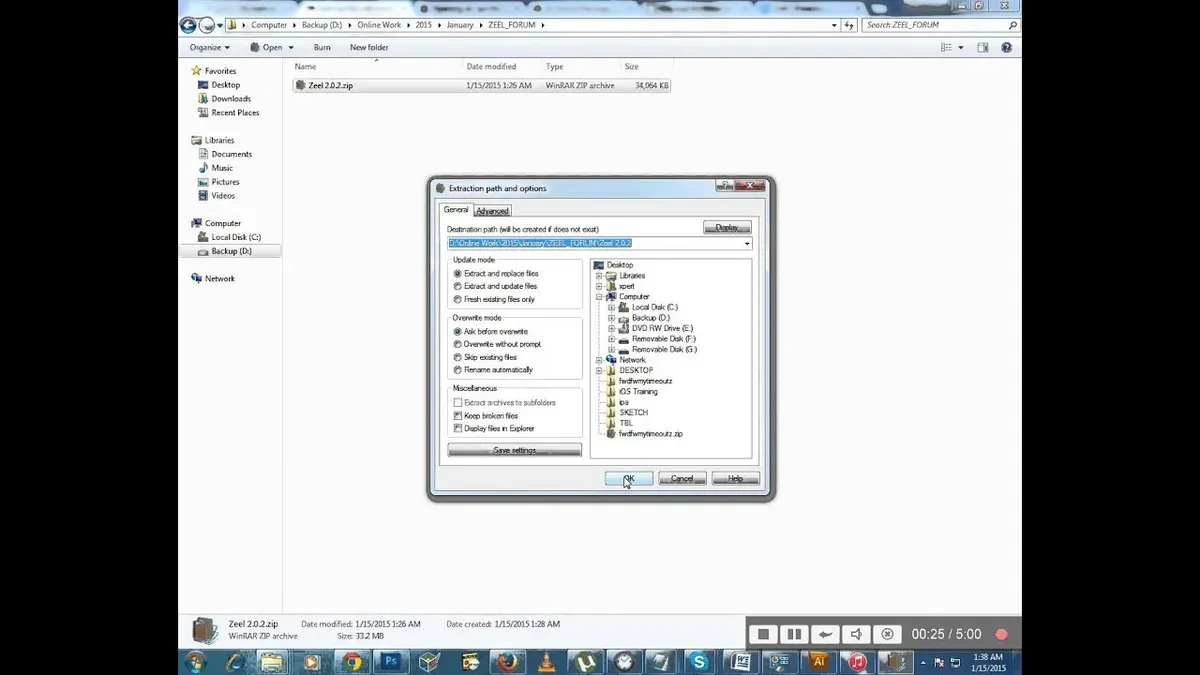
- Verify the provisioning profile matches the device UDID and the certificate is valid. When correct, the app should begin installation without errors.
- If you see "App installation failed due to an invalid signature," check that the.ipa file is signed with a certificate trusted by your device. Re-signing the.ipa with a valid certificate typically resolves this.
- For corrupted or incomplete.ipa files, you might encounter errors like "Unable to extract the archive" or installation stalls. Re-download or obtain a fresh copy of the.ipa file to fix this.
- Confirm your device’s iOS version supports the app. Apps built for newer iOS versions won’t run on older devices, often triggering "App is not compatible with this iOS version." Updating the device or obtaining a compatible app version is necessary.
- If installation repeatedly fails with no detailed error, try restarting your device and reconnecting it before reinstalling to clear temporary glitches.
Addressing these common issues involves checking signing credentials, ensuring device compatibility, and confirming.ipa file integrity for successful installation and use.
- How to Open and Install.pkg Files on Mac: A Clear Step-by-Step Guide
- How to Open.dmg Files on Mac: A Clear Step-by-Step Guide
- How to Open and Use.ISO Files on Mac: A Clear Step-by-Step Guide
Frequently asked questions
How to open ipa file on ipad?
To open an.ipa file on your iPad, you generally need to install it through Apple Configurator 2 on a Mac or use a third-party app that supports sideloading. Directly opening.ipa files on iPad without these tools is not supported by iPadOS due to security restrictions. After installation, the app will appear on your home screen like any other app.
How to open ipa files on ios?
Opening.ipa files on iOS devices such as iPhone or iPad requires installing the app rather than just opening the file. This can be done using Apple Configurator 2 on a Mac or through Xcode if you have the source and developer access. Regular iOS devices do not allow direct opening of.ipa files without these tools or jailbreak, which is not recommended.
How to open ipa files on windows?
Windows does not natively support.ipa files. You can use an iOS emulator or third-party tools like iMazing to manage and install.ipa files on connected iOS devices. However, running or opening an.ipa file directly on Windows without an iOS device is generally not possible due to platform restrictions.
How to open ipa files on iphone?
Similar to the iPad, you cannot directly open.ipa files on an iPhone. You must install the.ipa app using Apple Configurator 2 on a Mac or via Xcode with appropriate provisioning profiles. Once installed, the app will function normally on your iPhone.
How to run ipa file on ios?
Running an.ipa file on iOS involves installing it on your device first. Use Apple Configurator 2 or Xcode to sideload the app, making sure your device is provisioned for development or testing. After installation, launch the app from your home screen as you would with any other app.
Limits of this guide and when to seek other solutions
This article does not cover jailbreaking iOS devices or using unauthorized tools that may compromise device security or violate Apple’s terms. If you require advanced app modifications or want to run apps outside Apple's ecosystem, consider professional development environments or consult Apple’s official resources. Additionally, some.ipa files may be encrypted or DRM-protected, preventing installation without the original Apple ID or proper provisioning profiles.
The single most useful next step is to ensure you have the correct provisioning profiles and Apple ID credentials before attempting to install or run.ipa files on your devices. This often resolves most installation issues and aligns with Apple’s security requirements, providing a smoother experience whether you are using Mac, iOS devices, or Windows PCs for development or testing.



