Fix iCloud Drive Stuck on Uploading on Mac: Step-by-Step Guide
Troubleshoot and fix iCloud Drive stuck on uploading on Mac with simple steps to resume file syncing and avoid data loss.
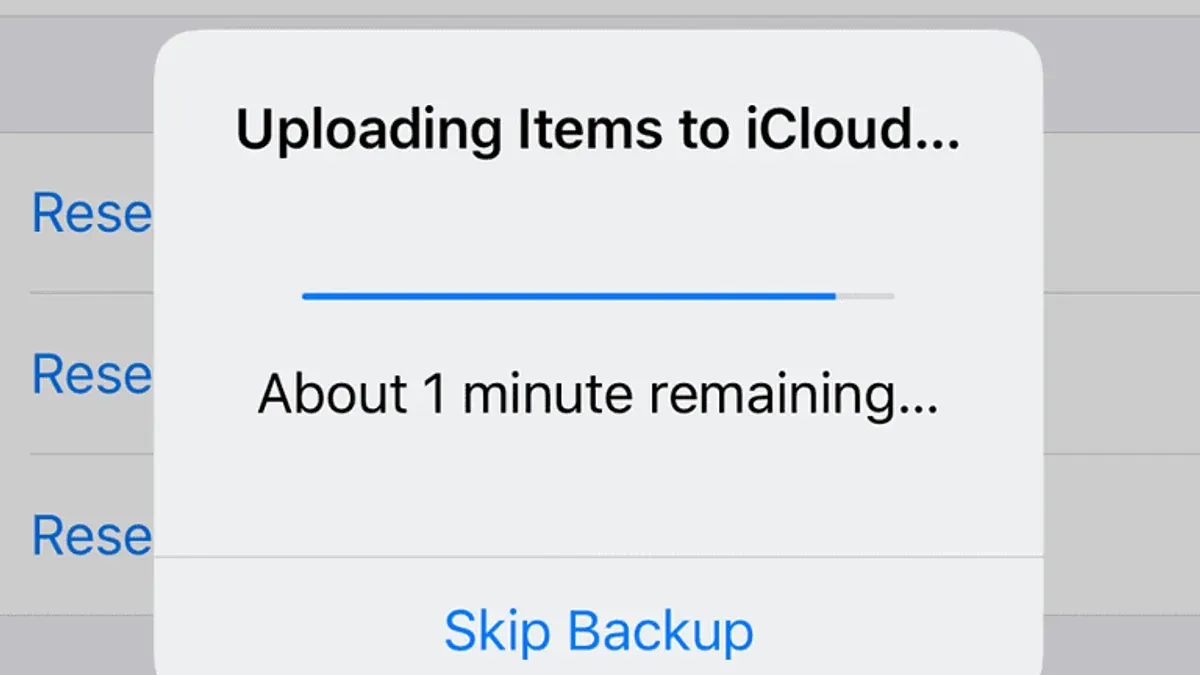
You open your Mac to find that files in iCloud Drive have been stuck uploading for hours, with no progress bar movement. This can disrupt your workflow, especially when you need those files synced across devices.
This article provides a clear, step-by-step iCloud Drive stuck on uploading on Mac fix. You will learn how to diagnose your internet connection, verify iCloud Drive settings, manage problematic files, and adjust Mac preferences to get uploads moving again without risking data loss or unnecessary resets.
Key takeaways
- Check your internet connection speed and stability before troubleshooting iCloud Drive uploads.
- Sign out and back into iCloud Drive only after confirming your files are safely backed up.
- Identify and remove files with unsupported formats or excessive size that can block uploads.
- Restart iCloud Drive processes via Activity Monitor to refresh stalled uploads.
- Adjust Mac energy and network settings that might interfere with background syncing.
Before You Start: What You’ll Need
To effectively troubleshoot iCloud Drive uploads stuck on your Mac, begin by preparing the right tools and information. First, ensure your Mac is connected to a stable internet source, whether through Wi-Fi or Ethernet. Ethernet connections often provide more consistent upload speeds compared to Wi-Fi, which can fluctuate due to interference or distance from the router. Next, have your Apple ID credentials handy. You may need to verify your iCloud status or sign back in, so being ready will save time.
Check that your Mac’s operating system is up to date by going to System Settings > General > Software Update. Running the latest macOS version helps avoid compatibility issues with iCloud services. Also, consider the files you’re uploading: large files or unsupported file types can cause delays or stalls. For example, uploading several gigabytes over a slower Wi-Fi connection may take considerably longer than a few small documents.
- Confirm your internet connection is active by opening a browser and loading a webpage; if it appears quickly, your connection is stable.
- Verify your Apple ID by opening System Settings > Apple ID; you should see your name and email without any warnings.
- Check for software updates under System Settings > General > Software Update; if an update is available, you should see an Install button.
- Review the files you intend to upload, noting their size and type, so you can anticipate upload times.
Check Your Internet Connection and Bandwidth
To resolve iCloud Drive uploads stuck on uploading, start by verifying your internet connection and upload bandwidth. A slow or unstable network can cause files to stall during upload. Use a reliable speed testing service such as Speedtest.net to measure your current upload speed. Ideally, your upload speed should match or exceed what your internet plan promises.
Next, restart your router by unplugging it, waiting 30 seconds, and plugging it back in. After the router restarts, reconnect your Mac to the network and run the speed test again. You should notice a more consistent upload rate, which helps with iCloud uploads.
If other devices on your network are using heavy bandwidth, temporarily disconnect them or pause large downloads and streaming activities. This frees up bandwidth for your Mac’s iCloud Drive uploads.
For a more stable connection, if your Mac supports it, switch from Wi-Fi to a wired Ethernet connection. Ethernet connections generally have lower latency and more consistent speeds, which reduce upload interruptions.
- Go to https://speedtest.net and run an upload speed test; note your upload speed.
- Restart your router by unplugging it, waiting 30 seconds, then plugging it back in.
- Reconnect your Mac to the network and run the upload speed test again; you should see improved or stabilized upload speeds.
- Temporarily disconnect or pause other devices using the network heavily and observe any improvement in upload speed.
- If possible, connect your Mac via Ethernet and repeat the speed test to confirm a more stable upload connection.
For example, an initial upload speed test might show 2 Mbps upload, which is insufficient for large files. After the router restart and disconnecting other devices, the upload speed could improve to 10 Mbps, helping iCloud Drive resume uploads effectively.
Ensure iCloud Drive Is Properly Signed In and Synced
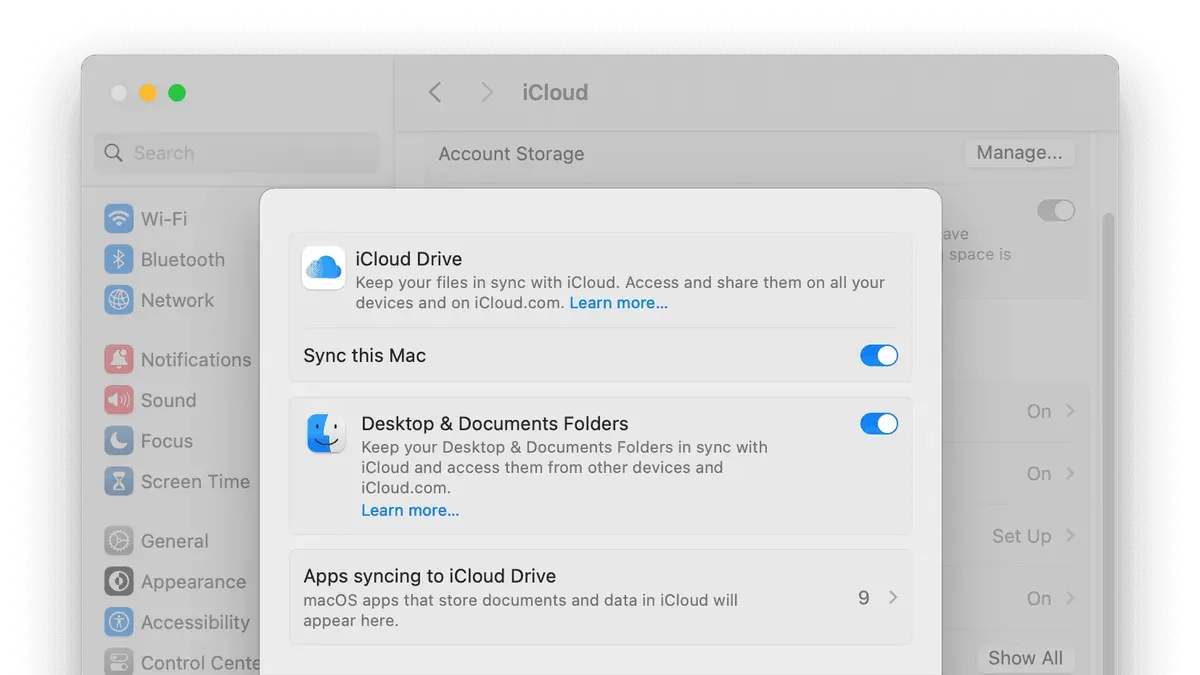
Confirming that your Mac is properly signed into iCloud and that iCloud Drive is enabled helps eliminate account-related issues causing upload stalls. Start by opening System Preferences and clicking on Apple ID. Then select iCloud from the sidebar and make sure the checkbox next to iCloud Drive is checked. If it’s unchecked, check it to enable syncing and wait a moment to see if uploads resume.
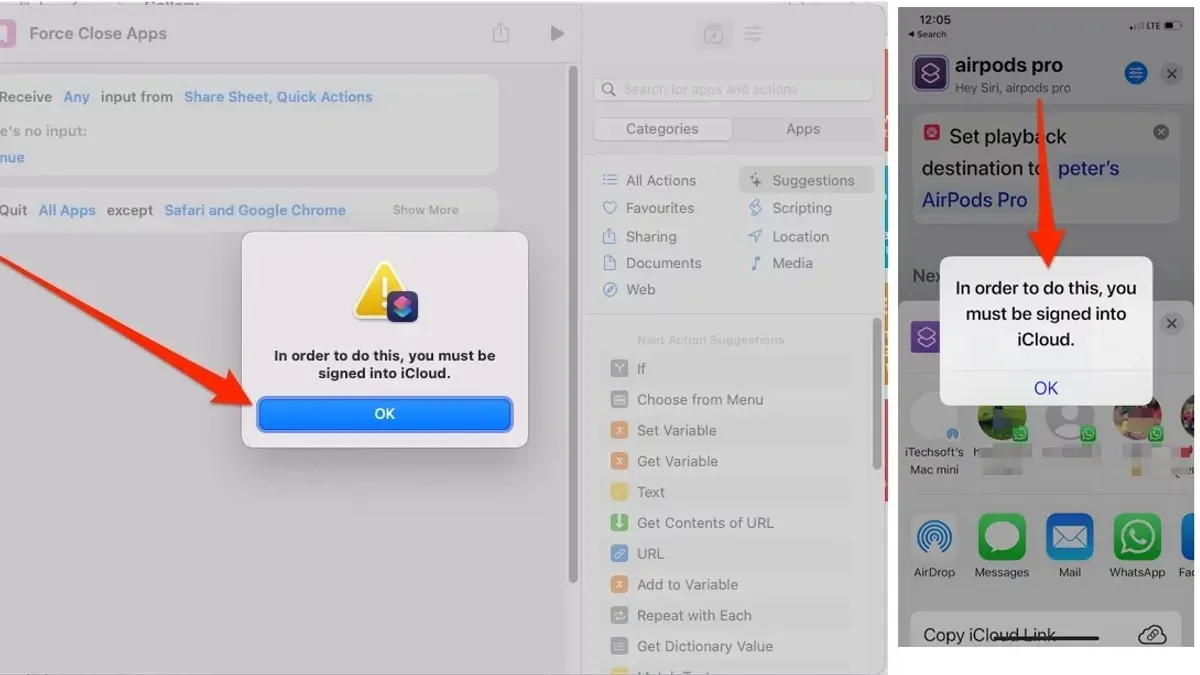
If syncing seems stuck despite iCloud Drive being enabled, try signing out of your Apple ID and signing back in. In System Preferences under Apple ID, click Overview and then Sign Out. After signing out, sign back in with your Apple ID credentials. This can refresh your account connection and resolve hidden syncing glitches.
Next, verify your available iCloud storage. Still in the iCloud pane, look at the storage bar at the bottom to check free space. If your storage is near full, uploads can halt. Freeing space by deleting unnecessary files or upgrading your storage plan can help. For example, reducing used storage from 95% to around 70% often restores smooth uploads. Lastly, visit Apple’s official System Status page to check for any ongoing iCloud service interruptions that might affect syncing.
Manage Files That Might Cause Upload Issues
Sometimes, specific files or folders in your iCloud Drive can block the uploading process. Start by identifying very large files, such as high-resolution videos or extensive archives, which often take longer to upload or may cause stalls. Also, check for unsupported file types that iCloud Drive does not handle well.
File names can also create problems. Look for names with special characters like slashes (/), backslashes (\), colons (:), or excessively long names that might prevent uploading. Additionally, files currently locked by another app or in use might not upload until they are closed.
To test if a file is causing the issue, temporarily move suspected files out of your iCloud Drive folder. For example, if you find a large video file that seems to stall the upload, move it to your desktop. If the upload progress immediately resumes after this action, you have identified the problematic file.
- Open your iCloud Drive folder in Finder and sort files by size to spot unusually large files.
After sorting, you should see the largest files at the top or bottom for easy identification. - Look for file names with special characters or names that are very long.
Files with problematic names should be renamed to simple alphanumeric characters without symbols. - Close any apps that might be using files in your iCloud Drive to ensure no files are locked.
Once closed, locked files can upload normally. - Move suspected large or problematic files out of iCloud Drive temporarily.
After moving, check if the upload progress resumes. - If upload resumes, keep the file moved and either rename, compress, or split it before moving it back.
Free Up System Resources and Restart iCloud Processes
When iCloud Drive uploads stall, limited system resources or stuck processes might be the culprit. Closing unnecessary apps that demand high CPU or disk usage can free up resources, allowing iCloud Drive to perform better. You can use Activity Monitor (found in Applications > Utilities) to identify apps or processes consuming excessive CPU or memory.
- Open Activity Monitor and sort processes by % CPU and Memory columns to find resource-heavy apps; after closing them, you should see a noticeable drop in resource usage.
- If iCloud-related processes like "bird" or "cloudd" show unusually high CPU or memory usage, select them and click the stop (X) button in Activity Monitor to force quit. This should not cause data loss but will temporarily pause syncing.
- Restart Finder by right-clicking its icon in the Dock and choosing "Relaunch." This refreshes the file system interface and can resolve upload stalls related to Finder hang-ups.
- After force quitting iCloud processes and relaunching Finder, monitor the upload status in Finder’s sidebar under iCloud Drive; it should start progressing again.
- If uploads remain stuck, restart your Mac. This clears temporary system errors and refreshes all processes, often resolving lingering stalls.
By comparing CPU and memory usage before and after these steps, you can confirm that system resource conflicts were limiting iCloud Drive uploads.
Adjust Mac Settings That Affect Uploads
Some Mac system settings can slow down or interrupt iCloud Drive uploads. One frequent cause is Low Power Mode, which reduces background activity to save battery but can throttle uploads. Disabling Low Power Mode often helps restore full upload speeds. Additionally, your Mac's Energy Saver preferences might put the system to sleep too soon, pausing uploads. Adjusting these settings ensures your Mac stays active during the entire upload process.
VPNs or firewalls can also interfere with iCloud connections. Temporarily turning them off helps determine if they are causing the delay. Lastly, Background App Refresh must be enabled for iCloud Drive to sync continuously in the background.
- Open System Preferences and select Battery (or Energy Saver on older Macs).
When Low Power Mode is off, your Mac will not limit background activity, allowing uploads to proceed smoothly. - In the Battery or Energy Saver pane, set Turn display off after to a longer duration or choose Prevent computer from sleeping automatically when the display is off.
This keeps your Mac awake during uploads, preventing them from pausing unexpectedly. - Go to System Preferences > Network, temporarily disable any active VPN connection, then test your upload speed.
If upload speed improves, your VPN may be slowing or blocking iCloud transfers. - Navigate to System Preferences > Security & Privacy > Firewall and temporarily turn off the firewall.
This helps identify whether firewall settings are impeding iCloud Drive syncing. - Open System Preferences > General and ensure Allow Background App Refresh is enabled for iCloud Drive.
This setting lets iCloud Drive update and upload files even when not actively used.
After disabling Low Power Mode, many users see a noticeable jump in upload speed as background processes regain full priority. This simple adjustment often resolves the frustration of slow or stuck uploads without drastic measures.
Troubleshoot Common iCloud Drive Upload Failures
If your iCloud Drive uploads remain stuck despite previous steps, resetting the iCloud Drive cache can help. To do this, sign out of iCloud on your Mac via System Settings > Apple ID > Overview > Sign Out, then sign back in. Be aware that after signing back in, your files will resync, which may take some time depending on your data volume.
Using Safe Mode can help determine if third-party software conflicts are causing upload issues. Restart your Mac and immediately hold the Shift key until the login window appears. In Safe Mode, check if uploads progress normally. Many users notice stuck uploads moving forward in Safe Mode, indicating software conflicts. Restart normally afterward to return to regular operation.
Also, check for macOS updates through System Settings > General > Software Update. Apple periodically releases updates that address known iCloud bugs, which may resolve upload failures without further action.
If problems persist, you can manually upload files to iCloud Drive via iCloud.com. This workaround allows selective syncing of critical files while troubleshooting continues on your Mac. Remember to monitor upload progress after each manual upload to isolate problematic files.
Frequently asked questions
Why does iCloud Drive get stuck on uploading on my Mac?
iCloud Drive may get stuck uploading due to network interruptions, large or corrupted files, or insufficient system resources. Sometimes, the Mac’s iCloud synchronization can freeze if the system is overloaded or if there are temporary glitches in the iCloud service. Ensuring a stable internet connection and checking for problematic files can help resolve these stalls.
How can I check if my internet speed is causing iCloud Drive upload issues?
You can test your internet speed using online tools like Speedtest.net to measure upload and download rates. Upload speeds below 1 Mbps might slow down iCloud Drive uploads significantly. Also, check for network interruptions or high latency by restarting your router or switching to a different Wi-Fi network if possible.
Will signing out of iCloud delete my files?
Signing out of iCloud on your Mac removes iCloud data from your device but does not delete files stored in iCloud itself. Before signing out, you will be asked whether you want to keep a copy of your iCloud files locally. If you choose not to keep a local copy, files will remain safely stored in iCloud but won't be accessible offline on your Mac.
What types of files are not supported by iCloud Drive?
iCloud Drive supports most common file types, but it does not allow storage of certain system files, temporary files, or files exceeding 50 GB in size. Executable files or files with names containing certain special characters (such as \, /,:, *,?, " <, >, |) may also cause sync issues. Keeping file names simple and within supported formats ensures smoother uploads.
What This Guide Does Not Cover
This guide focuses on software and network-related issues that can cause iCloud Drive uploads to stall on your Mac. It does not address hardware faults such as failing storage drives, damaged cables, or malfunctioning network equipment, all of which could also impact upload performance. If you continue to experience persistent upload problems after following these steps, it is advisable to seek professional hardware diagnostics or support from Apple or an authorized service provider.
For most users, the single most effective next step after applying these troubleshooting techniques is to carefully review the files queued for upload. Check for unusually large files, unsupported file types, or files with special characters in their names. Removing or renaming such files often resolves hidden upload conflicts and allows iCloud Drive to resume syncing smoothly.
See also: How to Fix ‘The Disk You Inserted Was Not Readable on Mac’ Step-by-Step · How to Fix ‘Disk Not Ejected Properly’ on Mac: Step-by-Step Guide · How to Manage and Free Up MacBook Pro M1 Pro Storage Effectively