
How to Reset Launchpad Using Mac Terminal: A Clear Step-by-Step Guide
This guide shows you how to reset Launchpad in Mac Terminal to fix cluttered layouts, missing icons, and app deletion problems quickly.
Launchpad on your Mac is a convenient way to access your applications, but sometimes its layout becomes cluttered, icons go missing, or apps won't delete as expected. When this happens, resetting Launchpad can often resolve these issues quickly.
This article explains how to reset Launchpad in Mac Terminal, providing clear, step-by-step instructions. You’ll also learn how to manage Launchpad items, restore it if it disappears, and troubleshoot common problems that can occur after a reset.
Key takeaways
- Use the Terminal command to reset Launchpad’s database and restore its default layout.
- Open Launchpad quickly via the Dock or a multi-touch gesture to verify changes.
- Delete unwanted apps directly from Launchpad or through Finder as needed.
- Restore Launchpad to the Dock if it has been accidentally removed.
- Troubleshoot issues such as missing icons by rebuilding the Launchpad database.
Before you start: What you need to reset Launchpad via Terminal
Resetting Launchpad through the Terminal requires a basic understanding of command-line operations on your Mac. You should be comfortable opening the Terminal app and entering commands precisely as instructed. Launchpad reset commands typically require administrator privileges, so ensure you have access to an administrator account on your Mac.
Be aware that resetting Launchpad will erase any custom app arrangements or folders you've created. This action returns Launchpad to its default state, which means you will need to reorganize your apps afterward if you prefer a specific layout.
If you have important app arrangements or settings related to Launchpad, consider backing up your data or preferences before proceeding. While Launchpad itself does not store user data, some users keep snapshots or notes of their preferred layouts to restore manually after the reset.
To prepare, have the Terminal application ready. You can find Terminal in the Utilities folder within Applications or by using Spotlight search. Once Terminal is open, you will enter specific commands to reset Launchpad.
- Open Terminal from Applications > Utilities. You should see a prompt similar to your-mac-name:~ yourusername$.
- Confirm you have administrator access by typing whoami and pressing Enter; your username should appear.
- If you are ready to proceed, you will enter the reset commands detailed in the following sections.
Having Terminal screenshots or examples of command prompts can help verify you are in the correct environment. Keep in mind that incorrect commands may affect your system, so enter them carefully and exactly as shown.
How to open Launchpad on Mac
There are several ways to access Launchpad on your Mac, allowing you to quickly check if your reset was successful.
- Use the Launchpad icon in the Dock: Look for the silver rocket icon, usually located near the Trash. Click it once, and Launchpad will open, displaying your apps in a grid.
- Use the keyboard shortcut: The default key to open Launchpad is F4 on many Macs, often showing a grid of six dots. If your keyboard has a dedicated Launchpad key, press it. You can customize this shortcut by going to System Preferences → Keyboard → Shortcuts → Launchpad & Dock, then selecting or changing the key combination. After pressing the shortcut, the screen should fade into Launchpad’s app grid.
- Access Launchpad via Spotlight search: Press Command + Spacebar to open Spotlight, type "Launchpad," and press Enter. Launchpad will open immediately.
- Use the Trackpad gesture: If your Mac has a multi-touch trackpad, pinch with your thumb and three fingers simultaneously. This gesture opens Launchpad, displaying your apps. If this doesn’t work, check System Preferences → Trackpad → More Gestures to ensure the gesture is enabled.
Each method offers a quick way to open Launchpad, so you can verify your changes or reset effects. Keyboard shortcuts and gestures offer fast access, while the Dock icon and Spotlight are reliable alternatives if custom shortcuts have changed.
How to reset Launchpad on Mac using Terminal
- Open Terminal by navigating to Applications > Utilities > Terminal or by typing Terminal into Spotlight and pressing Enter. You should see the Terminal window with a command prompt ready.
- Type the following command to reset Launchpad’s database and press Enter:
defaults write com.apple.dock ResetLaunchPad -bool true
This command sets a flag instructing the Dock to reset the Launchpad layout to its default state. - Next, type the command below to restart the Dock and apply the reset:
killall Dock
Press Enter. The Dock will momentarily disappear and then reappear. This restart refreshes the Launchpad database and user interface. - After the Dock restarts, open Launchpad to verify that the layout has been reset to default. Your custom app arrangements will be cleared.
The first command modifies the Dock’s preferences by adding a reset flag, while the second command forces the Dock process to quit and relaunch, which triggers the system to process the reset.
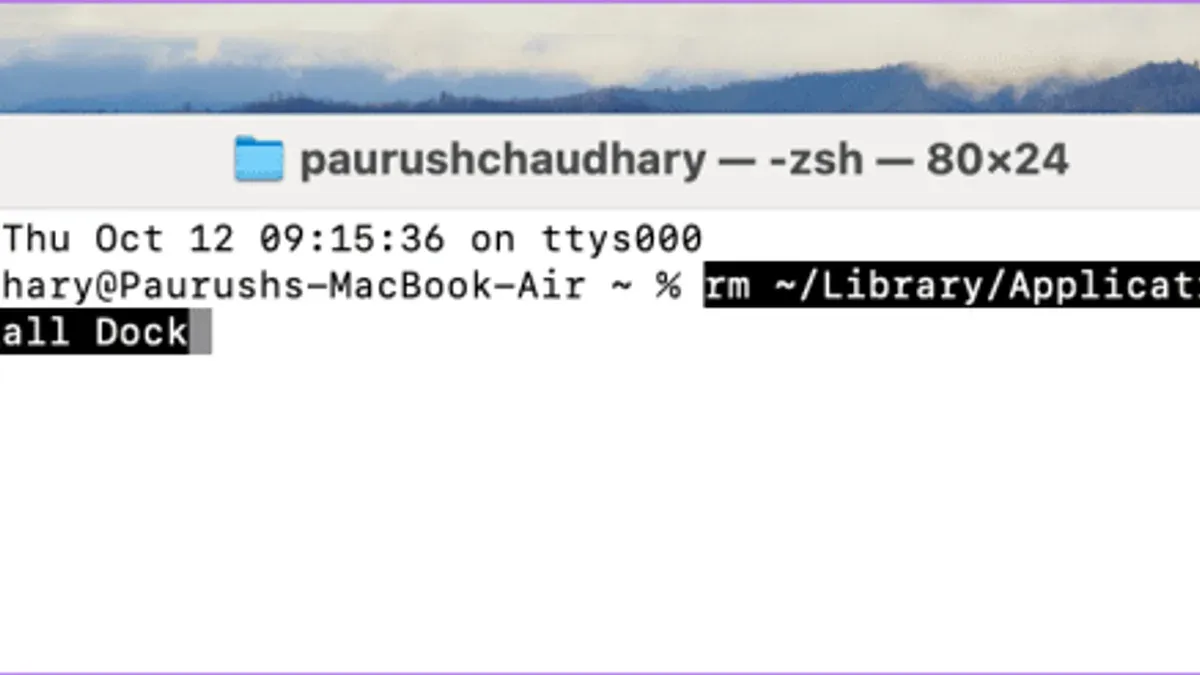
When successful, Terminal will return to a command prompt without error messages. The Dock briefly disappearing confirms the restart took effect.
Note: No output text appears after these commands if they run correctly. If you see errors, ensure you have administrator access and typed the commands exactly.
How to delete and remove items from Launchpad on Mac
You can manage app icons in Launchpad to keep your workspace organized. For apps downloaded from the App Store, deletion is straightforward. Press and hold any app icon until they start to jiggle, then click the small “X” button that appears on the app you want to remove. This will uninstall the app, and it will disappear from Launchpad.
If an app does not show an “X” button, it may not be deletable via Launchpad. For these, you can try dragging the app icon out of Launchpad. Simply click and drag the icon away from the Launchpad window; if the app is removable this way, it will disappear. However, this method mostly works for apps that are not tied to the system.
Some apps, especially pre-installed system apps like Safari, Mail, or Messages, cannot be deleted. These apps are protected by macOS to ensure system stability and functionality.
For stubborn or hidden apps that resist standard removal methods, you can use Terminal commands to delete them manually. For example, using sudo rm -rf with the exact app path can remove stubborn apps, but this requires caution as it can affect system files if used improperly.
- Open Launchpad and find the app you want to delete.
- Press and hold the app icon until it jiggles.
- If an “X” appears, click it to delete the app. You should see the app icon vanish from Launchpad.
- If no “X” appears, try dragging the app icon out of Launchpad; if successful, the icon disappears.
- For apps that remain, consider using Terminal commands carefully or uninstall via Finder by navigating to the Applications folder.
Keep in mind that deleting apps may remove associated data. Always back up important information before proceeding with app removal.
How to get Launchpad back on Mac if it disappeared
If the Launchpad icon or functionality vanishes from your Mac, start by verifying that the Launchpad application still exists. Open Finder and navigate to the /Applications/ folder. Look for Launchpad.app. If it’s missing, this indicates a deeper system issue that may require reinstallation of macOS components.
If Launchpad.app is present, you can manually add the icon back to the Dock to restore quick access. Follow these steps:
- Open Finder and go to the /Applications/ folder.
- Find Launchpad.app.
- Click and drag the Launchpad icon to the Dock, placing it where you want it to appear.
- Release the icon to drop it into the Dock.
Once added, clicking the icon should open Launchpad as expected.
If the icon is present but Launchpad itself is unresponsive or not displaying apps correctly, resetting its database through Terminal can help. Use the command defaults delete com.apple.dock; killall Dock to clear and restart the Dock and Launchpad database. You should see the Dock disappear briefly and then reappear with default settings restored.
In rare cases, if Launchpad remains missing or dysfunctional after these steps, reinstalling macOS system components might be necessary. This can be done without erasing your data by booting into Recovery Mode and selecting the option to reinstall macOS. This process refreshes core system files, including Launchpad, while preserving your files and settings.
How to add Launchpad to Dock on Mac
Adding Launchpad to your Dock gives you quick access to all your apps in one place. Here’s a simple way to add it using Finder and customize its keyboard shortcut for even easier use.
- Open Finder and go to the Applications folder. You should see Launchpad.app listed among your apps. This confirms the app is present on your Mac.
- Click and hold the Launchpad.app icon, then drag it down to your Dock. Release the icon where you want it placed. You should now see the Launchpad icon appear in the Dock for easy access.
- If the Launchpad icon is already in the Dock but not visible, try removing it by right-clicking (or Control-clicking) the icon and selecting Options > Remove from Dock. Then repeat the drag-and-drop step to re-add it. This can resolve visibility or functionality glitches.
- To set or change the keyboard shortcut for Launchpad, open System Preferences and navigate to Keyboard > Shortcuts > Launchpad & Dock. Here you can assign a convenient key combination that opens Launchpad instantly.
Using screenshots alongside these steps can help visualize dragging Launchpad.app from Finder to the Dock and selecting options in System Preferences.
Troubleshooting common Launchpad issues after reset
If you find Launchpad icons missing or not updating after a reset, this often indicates that the Dock process did not restart properly or the database did not refresh. You may see a blank Launchpad or outdated app listings. To fix this, try manually restarting the Dock by entering killall Dock in Terminal. The Dock will disappear briefly and then reload, refreshing Launchpad.
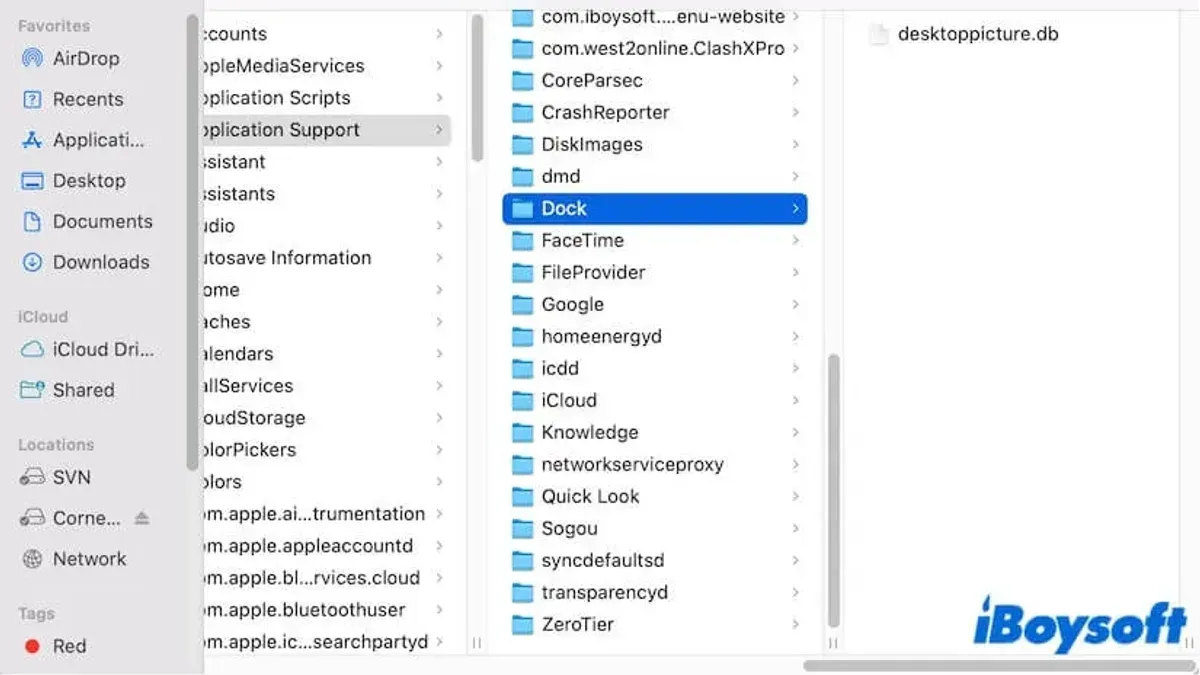
Sometimes apps you deleted reappear in Launchpad. This happens if the apps remain in your Applications folder or if the database did not update. Verify the apps are fully removed from /Applications and then reset Launchpad again. You can also clear the Launchpad database cache by deleting ~/Library/Application Support/Dock/*.db files before restarting the Dock.
If Launchpad does not open at all or the Dock does not restart properly, you might encounter Terminal errors like "Operation not permitted" or the Dock freezing. These symptoms usually stem from permissions issues. Ensure you are running Terminal commands with administrator privileges by using sudo. You may be prompted for your password. Also, check System Preferences > Security & Privacy > Privacy > Full Disk Access and add Terminal there if needed.
When Terminal outputs errors such as "Could not find the specified domain" or "Failed to connect to Dock", it indicates the Dock is unresponsive. Restart your Mac to reset system services, then try the commands again.
- Open Terminal and run sudo killall Dock. Enter your password when prompted. The Dock should reload automatically.
- If icons are still missing, delete the Launchpad database files by running rm ~/Library/Application\ Support/Dock/*.db.
- Restart the Dock again with killall Dock. Launchpad should now show updated icons.
- If apps reappear after deletion, confirm the apps are removed from the Applications folder in Finder, then repeat the above steps.
- If permission errors occur, go to System Preferences > Security & Privacy > Privacy > Full Disk Access, add Terminal to the list, and retry the commands.
- As a last resort, reboot your Mac to clear any stuck processes interfering with Launchpad and Dock.
- How to Change Your Default Shell to Bash in Mac Terminal
- How to Use Aliases in zsh on Mac Terminal: A Practical Guide
- How to Check Mac Temperature Using Powermetrics in Terminal
- How to Restart Your Mac from the Command Line in Terminal
Frequently asked questions
How to get to launchpad on mac?
You can get to Launchpad on your Mac by clicking its icon in the Dock, which looks like a silver rocket. Alternatively, use the four-finger pinch gesture on your trackpad or press the F4 key on Apple keyboards that have it. You can also open Launchpad via Spotlight by pressing Command + Space and typing "Launchpad."
How to delete from launchpad on mac?
To delete an app from Launchpad, click and hold any app icon until they all start to jiggle. Then, click the small “X” that appears on apps that were downloaded from the App Store. Apps that are part of macOS or installed by other means won’t show the “X” and must be deleted from Finder or the Applications folder.
How to access launchpad on mac?
Access Launchpad by clicking its icon in the Dock or using the four-finger pinch gesture on your trackpad. You can also press the F4 key on your Apple keyboard, or open Spotlight (Command + Space), type "Launchpad," and press Enter to launch it directly.
How to find launchpad on mac?
Launchpad is usually found in the Dock by default, represented by a rocket icon. If it's not visible, you can find it in the Applications folder or search for it using Spotlight by pressing Command + Space and typing "Launchpad."
How to reset launchpad mac?
Resetting Launchpad requires using Terminal commands. Open Terminal and enter the command to reset the Launchpad database, which clears layout and app arrangement. This action restores the default Launchpad layout but does not delete any apps from your Mac.
What this guide does not cover and who should look elsewhere
This guide does not cover resetting Launchpad on Macs managed by enterprise or school IT policies, where system settings may be locked or restricted. Using Terminal commands to reset Launchpad will remove all custom app arrangements and cannot be undone. Additionally, some system apps cannot be deleted or removed from Launchpad due to macOS restrictions.
If you are uncomfortable using Terminal or if your Mac is managed by an organization with administrative controls, consult your IT department or consider using the standard macOS interface options for managing Launchpad.
The single most useful next step after resetting Launchpad is to customize your app layout again by dragging icons into the desired order or grouping them into folders. This step helps restore your preferred organization and makes it easier to find frequently used apps quickly.



