How to See Login History in Mac Terminal: Step-by-Step Guide
Discover how to view your Mac's login history using Terminal commands to monitor access and ensure your device's security.
You suspect someone else might have accessed your Mac, or you want to verify your own login activity for security reasons. Knowing exactly how to see login history in Mac Terminal can help you confirm when and how your device was accessed.
This article guides you step-by-step through retrieving your Mac's login history using Terminal commands. Beyond simple login records, it also covers checking detailed logs for login events, viewing Apple ID login activity related to your Mac, and exploring your Terminal command and browsing histories. This comprehensive approach helps you audit user activity and troubleshoot access or security concerns directly from the command line.
Key takeaways
- Use the 'last' command in Terminal to view recent login sessions on your Mac.
- Check system log files with 'log show' for detailed login event data.
- Review Apple ID login activity via your Apple account settings to detect external access.
- Access Terminal command history with the 'history' command to monitor your command usage.
- Common issues include permission restrictions and interpreting raw log data correctly.
Before you start: What you need to check login history in Mac Terminal
To access and review login history via Mac Terminal, you need to have the Terminal app available and the correct user permissions. The Terminal is located in the Utilities folder inside Applications, or you can search for it using Spotlight. Basic familiarity with navigating the Terminal and typing commands accurately is necessary to avoid errors.
Login history is recorded in system log files such as /var/log/wtmp and /var/log/asl, while command history is stored in shell-specific history files like ~/.bash_history or ~/.zsh_history depending on your shell. Some log files require administrator privileges to view, so you may need to use sudo commands and enter your password.
Common commands you will use include last for login history, cat or less for viewing files, and shell built-ins like history to see your command usage. Being prepared with these commands and knowing where the relevant files reside will streamline your audit process.
- Open Terminal from Applications > Utilities or Spotlight search. You should see a command prompt ending with a
$symbol, indicating you are a standard user. - Type
whoamiand press Enter. This confirms your current user identity. - Try
lastand press Enter. This command lists recent login events; if you see permission errors, you may need to precede it withsudo. - Check your shell by typing
echo $SHELL. The output determines whether your command history file is~/.bash_historyor~/.zsh_history. - Use
ls -l ~/.bash_history ~/.zsh_historyto verify if these history files exist and their permissions.
Below is a typical Terminal interface screenshot showing the prompt and some basic commands typed, illustrating what you should expect when prepared.
How to find login history on Mac using Terminal commands
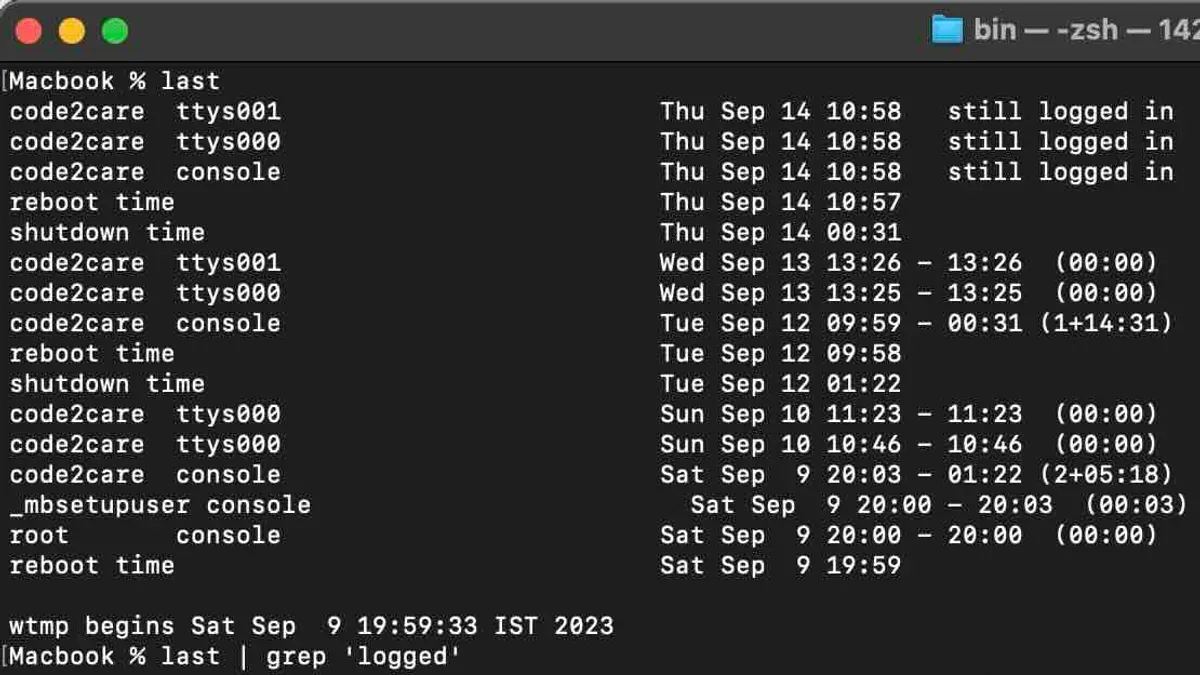
To view recent login sessions on your Mac, use the last command in Terminal. This command lists user logins, reboots, and shutdowns in reverse chronological order.
- Open Terminal.
- Type last and press Enter. You will see entries showing the username, terminal (e.g., console, ttys000), IP address for remote logins, login time, and session duration or logout time.
- Review the output; for example, a typical line might be: john console 192.168.1.5 Sat Oct 10 09:00 - 12:00 (03:00), indicating user john logged in locally from that IP address for three hours.
- To filter login history for a specific user, type last username. Replace username with the account name you want to check.
- For current active sessions, use the who command to see who is logged in now, including terminals and login times.
- The w command provides similar information but also shows what each user is currently doing, such as running processes.
Compared to last, which shows historical sessions, who and w focus on current activity. Use them together for a comprehensive view of login states.
How to check logs on Mac with Terminal for detailed login events
For a more granular view of login and authentication activities on your Mac, the log show command accesses the unified logging system, which captures detailed event records. This method provides insights beyond basic login times, including system processes and authentication attempts.
- Open Terminal and enter the following command to search for login-related events:
log show --predicate 'eventMessage CONTAINS[c] "loginwindow" OR eventMessage CONTAINS[c] "authentication"' --info --last 1d
You should see a list of log entries from the past day containing the keywords loginwindow or authentication, showing detailed timestamps and event messages. - To specify a custom time range, adjust the --last parameter to a period such as 7d for seven days or use --start and --end with ISO 8601 date/time strings:
log show --predicate 'eventMessage CONTAINS[c] "loginwindow"' --start "2026-10-10 00:00:00" --end "2026-10-16 23:59:59" --info
This returns log entries from the specified dates. - Note that access to some logs may require administrator privileges, so if you encounter permission errors, prepend sudo to the command. Also, macOS retains unified logs only for a limited period, so older events might not be available.
Sample output lines include timestamps, process identifiers, and messages such as:
2026-10-16 08:45:12.345 loginwindow[123]: User "username" logged in successfully
or
2026-10-16 09:10:45.678 securityd[456]: Authentication attempt failed for user "username"
How to check Apple ID login history related to your Mac
Apple ID login history is not directly accessible through the Mac Terminal. To review your Apple ID login activity, you need to use the Apple ID management website where you can see recent sign-ins and devices associated with your account.
- Go to the Apple ID website and sign in with your Apple ID credentials. You will see a section labeled "Devices" showing all devices linked to your Apple ID.
- Click on any device to view details such as model, OS version, and the last time it was connected to your account. This helps identify if your Mac has been accessed recently via Apple ID.
- Within the Security section, check the "Recent Activity" or "Sign-in and Security Notifications" to review any unusual login attempts or alerts sent by Apple.
- Back on your Mac Terminal, you can confirm your device's iCloud status and association by running
defaults read MobileMeAccounts. This command outputs account details including iCloud tokens and device identifiers. - Use
scutil --nc listto check network connections related to Apple services, andsystem_profiler SPiCloudDataTypefor detailed iCloud configuration on your Mac.
To maintain security, enable two-factor authentication for your Apple ID and regularly monitor your email for login alerts from Apple. Promptly revoke access for any unknown devices visible in your Apple ID device list.
How to see your Mac Terminal search command history
Your Mac records the commands you enter in Terminal within shell history files, primarily .zsh_history for the Z shell (default in recent macOS versions) or .bash_history if you use Bash. These files store your past commands to help recall and reuse them efficiently.
To display your command history, type history in Terminal. This lists numbered commands you've previously executed, starting from the oldest to the most recent.
- Open Terminal and type
history, then press Enter.
You should see a numbered list of your past commands, for example:
1 ls
2 cd Documents
3 git status - To search for a specific command keyword within your history, use
history | grep <keyword>. For example,history | grep gitfilters history to show only commands containing "git".
This helps find particular commands without scrolling through the entire list. - View your raw history file by typing
cat ~/.zsh_historyorcat ~/.bash_historydepending on your shell.
This shows your command history as stored in the file, useful for manual inspection. - Customize history behavior by setting environment variables like
HISTSIZE(number of commands stored in memory) andHISTFILESIZE(number of commands saved to the history file) in your shell configuration file (~/.zshrcor~/.bash_profile).
For example, addingHISTSIZE=10000increases the in-memory command history to 10,000 entries.
By reviewing and searching your command history, you can efficiently recall past Terminal activities, audit your command usage, and troubleshoot steps you previously executed.
How to check search history and browsing history on Mac
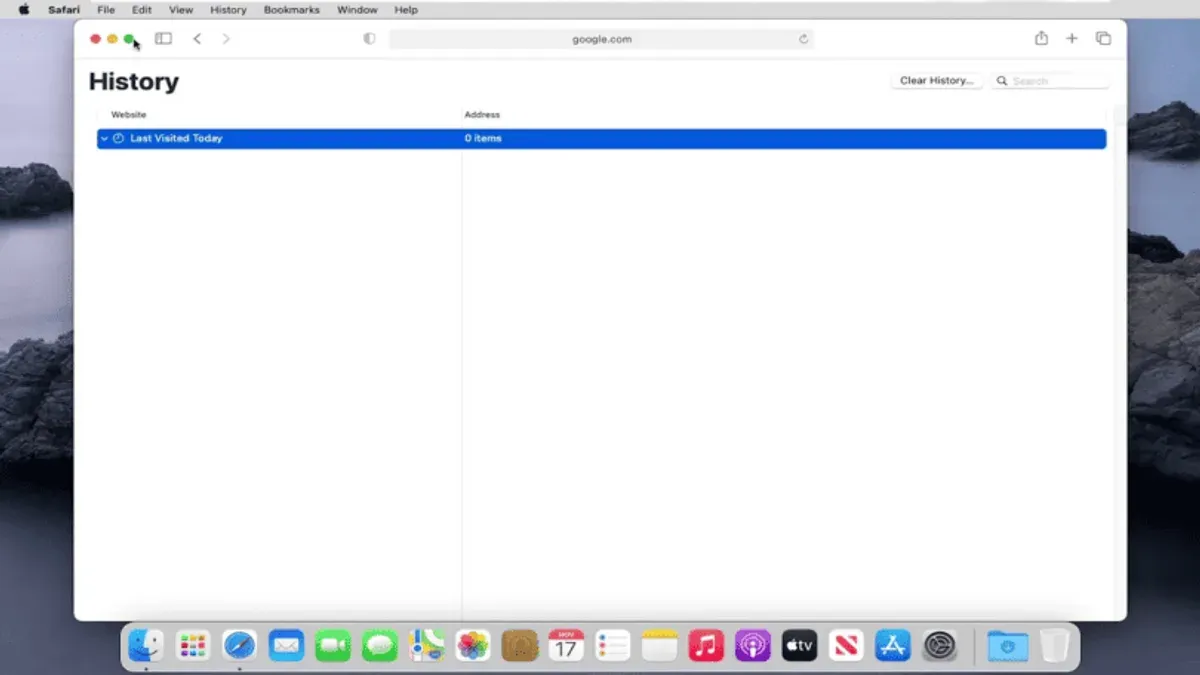
Terminal does not track your web browsing or general search history. To view your browsing history, you need to access it directly through the web browsers you use.
Viewing history in Safari
- Open Safari from your Dock or Applications folder.
- Click on the "History" menu in the top menu bar.
- Select "Show All History." You will see a list of visited websites organized by date.
- Click on any entry to revisit the page. Use the search field in the top-right corner to filter history by keyword or URL.
Safari also allows you to clear your browsing history via "History" > "Clear History," where you can choose the time range to delete.
Viewing history in other browsers
Other browsers like Chrome or Firefox have similar history access. Typically, press Command + Y in Chrome or Command + Shift + H in Firefox to open the history tab. You can view, search, and manage your browsing history there.
Search history outside browsers
System-wide search history on Mac is limited. Spotlight search results do not keep a detailed or accessible search log. Privacy settings may restrict data collection for searches and usage.
Remember that clearing your browser history helps protect your privacy but may remove useful records of past activity.
Troubleshooting common issues when viewing login and command history
If the last command shows no data or incomplete entries, it may be due to log rotation or system cleanup policies removing older records. MacOS typically cycles log files, so only recent sessions appear. Consider checking system log archives if available.
Encountering permission denied errors when accessing logs or running commands like log show indicates insufficient privileges. Run Terminal as an administrator or prepend commands with sudo to gain necessary access. For example, sudo log show --predicate 'eventMessage contains "login"' should prompt for your password and display logs if permissions are correct.
Terminal history might be incomplete or missing if your shell configuration limits history size or disables history recording. Verify your shell’s history environment variables, such as HISTSIZE and HISTFILE. Also, history files like .zsh_history can be corrupted or cleared manually.
System log rotation and deletion policies can remove older login and command records. MacOS manages logs automatically, so data older than a few weeks might no longer be accessible. Regular backups or exporting logs promptly can help retain important information.
- Run
lastin Terminal. If no data appears, check for rotated logs by listing files in/var/log. You should see files likeasl.logor archived logs. - If you get a permission error, retry the command with
sudo. You should then see the expected output after entering your password. - Check shell history by running
echo $HISTSIZE. A zero or very low number indicates limited history retention. Adjust this variable in your shell config file if needed. - Review the modification date of your history file (e.g.,
~/.zsh_history). If it’s recent but commands are missing, the file may be corrupted or cleared.
How to interpret login history outputs to enhance Mac security
Analyzing your Mac's login history helps detect unauthorized access and suspicious patterns. Begin by scanning for unfamiliar usernames or IP addresses in the last command output. These entries may indicate someone else accessing your system.
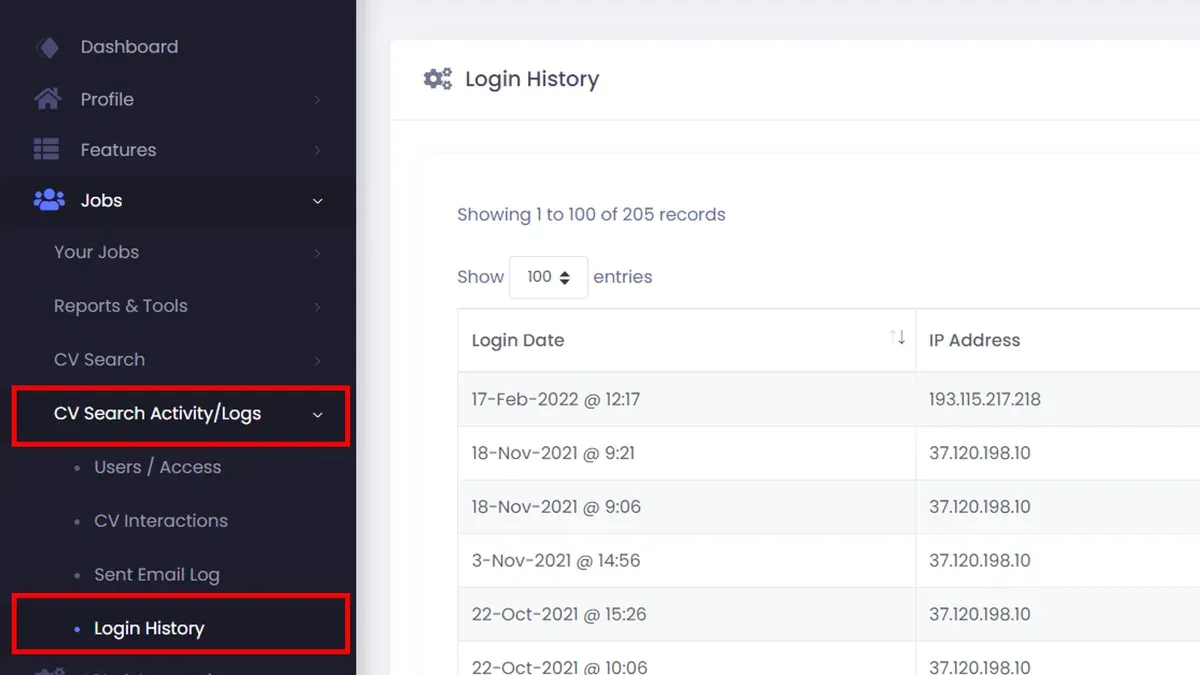
Look for unusual login times, such as activity during late-night hours when you normally don't use your Mac, or repeated failed login attempts which could signal brute-force attacks.
Use login history as a trigger to perform a security audit or change passwords if you notice anything suspicious.
However, keep in mind the limitations: login history only records successful logins and some failed attempts, so it might not capture all intrusion attempts or other security events.
- Run the last command in Terminal and examine the list of login sessions.
Successful output: You will see usernames, terminal types, IP addresses, and timestamps for each session. - Identify any entries with unknown usernames or IP addresses.
Successful output: Highlighted suspicious entries that do not match your known accounts or usual locations. - Check the login timestamps for unusual hours or frequent logins in a short period.
Successful output: Notice of any logins outside normal usage patterns or repeated access attempts. - Spot repeated failed login attempts by combining the lastb command (if available) or reviewing system logs.
Successful output: Detection of multiple failed logins that might indicate password guessing. - If suspicious activity is found, immediately change your user and Apple ID passwords and consider running a full security audit.
Successful output: Enhanced security posture and reduced risk of unauthorized access.
For example, if last shows a login from unknownuser at 3:00 AM from an IP you don't recognize, this is a red flag prompting further investigation.
- How to See Wi-Fi Password in Mac Terminal: A Clear Step-by-Step Guide
- How to Generate an SSH Key in Mac Terminal: A Step-by-Step Guide
- How to Use SSH in Mac Terminal: A Clear Step-by-Step Guide
- How to Use sudo Safely in Mac Terminal: A Step-by-Step Guide
Frequently asked questions
How to go to history on mac?
To access your history on a Mac, you typically start by opening the relevant app. For web browsing history, open Safari and click on the "History" menu in the menu bar. For Terminal command history, open Terminal and use the arrow keys to scroll through past commands or type history to list them.
How to find history on mac?
Finding history depends on the type of history you want. For login history, use Terminal commands like last. For browsing history, check Safari's History menu or the History tab in other browsers. Search history can be found within specific apps or by reviewing system logs using Terminal.
How to access history on apple mac?
Accessing history on Apple Mac involves navigating to the appropriate application or system tool. For example, Safari’s browsing history is under the "History" menu, while Terminal command history is accessible via the history command or arrow keys. For detailed login events, Terminal commands like last and system logs provide comprehensive records.
How to go to history on macbook?
On a MacBook, history access mirrors that on other Mac computers. Open the app related to the history you need, such as Safari for browsing history via the "History" menu. For Terminal, open it and use commands like history or last to see command and login histories respectively.
How to check search history on mac?
Checking search history depends on where you searched. For web searches, check your browser’s History menu or settings. For Spotlight searches on your Mac, there isn’t a built-in way to view a full search history, but Terminal logs and system diagnostic reports sometimes contain recent activity. Be aware that some histories may be limited or cleared automatically.
What this advice does not cover and when to seek other options
Terminal commands reveal login and command history stored locally on your Mac, but they do not provide real-time monitoring or capture cloud-based login events from services like iCloud or third-party apps. Apple ID login history is limited to what Apple’s official account management tools show and cannot be fully audited via Terminal. Some system logs require administrator privileges to access, so certain login events might remain hidden. Additionally, your shell’s command history depends on its configuration and can be cleared or altered by you or other users, meaning it may not be a complete or fully accurate record of all commands executed.
For continuous monitoring, enterprise-level auditing, or comprehensive cloud account activity, consider dedicated security software or Apple’s security features within your Apple ID account online. If you suspect unauthorized access or need detailed forensic analysis, consulting a professional or Apple Support is advisable.
The most useful next step is to regularly review the Console app on your Mac for detailed system logs alongside your Terminal commands. This combined approach helps you catch anomalies early and maintain a clearer picture of your Mac’s login and command history.