
How to Fix a User Account Disappeared on Mac
Discover effective ways to fix a user account disappeared on Mac by restoring or managing accounts based on your macOS version and situation.
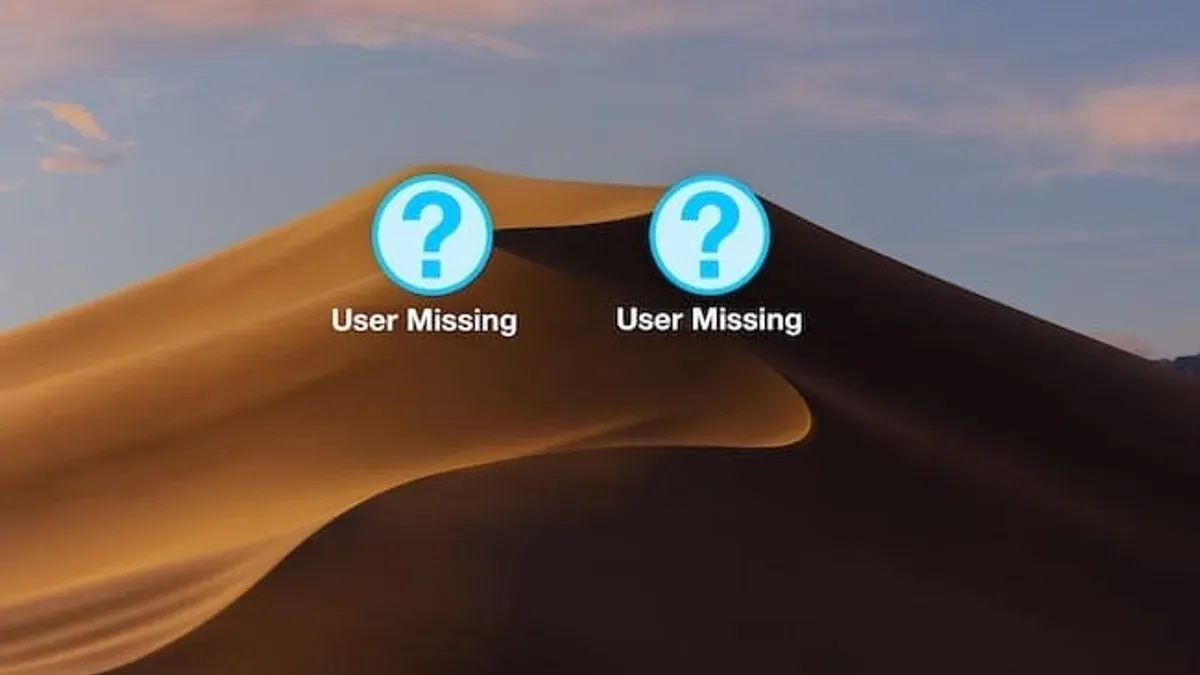
If your user account disappeared on Mac, the fix depends on whether it was deleted or simply hidden.
You’ll learn how to decide the best solution based on your situation and how account management differs by macOS version and device.
Last verified November 2026 against iDownloadBlog.com, Apple Support, 4macos (full list at the end).
Prepare your Mac before restoring or deleting user accounts
Without these, you cannot make changes to user accounts or restore deleted ones.
Account changes can affect stored files, so ensure your backups are current and complete.
Understand the status of the missing account’s home folder. If the home folder was saved as a disk image during deletion, it will be located in /Users/Deleted Users with a .dmg extension starting with the account name. If it was left intact, it remains in the standard user folder. Restoration requires a saved home folder; if it was deleted permanently, you cannot recover the account.
When deleting a user account, macOS offers three options regarding the home folder: save it as a disk image, leave it unchanged, or delete it permanently. Your choice here directly affects whether you can restore the account later.
Tip: Check /Users/Deleted Users for disk images of deleted accounts before proceeding with restoration.
How to restore a deleted user account on Mac
If you deleted a user account but saved its home folder as a disk image, you can restore the account by recreating it and reattaching the folder. The disk image is stored in the /Users/Deleted Users folder and has a.dmg extension that starts with the account name. Restoration is only possible if this disk image or a preserved home folder exists; otherwise, recovery cannot proceed.
- Open Finder and navigate to
/Users/Deleted Users. Locate the disk image file named with the deleted account's username and ending in.dmg. This confirms your saved home folder is available. - Create a new user account with administrator privileges. When prompted for the Account Name, enter the exact same name as the original deleted account’s home folder. This exact match is essential to reuse the existing folder.
- Copy the disk image’s contents back to the
/Usersdirectory, ensuring the home folder is placed directly in this location. Assign proper permissions to the folder to match the new user account. - Restart your Mac. After reboot, the restored user account should appear on the login screen and function normally with all data intact.
Tip: If the Account Name differs even slightly, macOS will create a new home folder instead of linking to the saved one, causing data loss.
This restoration process applies to accounts deleted with their home folder saved as a disk image or left unchanged. If the home folder was removed entirely, restoration is not possible.
How to delete a user account on MacBook or Mac
- Open System Settings and navigate to Users & Groups. You will see a list of user accounts on your Mac.
- Select the user account you want to delete. After selection, the Remove button will appear below the user list.
- Click the Remove button. A dialog will prompt you to choose what to do with the user’s home folder.
- Choose one of the three options for the home folder: Save as disk image, Don’t change home folder, or Delete home folder. Saving as a disk image archives the user’s data in a.dmg file stored in /Users/Deleted Users. Leaving it unchanged keeps the home folder intact in its original location. Deleting it permanently removes all the user’s data from your Mac.
- Confirm the deletion. The user account and the chosen home folder option will be processed accordingly.
- Restart your Mac if prompted to complete the removal process and ensure all changes take effect properly.
Tip: Saving the home folder as a disk image is the safest choice if you want to keep the user’s data accessible after deletion without cluttering your current user folders.
Confirm your selection carefully before proceeding.
Learn more about deleting user accounts safely.
How to remove Microsoft account from Mac
This means your account remains active online and can be accessed from other devices.
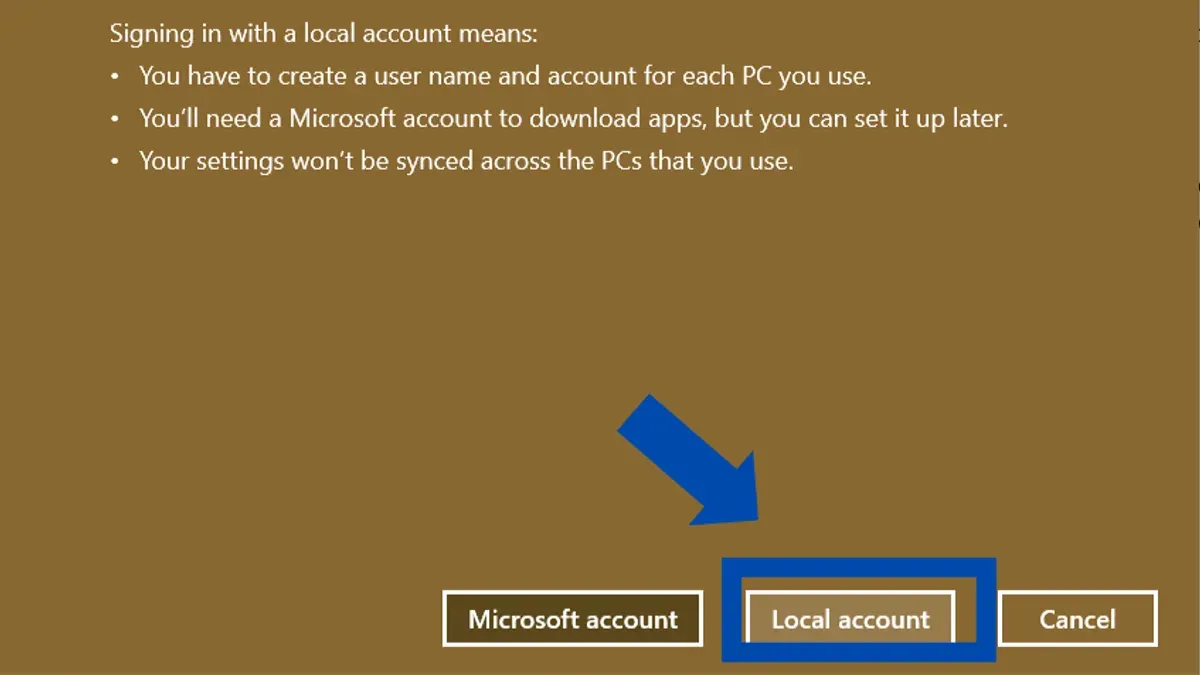
- Open the Microsoft app or service where your account is signed in, such as Outlook or OneDrive.
- Locate the account or profile settings within the app, then select the option to sign out or remove the account.
- Next, go to your Mac’s System Settings and navigate to the section where accounts or internet accounts are managed.
- Find the Microsoft account in the list and choose to remove or sign out from it. You should see confirmation that local data and sign-in info are deleted from your Mac.
- To complete the process, restart your Mac or sign out of your user profile to ensure all cached data is cleared.
Tip: Removing the Microsoft account from your Mac only affects device-specific data. Your actual Microsoft account and its data remain intact and accessible elsewhere.
How to remove Apple account from Mac
This action disconnects iCloud services and stops syncing data across your devices.
- Open System Settings from the Apple menu.
- Select Apple ID from the sidebar to access your account settings.
- Click the Sign Out button found at the bottom of the Apple ID pane.
- Enter your Apple ID password when prompted to confirm the sign-out process.
- Choose which iCloud data to keep on your Mac, such as contacts or calendars, if offered the option.
- Confirm the sign-out. The Mac will disconnect from iCloud, and services like Find My Mac, iCloud Drive, Photos, and Messages syncing will stop.
These include access to purchased apps, iCloud backups, and device syncing.
Tip: Ensure you know your Apple ID password before signing out, as you will need it to reactivate services or sign back in later.
How to fix a missing user account that still exists on Mac
- Open System Settings and navigate to Users & Groups. Locate the missing user account in the list and click the Info button next to it. If you see an option to Enable Account, select it. This action makes the disabled user visible again.
- Go to Lock Screen in System Settings. Find the setting Display login window as and set it to List of users. This will change the login screen to show all available accounts instead of requiring manual username and password entry.
- Return to Users & Groups and select Login Options. Here, ensure that Automatic login is turned off. When automatic login is enabled, it bypasses the user selection screen and can make other user accounts appear missing.
- Restart your Mac to apply these changes. On reboot, you should see the list of all active user accounts, including the one that was previously missing.
Tip: If the missing account remains hidden, double-check that it is not set as a disabled user in Users & Groups, as this is a common reason for invisibility on the login screen.
More details on resolving hidden accounts.
How to reset a forgotten Mac user account password
If you have administrator access on your Mac, you can reset another user’s password through System Settings. This restores login ability but can lead to losing saved passwords, keychain items, and access to encrypted files for that user.
- Open the Apple menu and select System Settings.
- Navigate to Users & Groups.
- Select the user account whose password you want to reset.
- Click the Info button next to the user name.
- Choose Change Password and enter a new password for the account.
- Confirm the change and close System Settings.
After completing these steps, the user can log in with the new password. However, resetting a password this way may cause the user to lose access to saved passwords, keychain data, and encrypted files associated with the old password. Before resetting, consider backing up keychain data or using Apple’s official account recovery options to avoid data loss.
Tip: If you are not sure about the consequences, advise the user to try password recovery methods available on the login screen before resetting via an administrator account.
Common pitfalls when restoring or deleting user accounts on Mac
Restoring or deleting user accounts on your Mac requires precision to avoid data loss and access issues. One critical mistake is creating a new user account with the same name as a deleted one without restoring its original home folder. This results in a new internal user ID that lacks permission to access the original files, leaving them effectively locked out.
Another frequent error is not matching the Account Name exactly to the restored home folder when recreating a deleted account. If these names do not align perfectly, macOS will not offer the option to use the existing home folder, preventing proper restoration and causing you to start with a fresh, empty user directory.
Doing so may cause loss of access to saved passwords, keychain items, and encrypted files tied to that account, making some data irretrievable.
This can interrupt disk operations or cause data corruption, worsening the situation instead of resolving it.
- Create the user account with the exact original Account Name; you should see the option to link to the existing home folder.
- Restore the home folder disk image from
/Users/Deleted Userswith the matching name; confirm the files are accessible. - Reset passwords only when necessary and inform the user about potential keychain or encrypted data issues; verify access after changes.
- Avoid force shutdowns; instead, use proper restart procedures to prevent disk damage and data loss.
Tip: Always verify username spelling and case sensitivity when restoring accounts to avoid hidden mismatches.
Following these steps carefully prevents common failures and preserves your data integrity during user account management. More details on pitfalls.
How account management differs by macOS version and device
Managing user accounts on a Mac varies significantly between macOS Ventura or later and earlier versions. The primary difference lies in the system interface, which affects where you find settings and how you interact with account controls.

| Feature | macOS Ventura or later | Older macOS versions |
|---|---|---|
| User account management | Apple menu > System Settings > Users & Groups > Add User button below user list | Apple menu > System Preferences > Users & Groups > Add User button (location varies) |
| Enable or change user account password | Users & Groups > Select user > Info button > Enable account or Change Password | Users & Groups > Select user > Unlock > Change Password or Enable Account (button names vary) |
| Login window display settings | System Settings > Lock Screen > Display login window as > List of users | System Preferences > Users & Groups > Login Options > Display login window as > List of users |
| Automatic login | May be disabled if FileVault or startup security requires authentication | May be disabled for the same security reasons |
Tip: When adjusting user visibility at login, check the Lock Screen settings on Ventura or later; earlier versions use Login Options under Users & Groups.
Learn more about fixing missing Mac user accounts.
What to do after restoring or deleting a user account
- Check the login screen to confirm the restored or remaining user account appears. You should see the account listed and be able to select it for login.
- Log in using the restored or existing account credentials. Successful login indicates the account is active and accessible.
- Verify access to the home folder by opening the Finder and navigating to the user’s directory. Ensure all expected files and folders are present and open without permission errors.
- Confirm that file and folder permissions are correct. If you encounter access issues, adjust permissions using the Get Info window or Terminal commands to match the account ownership.
- Test keychain and encrypted data access if you reset the account password. Note that resetting a password from an administrator account can cause loss of saved passwords and encrypted items, so verify these are intact or reconfigure them as necessary.
- Set up regular backups for the restored or existing user account’s data. Use Time Machine or another backup solution to prevent data loss in the future.
- Review system settings such as login options and account enabling to ensure the user experience matches your needs.
- Monitor the account for a few days to catch any unexpected issues with file access or login stability that may require additional troubleshooting.
Tip: Restoring a deleted user account involves copying the home folder disk image back to /Users before recreating the account; verifying this step is complete avoids missing data problems.
Maintaining backups and checking permissions regularly after restoration or deletion keeps your Mac user accounts secure and functional over time.
- How to Fix a Forgotten Firmware Password on Your Mac
- How to Fix a Mac Stuck in Recovery Mode: Step-by-Step Solutions
- How to Fix Your Mac Turning On by Itself
- Mac Won't Wake from Sleep: How to Fix It
Frequently asked questions
How to delete account on mac?
To delete an account on Mac, open System Settings, navigate to Users & Groups, select the user account, and click the minus (–) button. You will be prompted to choose whether to save or delete the home folder. Confirm your choice to complete the deletion.
How to remove account from mac?
Removing an account from a Mac follows the same process as deleting it: access Users & Groups in System Settings, select the account, and remove it using the minus (–) button. This action removes the account from the login screen and optionally deletes its home folder.
How to delete an account on macbook?
Deleting an account on a MacBook is identical to a Mac desktop. Use System Settings > Users & Groups, select the account, click the minus (–) button, and decide how to handle the user’s data before confirming.
How do I remove an account from my Mac?
To remove an account, you must have administrator privileges. Go to System Settings > Users & Groups, select the account to remove, and click the minus (–) button. Decide whether to archive or delete the user’s home folder before finalizing the removal.
Why is my Mac user account locked and how do I fix it?
A Mac user account can be locked due to multiple failed login attempts or security settings. To fix this, you can reset the password through an administrator account or use recovery mode, but be aware resetting the password this way may cause loss of access to saved passwords and encrypted data.
Choosing the right approach depends on your specific situation. If your user account disappeared because it was deleted, restoring it from the disk image in /Users/Deleted Users is the safest route. When the account still exists but is hidden or inaccessible, adjusting visibility settings in System Settings > Users & Groups > Info can resolve the issue. For forgotten passwords, resetting from an administrator account works but risks losing access to some saved data. Removing Microsoft or Apple accounts requires separate steps to unlink credentials securely. Each method fits distinct scenarios, so identify your issue carefully before proceeding.
Documentation used
- How to restore a deleted user account with all files and folders on Mac — iDownloadBlog.com
- Restore a deleted user on Mac — Apple Support
- How to Fix a Mac User Account Missing from the Login Screen — 4macos
- Manage User Accounts in Windows | Microsoft Support — Microsoft Support



